





How to reduce ping and latency for smoother online gaming on Wi-Fi?

Understanding Ping and Latency for Online Gaming
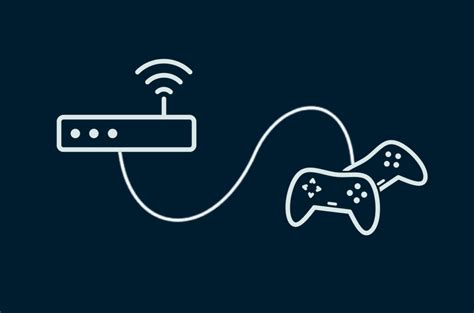
For any avid online gamer, few things are as frustrating as lag. The terms “ping” and “latency” are often used interchangeably to describe this delay, but they are crucial metrics that directly impact your gaming experience. Ping refers to the time it takes for a data packet to travel from your computer to a server and back again, measured in milliseconds (ms). Latency is the broader term for any delay in data transmission. High ping means a noticeable delay between your actions and what happens on screen, leading to missed shots, teleporting enemies, and overall frustration. While a wired Ethernet connection is always superior for gaming, significant improvements can be made to optimize your Wi-Fi setup.

Optimize Your Router Placement and Signal Strength
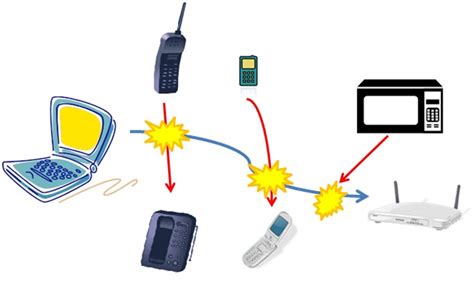
One of the simplest yet most effective steps you can take is to optimize your Wi-Fi router’s physical location. Routers emit signals in all directions, so placing yours in a central location within your home, away from walls and obstructions, can significantly improve coverage and signal strength. Avoid placing it near large metal objects, microwaves, cordless phones, or other electronic devices that can cause interference. Elevating the router, perhaps on a shelf, can also help its signal spread more effectively.
Leverage the 5GHz Wi-Fi Band
Most modern routers are dual-band, meaning they broadcast on both 2.4GHz and 5GHz frequencies. While the 2.4GHz band offers wider coverage and better wall penetration, it is also more susceptible to interference from common household devices and often more congested. The 5GHz band, conversely, offers faster speeds and lower latency over shorter distances, making it ideal for gaming. Ensure your gaming device is connected to the 5GHz network if possible. You may need to separate your Wi-Fi networks in your router settings (e.g., “MyWiFi-2.4GHz” and “MyWiFi-5GHz”) to manually choose the 5GHz option.
Minimize Interference and Network Congestion
Beyond router placement, other wireless devices can interfere with your Wi-Fi signal. Consider temporarily disabling Wi-Fi on devices not in use. Additionally, high network usage from other household members (streaming 4K video, large downloads, or multiple devices simultaneously) can consume bandwidth and increase latency. If possible, ask others to limit their internet usage during your gaming sessions. Some routers allow you to schedule Wi-Fi usage or prioritize devices.
Configure Quality of Service (QoS) Settings
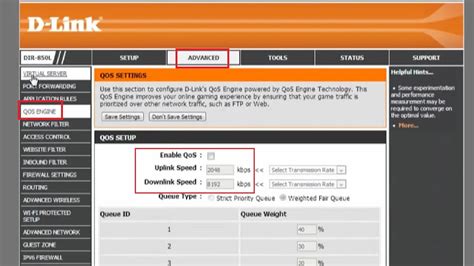
Many modern routers include Quality of Service (QoS) settings, which allow you to prioritize certain types of network traffic. By enabling QoS and setting your gaming device or specific game traffic to a higher priority, you can ensure that your game data gets preferential treatment over other activities like file downloads or video streaming. This can significantly reduce lag spikes even when your network is moderately busy. Consult your router’s manual or manufacturer’s website for instructions on how to access and configure QoS settings.
Update Router Firmware and Drivers
Outdated router firmware can lead to performance issues and security vulnerabilities. Router manufacturers frequently release updates that improve stability, performance, and introduce new features. Regularly check your router’s administration panel for firmware updates and install them. Similarly, ensure your computer’s Wi-Fi adapter drivers are up-to-date, as this can also impact wireless performance.
Consider a Powerline Adapter or Mesh Wi-Fi (If Ethernet Isn’t Possible)
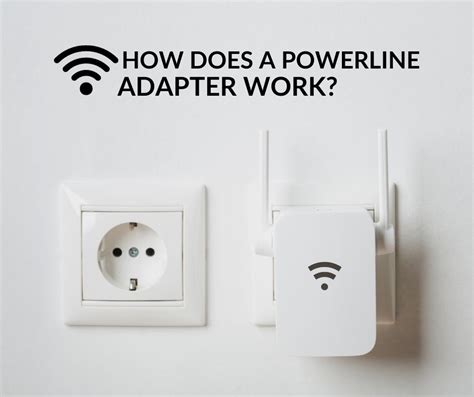
While an Ethernet cable directly connecting your PC or console to the router is the gold standard for minimal latency, it’s not always practical. Powerline adapters use your home’s electrical wiring to create a wired network connection, offering a more stable alternative to Wi-Fi for distant devices. Mesh Wi-Fi systems, on the other hand, extend your Wi-Fi coverage significantly with multiple nodes, often providing better performance than a single router, especially in larger homes.
Conclusion
Reducing ping and latency on Wi-Fi requires a multi-faceted approach. By optimizing your router’s placement, utilizing the 5GHz band, minimizing interference, configuring QoS, and keeping your hardware updated, you can significantly enhance your online gaming experience. While no Wi-Fi setup can perfectly mimic the stability of a wired connection, these steps will help you achieve the smoothest possible gameplay without the cable clutter.


