





How to resolve common mod conflicts & ensure mod compatibility?
Modding can breathe new life into your favorite games, offering countless hours of enhanced gameplay, stunning visuals, and exciting new content. However, the more mods you install, the higher the chance of encountering conflicts that can lead to crashes, bugs, or even corrupted save files. Ensuring mod compatibility is key to a smooth modding experience. This guide will walk you through common conflict types, preventative measures, and effective resolution strategies.
Understanding Mod Conflicts
Mod conflicts arise when two or more mods try to modify the same game file, record, or script in incompatible ways. Recognizing the types of conflicts is the first step towards resolving them:
- File Overwrites: One mod replaces files that another mod relies on, or two mods provide different versions of the same file (e.g., textures, meshes).
- Load Order Issues: The order in which mods are loaded determines which mod’s changes take precedence. Incorrect load order can cause features from one mod to be overridden by another, leading to unexpected behavior or missing content.
- Script Conflicts: Mods that alter core game scripts or introduce new, complex scripts can clash, resulting in strange behavior, infinite loading screens, or crashes.
- Plugin Conflicts (ESPs/ESMs): Many mods come as plugin files that modify game data records. When two plugins modify the same record, only one change will be applied based on load order, or they may combine in unintended ways.

Preparation and Prevention
Before diving into troubleshooting, a little preparation goes a long way.
1. Read Mod Descriptions Thoroughly
Always, always read the mod page. Authors often list known incompatibilities, required dependencies, and recommended load order placements. Pay attention to warnings about conflicting with specific types of mods (e.g., ‘Do not use with other lighting overhauls’).
2. Use a Reputable Mod Manager
Tools like Mod Organizer 2 (MO2) or Vortex are indispensable. They handle installation, uninstallation, load order, and even virtual file systems, allowing you to install multiple mods that modify the same files without actually overwriting them in your game directory. This makes testing and conflict resolution much safer and easier.
3. Backup Your Game and Saves
Before installing any new mods or making significant changes, back up your game installation and, crucially, your save files. This safety net can save you from having to reinstall your game from scratch or losing hours of progress.
Resolving Common Conflicts
1. Manage Your Load Order with LOOT
For games like Skyrim, Fallout, and others using plugin-based mods, Load Order Optimization Tool (LOOT) is essential. LOOT automatically sorts your plugins into an optimized load order, identifying potential conflicts and dirty edits. While not a magic bullet, it resolves a vast majority of load order issues and provides warnings for problems it can’t fix directly.
2. Utilize Conflict Resolution Tools (xEdit)
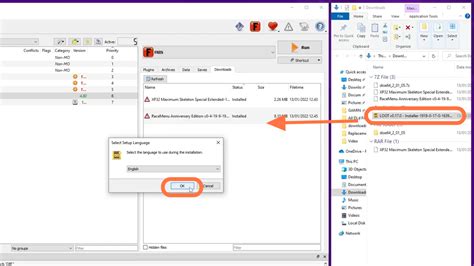
Tools like SSEEdit (for Skyrim Special Edition), FO4Edit (for Fallout 4), or the generic xEdit are powerful utilities for advanced conflict resolution. These tools allow you to view specific records that multiple plugins are trying to modify. You can then create a ‘merged patch’ or ‘bashed patch’ (using Wrye Bash) to manually resolve conflicts by choosing which mod’s changes you want to keep for each conflicting record.
- Identify Conflicts: xEdit highlights conflicting records in different colors.
- Manual Resolution: You can right-click and copy as override into a new patch, then manually adjust the values to combine desired changes from multiple mods.
- Bashed Patches (Wrye Bash): Wrye Bash can automatically merge leveled lists (items found in game), enabling mods to add items without overwriting each other’s additions.

3. Isolate the Problem
If your game is crashing or behaving erratically, the most effective troubleshooting method is to isolate the problematic mod. Disable half of your recently installed mods, then test. If the problem persists, disable another half of the remaining mods. If the problem disappears, re-enable the last batch in smaller groups until you pinpoint the culprit. This binary search method is time-consuming but highly effective.
4. Check for Compatibility Patches
Many popular mods have dedicated compatibility patches created by their authors or community members to ensure they work well together. Always search for “[Mod A] [Mod B] compatibility patch” on Nexus Mods or other modding sites.

5. Reinstall and Clean
Sometimes, a clean reinstall of a problematic mod can fix issues that arose during a corrupted download or installation. Additionally, for games like Skyrim, running specific cleaning tools (e.g., SSEEdit’s “Quick Auto Clean”) on base game plugins can resolve dirty edits that cause instability.
When to Seek Help
If you’ve exhausted all options, don’t hesitate to seek help from the modding community. Provide detailed information:
- Your game version.
- Your mod manager.
- A complete list of your installed mods and their load order (often exportable from your mod manager or LOOT).
- A description of the problem, including exact error messages or crash logs if available.
- Steps you’ve already taken to resolve the issue.
Forums like the Nexus Mods forums, Reddit’s r/skyrimmods, or game-specific modding communities are invaluable resources for expert advice.
Conclusion
Mod compatibility is a continuous process of learning and refinement. By understanding the types of conflicts, utilizing the right tools, and adopting a methodical approach to troubleshooting, you can overcome most modding challenges. Patience and persistence are your greatest allies in building a stable, personalized, and truly enhanced gaming experience.

