How to resolve common mod conflicts for stable gameplay?
Navigating the World of Modded Gaming
Modding can vastly enhance your gaming experience, introducing new content, mechanics, and visual overhauls. However, this freedom often comes with the challenge of mod conflicts, leading to crashes, freezes, graphical glitches, or unexpected game behavior. Resolving these issues is crucial for maintaining stable gameplay and enjoying your modded adventures without constant frustration.

Understanding Mod Conflicts and Their Impact
At its core, a mod conflict occurs when two or more modifications attempt to alter the same game asset, script, or record in a contradictory way. This can manifest in several forms:
- File Overwrites: One mod replaces files that another mod expects to be present, leading to missing textures, models, or incorrect data.
- Script Errors: Conflicting scripts can cause functionality breakdowns, quests failing to progress, or even immediate game crashes.
- Load Order Issues: Many games process mods in a specific sequence (load order). If mods that depend on others load too early, or if conflicting mods are loaded in an unfavorable order, instability can ensue.
Common Causes of Instability
Identifying the root cause is the first step towards a solution. Common culprits behind mod conflicts include:
- Incompatible Mods: Some mods are simply not designed to work together, often due to their extensive changes to core game systems.
- Outdated Mods: Mods developed for older game versions may not function correctly with the latest patches or other newer mods.
- Incorrect Installation: Manual installation errors, such as placing files in the wrong directory, are frequent sources of problems.
- Missing Dependencies: Many mods require “parent” mods (like script extenders or framework mods) to function. Forgetting to install these will cause errors.

Pre-emptive Measures for a Smoother Experience
Prevention is often easier than a cure. Adopting good modding practices can significantly reduce conflict occurrences:
- Read Mod Descriptions Carefully: Always check for compatibility notes, required dependencies, and known conflicts before installing.
- Use a Reputable Mod Manager: Tools like Vortex, Mod Organizer 2 (MO2), or Nexus Mod Manager (NMM) streamline installation, help manage load order, and simplify uninstallation.
- Install Mods Incrementally: Add new mods one or two at a time, testing gameplay between additions. This makes it easier to pinpoint a problematic mod.
- Back Up Your Game: Before any major modding session, back up your game’s save files and potentially the entire game directory.
Systematic Troubleshooting Steps
When conflicts inevitably arise, a systematic approach is key:
1. Isolate the Problematic Mod(s)
The “binary search” method is highly effective. Disable half your mods and test. If the problem persists, disable half of the remaining active mods. If it resolves, re-enable half of the disabled mods. Repeat until you narrow down the culprit.
2. Check Game Error Logs
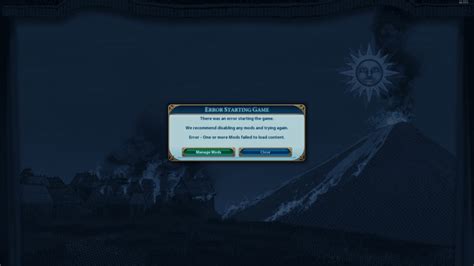
Many games or modding frameworks generate log files (e.g., skse.log for Skyrim, fallout4.log). These often provide clues about which script or file is causing an error.
3. Verify Load Order
Use a load order optimization tool (like LOOT for Bethesda games) or your mod manager’s built-in functionality to ensure your mods are loading in an optimal sequence. Manual adjustments might be necessary based on specific mod instructions.
4. Update or Reinstall Mods
Ensure all your mods are up-to-date. Sometimes, simply reinstalling a mod can resolve a corrupted installation. Check the mod page for recent updates or compatibility patches.
5. Seek Compatibility Patches
The modding community often creates compatibility patches for popular mods that conflict. Search the mod repository (e.g., Nexus Mods) for specific patches for the mods you are using.
Essential Tools for Conflict Resolution
Several specialized tools are indispensable for advanced conflict resolution:
- Mod Managers (Vortex, MO2): Beyond installation, they offer conflict detection, virtual file systems, and profile management.
- xEdit (SSEEdit, FO4Edit, etc.): This powerful tool allows you to view, compare, and manually resolve conflicts between mod records. You can create “merged patches” to combine conflicting entries harmoniously.
- LOOT (Load Order Optimization Tool): Automatically sorts your plugins into an optimal load order and highlights potential issues, missing dependencies, and dirty plugins.
Advanced Tips and Community Support
For persistent issues, consider these advanced strategies:
- Creating a Merged Patch (Bashed Patch/xEdit Merged Patch): This combines conflicting records into a single plugin, allowing multiple mods’ changes to coexist.
- Cleaning Master Files: Tools like xEdit can clean “dirty edits” from official game master files, which can cause instability. (Exercise caution and follow guides precisely.)
- Engage with the Community: Forums, Discord servers, and mod pages are excellent resources. Share your error logs and details of your mod list; experienced modders can often provide specific advice.

Conclusion
Resolving mod conflicts can feel daunting, but with a systematic approach, the right tools, and a bit of patience, you can overcome most challenges. Remember to test incrementally, consult mod documentation, and leverage the collective knowledge of the modding community. A stable and enjoyable modded gameplay experience is well within your reach.