





How to resolve mod conflicts in MO2?

Understanding Mod Conflicts in MO2
Mod Organizer 2 (MO2) is a powerful mod manager that utilizes a virtual file system, meaning it doesn’t directly install files into your game directory. Instead, it creates a ‘virtual’ data folder on the fly when you launch your game, making it incredibly flexible for managing and troubleshooting mods. However, with many mods installed, conflicts are inevitable. A mod conflict occurs when two or more mods try to alter the same game asset or record. If not resolved, these conflicts can lead to crashes, broken features, or unintended behavior.
Unlike traditional mod managers, MO2’s virtual file system offers unparalleled control over which mod ‘wins’ a conflict without permanently altering your game files. This makes conflict resolution a central part of any stable modding setup.
![a Molecular skeletons for [Mo2]–bridge–[Mo2] complexes under ...](/images/aHR0cHM6Ly90czIubW0uYmluZy5uZXQvdGg/aWQ9T0lQLlRKM0I5bWVlelZMd1l0X0diSi1XR2dIYUhhJnBpZD0xNS4x.webp)
MO2’s Built-in Conflict Detection and Resolution
MO2 provides robust tools to help you identify and manage conflicts, primarily through its left and right panes, and the dedicated Conflicts tab.
Left Pane Priority (Plugins)
The left pane in MO2 lists your installed mods. The order of mods in this pane dictates the priority for loose files and archives. Mods lower in the list will overwrite files from mods higher in the list. This is crucial for textures, meshes, and other assets that come as loose files or inside .bsa / .zip archives.
To resolve conflicts involving these types of files, simply drag and drop mods in the left pane to adjust their priority. If a mod’s texture should override another, ensure it is below the conflicting mod in the list. MO2 uses a lightning bolt icon to indicate conflicts: a red bolt means the mod is being overwritten by another, and a green bolt means it’s overwriting something else.
Right Pane Priority (Plugins)
The right pane in MO2 lists your active plugins (.esp, .esm, .esl files) and determines their load order, which is critical for game stability and how different game records are prioritized. The general rule is: plugins loaded later in the list will override records from plugins loaded earlier.
Tools like LOOT (Load Order Optimisation Tool) are essential for getting a foundational plugin load order. However, manual adjustments might still be necessary for specific conflicts. MO2 indicates plugin conflicts with red and green icons next to the plugin names, similar to the left pane. You can drag and drop plugins in this pane to change their load order, though it’s often best to let LOOT handle the initial sorting and then make minimal manual tweaks.
![[ Mod Organizer 2 ] Cant adjust mods on left panel : r/skyrimmods](/images/aHR0cHM6Ly90czIubW0uYmluZy5uZXQvdGg/aWQ9T0lQLjBZaGtuR09lTjVmTHFlREQybk5UNlFIYUU4JnBpZD0xNS4x.webp)
The Conflicts Tab
MO2 features a dedicated ‘Conflicts’ tab (often next to the ‘Info’ tab for a selected mod) that provides a detailed breakdown of which files a mod is overwriting, and which files are overwriting it. When you select a mod in the left pane, navigate to the ‘Conflicts’ tab to see a list of conflicting files. You can double-click on an entry to open a comparison view, showing the differing files and their source mods. This is invaluable for pinpointing exactly what’s conflicting and how MO2 is resolving it based on your current priorities.

Strategies for Resolving Conflicts
1. Adjusting Mod Priorities
This is the simplest and most common method. For conflicts involving loose files (textures, meshes, scripts), adjust the mod order in the left pane. For plugin conflicts (game records, quests, leveled lists), adjust the plugin order in the right pane. Always consider which mod’s changes you prefer for a specific asset or record.
2. Creating Specific Overrides
Sometimes you only want a few files from one mod to override another, without giving it full priority. You can achieve this by creating a new empty mod in MO2. Then, manually copy the specific files you want to win the conflict into this new mod. Place this custom override mod at the desired priority (usually lower in the left pane) to ensure those specific files take precedence.
3. Merged Patches (xEdit/FO4Edit)
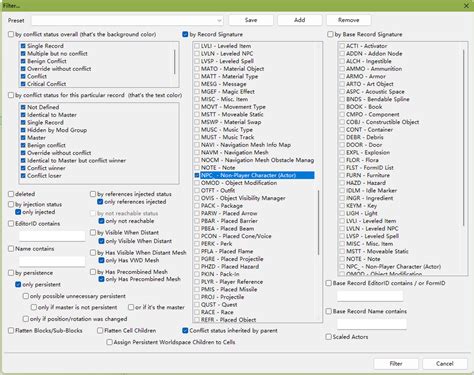
For complex plugin conflicts where simply changing load order isn’t sufficient (e.g., two mods changing different aspects of the same item record), a merged patch created with tools like xEdit (or FO4Edit for Fallout 4, SSEEdit for Skyrim SE, etc.) is often the solution. These tools allow you to combine conflicting records from multiple plugins into a single new plugin, manually picking and choosing which changes you want to keep. This requires a deeper understanding of modding but offers the most precise control.
4. Manual Patching
In rare, specific cases, you might need to manually edit a game file or a mod’s script to resolve an intractable conflict. This is an advanced technique and should only be attempted if you understand what you’re doing and have backups.
5. Conflict Resolution Mods
Many popular modding communities create and share pre-made conflict resolution patches for common mod combinations. Always check a mod’s description page and its associated forum for recommended patches or compatibility notes.
Best Practices for Mod Conflict Resolution
- Install Incrementally: Don’t install dozens of mods at once. Add a few, test them, resolve conflicts, and then add more.
- Read Mod Descriptions: Always read the mod page carefully. Authors often provide compatibility notes, required patches, or recommended load orders.
- Use LOOT: Run LOOT regularly to get a baseline plugin load order. It handles many common conflicts automatically.
- Test Frequently: After making changes, especially to critical mods, load up your game and test.
- Backup Your Profile: Before making significant changes or diving into xEdit, back up your MO2 profile.
- Consult Modding Guides & Communities: Many games have extensive community guides and forums where experienced modders can offer advice.
Conclusion
Resolving mod conflicts in MO2 is an essential skill for any serious modder. By understanding how MO2 handles file and plugin priorities, utilizing its built-in conflict detection, and employing strategies like priority adjustment or merged patches, you can maintain a stable, highly customized game experience. While it may seem daunting at first, patience and practice will make you proficient in taming even the most complex mod lists.


