





How to responsibly manage conflicting game mods and avoid corrupted saves?
Diving into the world of game modding can unlock incredible new experiences, expanding gameplay, visuals, and stories far beyond what developers initially intended. However, this freedom comes with a significant responsibility: managing your mods effectively. Without proper care, conflicting modifications can lead to frustrating crashes, unexpected glitches, and, most critically, corrupted save files that wipe out hours of progress. This guide will walk you through the essential steps and best practices to ensure a stable, enjoyable, and conflict-free modded gaming experience.
The Roots of Conflict: Why Mods Clash
Mod conflicts arise when two or more modifications attempt to alter the same game asset, script, or record in incompatible ways. This can range from simple texture overwrites to complex script injection issues. Common types of conflicts include:
- Asset Overwrites: When multiple mods change the same mesh, texture, or sound file. The last one loaded typically “wins,” but this can lead to visual glitches or missing assets if dependencies are not met.
- Script Conflicts: More severe, these occur when mods try to modify the same game script or introduce incompatible script functions, often leading to crashes, freezes, or broken gameplay mechanics.
- Record Conflicts: Many games use databases (like Bethesda’s ESL/ESP/ESM system) to define items, NPCs, quests, and more. Conflicts here mean one mod’s changes overwrite another’s, potentially causing missing items, incorrect stats, or broken questlines.
![Possible Mod Conflict [HELP PLEASE!!] : r/TheSims4Mods](/images/aHR0cHM6Ly90czQubW0uYmluZy5uZXQvdGg/aWQ9T0lQLl9pQXhsZzZBZzJrYzRIWS1UUVM1MlFIYUVLJnBpZD0xNS4x.webp)
Essential Tools for Mod Management
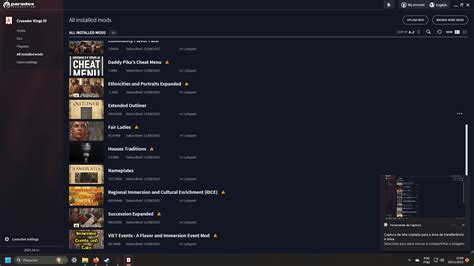
Successfully navigating the complexities of modding relies heavily on utilizing the right tools. A dedicated mod manager is indispensable for installing, organizing, and troubleshooting your mod list.
Mod Managers: Your Central Hub
- Vortex (Nexus Mods): User-friendly and integrated with Nexus Mods, Vortex helps automate installation, manage dependencies, and detect conflicts. It’s excellent for beginners.
- Mod Organizer 2 (MO2): Preferred by many experienced modders, MO2 uses a “virtual file system” that keeps your game’s data folder pristine. This non-destructive approach makes testing and troubleshooting far easier, as mods are loaded virtually.
Conflict Resolution Utilities
For games with complex modding scenes (like The Elder Scrolls or Fallout), tools like xEdit (TES5Edit, FO4Edit, etc.) allow you to manually view, compare, and merge conflicting records. While intimidating at first, learning basic xEdit usage is a game-changer for stability.
Mastering the Load Order
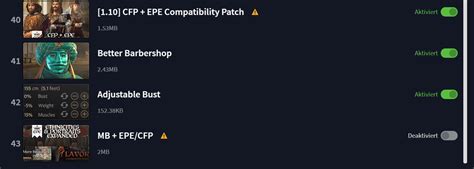
The load order dictates the sequence in which your game processes mod files. It is arguably the most critical factor in preventing conflicts. Generally, if two mods modify the same aspect, the one loaded later (further down the list) will take precedence. Understanding this principle is key.
Automated Sorting vs. Manual Tweaking
- LOOT (Load Order Optimization Tool): For many games, LOOT is invaluable. It automatically sorts plugins based on a community-maintained master list, identifying dirty edits and potential conflicts. Always run LOOT first.
- Manual Adjustments: Even after LOOT, some conflicts require manual intervention. Refer to mod descriptions for specific load order requirements. For instance, patches for two mods should always load after both parent mods.
A common strategy is to group similar mods (e.g., all texture mods together, then all gameplay overhauls) and place patches at the very end of your load order, after all parent mods they’re designed to unify.
Testing, Backups, and Clean Saves
Even with the best tools and knowledge, modding is an iterative process. Testing frequently and maintaining robust backup strategies are paramount.
Incremental Modding
Never install dozens of mods at once. Add mods in small batches (e.g., 5-10 at a time), launch the game, and play for a while to ensure stability. This makes it much easier to pinpoint which mod is causing an issue if one arises.
The Importance of Backups
- Save Game Backups: Before installing new mods or making significant changes, back up your entire save game folder. Many mod managers offer integrated save backup features.
- Mod Manager Profiles: Utilize profiles in MO2 or Vortex to experiment with different mod setups without affecting your primary, stable game.
Clean Saves
A “clean save” often refers to a save file made before any problematic mods were installed, or after uninstalling a mod and letting the game “bake” the changes. Sometimes, completely new game playthroughs are necessary to ensure full compatibility with a heavily modded setup, as removing certain mods mid-playthrough can irreversibly corrupt a save.
![⭐ Backing Publicitario para Eventos | Santa Marta [2025]](/images/aHR0cHM6Ly90czEubW0uYmluZy5uZXQvdGg/aWQ9T0lQLjNEdWxoVHFoSHUwLTlGMjJxbFhDU0FIYUZrJnBpZD0xNS4x.webp)
Best Practices for a Stable Modding Experience
- Read Mod Descriptions Carefully: Always check for compatibility notes, required files, known conflicts, and specific installation instructions.
- Check for Patches: Many popular mods have compatibility patches available for other widely used mods. Seek them out!
- Consult Community Resources: Modding forums, wikis, and Discord servers are invaluable sources of information for specific games and mods.
- Don’t Be Afraid to Start Over: If your modded game becomes irreparably broken, a clean reinstall of the game and a fresh modding setup is often the quickest path to resolution.
- Learn Basic Troubleshooting: Understand how to read crash logs, identify problematic mods, and use tools like xEdit for deeper conflict resolution.

Conclusion
Managing conflicting game mods is an art form that blends technical understanding with patience and meticulous organization. By embracing dedicated mod managers, prioritizing load order optimization, consistently backing up your progress, and adhering to community-recommended best practices, you can transform a potentially frustrating endeavor into a rewarding expansion of your favorite games. Dive in responsibly, and enjoy a stable, customized gaming world!

