





How to set up G-Sync/FreeSync for tear-free gaming on high refresh rate monitors?

Achieving Flawless Visuals with Adaptive Sync
Screen tearing is a common visual artifact that occurs when your graphics card renders frames at a different rate than your monitor’s refresh rate, leading to horizontally misaligned images. This distraction can significantly detract from your gaming immersion, especially on high refresh rate monitors where the effect can be even more pronounced. Fortunately, technologies like NVIDIA G-Sync and AMD FreeSync were developed to combat this very issue, providing a synchronized, tear-free gaming experience.
Understanding Adaptive Sync Technology
Both G-Sync and FreeSync fall under the umbrella of adaptive sync technologies, designed to dynamically match your monitor’s refresh rate to your graphics card’s frame rate. Instead of the GPU pushing frames to the monitor at a fixed interval, the monitor waits for the GPU to deliver a complete frame before refreshing, eliminating the desynchronization that causes tearing. G-Sync monitors contain a proprietary hardware module, while FreeSync is an open standard based on VESA’s Adaptive Sync protocol, often found in a wider range of monitors.

Prerequisites for Tear-Free Gaming
Before diving into the setup, ensure you meet the necessary hardware and software requirements:
- Compatible Graphics Card: An NVIDIA GeForce GPU (GTX 650 Ti Boost or newer for G-Sync/G-Sync Compatible) or an AMD Radeon GPU (RX 200 series or newer for FreeSync).
- Compatible Monitor: A monitor explicitly advertised as G-Sync, G-Sync Compatible, or FreeSync.
- Correct Cable: A DisplayPort cable is generally required for G-Sync and recommended for FreeSync. Some FreeSync monitors also support HDMI (usually HDMI 2.0 or newer for Variable Refresh Rate).
- Latest Drivers: Ensure your graphics drivers are up to date. This is crucial for performance and feature stability.
Setting Up NVIDIA G-Sync (or G-Sync Compatible)
If you have an NVIDIA GPU and a G-Sync or G-Sync Compatible monitor, follow these steps:
- Connect Your Monitor: Use a DisplayPort cable to connect your monitor directly to your NVIDIA graphics card.
- Update Drivers: Install the latest NVIDIA Game Ready drivers.
- Enable G-Sync on Monitor (if applicable): Some G-Sync monitors require you to enable G-Sync within their On-Screen Display (OSD) menu. Consult your monitor’s manual.
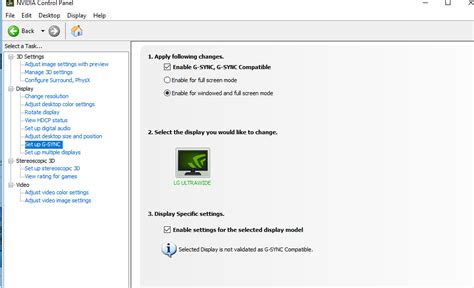
- Open NVIDIA Control Panel: Right-click on your desktop and select ‘NVIDIA Control Panel’.
- Navigate to G-SYNC Settings: In the left-hand pane, under ‘Display’, click ‘Set up G-SYNC’.
- Enable G-SYNC: Check the box for ‘Enable G-SYNC, G-SYNC Compatible’.
- Select Your Monitor: Ensure your G-Sync monitor is selected under ‘3. Select the display you would like to use with G-SYNC’.
- Choose Mode: Decide whether you want G-SYNC to work for ‘Full screen mode’ or ‘Windowed and full screen mode’. For most gaming, ‘Full screen mode’ is sufficient.
- Apply Settings: Click ‘Apply’ at the bottom right.
Setting Up AMD FreeSync
For AMD GPU users with a FreeSync monitor, the process is similar:
- Connect Your Monitor: Use a DisplayPort or compatible HDMI cable to connect your monitor to your AMD graphics card.
- Update Drivers: Install the latest AMD Radeon Software drivers.
- Enable FreeSync on Monitor: Access your monitor’s OSD and enable ‘FreeSync’, ‘Adaptive Sync’, or ‘VRR’ (Variable Refresh Rate). This step is often critical.
- Open AMD Radeon Software: Right-click on your desktop and select ‘AMD Radeon Software’.
- Navigate to Display Settings: Click on the ‘Gaming’ tab, then select ‘Display’.
- Toggle FreeSync: Find the ‘Radeon FreeSync’ option and toggle it to ‘Enabled’.
- Apply Settings: The changes are usually applied immediately.
Verifying and Optimizing Your Setup
Once enabled, you’ll want to confirm that adaptive sync is active and optimize its performance:
- Monitor OSD: Many monitors will display an indicator (e.g., ‘G-Sync On’, ‘FreeSync Active’) in their OSD when adaptive sync is engaged.
- NVIDIA Pendulum Demo / AMD FreeSync Windmill Demo: These official demos are excellent for visualizing the difference with and without adaptive sync.
- In-Game FPS Counter: Use your graphics card software’s FPS counter to observe frame rates fluctuating without tearing.
- Frame Rate Cap: For optimal results, cap your in-game frame rate a few FPS below your monitor’s maximum refresh rate (e.g., 141 FPS for a 144Hz monitor). This prevents the GPU from exceeding the monitor’s adaptive sync range, which can reintroduce tearing or latency. Tools like RTSS (RivaTuner Statistics Server) are great for this.
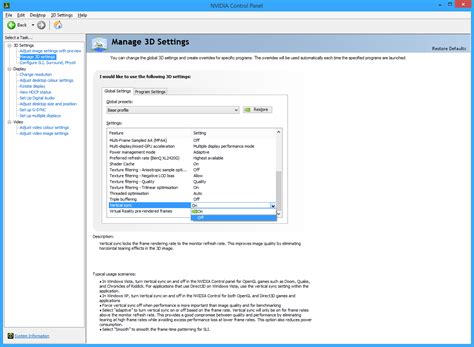
- In-Game V-Sync: With adaptive sync enabled, it’s generally recommended to keep in-game V-Sync off. If you experience minor tearing at the very top or bottom of the screen when your FPS slightly exceeds your monitor’s refresh rate, you can enable V-Sync in your graphics driver settings (NVIDIA Control Panel or Radeon Software) while leaving it off in-game.
Troubleshooting Common Issues
If you’re not getting tear-free visuals, consider these troubleshooting steps:
- Cable Check: Ensure your DisplayPort or HDMI cable is fully seated and is of sufficient quality and version (e.g., DisplayPort 1.2+ for G-Sync/FreeSync, HDMI 2.0+ for FreeSync).
- Driver Reinstallation: Perform a clean reinstallation of your graphics drivers.
- Monitor OSD Settings: Double-check that FreeSync/G-Sync is enabled in your monitor’s OSD menu.
- Refresh Rate: Confirm your desktop refresh rate is set to the maximum available for your monitor in Windows Display Settings.
- Conflicting Software: Disable any overlay software or third-party frame rate limiters that might interfere with adaptive sync.
Conclusion
Setting up G-Sync or FreeSync is a straightforward process that yields a significant improvement in gaming visual quality. By eliminating screen tearing and maintaining smooth frame delivery, adaptive sync technologies allow you to fully appreciate the fluidity of your high refresh rate monitor and immerse yourself completely in your favorite games. Follow these steps, and prepare for a gaming experience free from visual distractions.


