





How to troubleshoot common game mod conflicts & ensure safe installs?
Game modifications, or “mods,” breathe new life into beloved titles, offering everything from minor cosmetic tweaks to complete gameplay overhauls. However, the excitement of customization can quickly turn into frustration when mods clash, leading to crashes, bugs, or unexpected behavior. Understanding how to troubleshoot these common conflicts and ensure a safe installation process is crucial for any aspiring modder.
Understanding Mod Conflicts
Mod conflicts arise when two or more mods attempt to modify the same game file, script, or resource in incompatible ways. This can happen due to various reasons:
- File Overwrites: One mod replaces files that another mod relies on, leading to missing textures, models, or incorrect data.
- Script Mismatches: Different mods try to alter the same in-game scripts, causing unexpected behavior or outright crashes.
- Load Order Issues: The sequence in which mods are loaded by the game can be critical. If a dependency is loaded after the mod that needs it, or if an overwrite happens in the wrong order, conflicts ensue.
- Engine Limitations: Sometimes, even well-made mods can push a game’s engine beyond its stable limits, especially with older titles.
Best Practices for Safe Mod Installation
Prevention is always better than cure. Adhering to these best practices can drastically reduce the likelihood of encountering conflicts:
- Read Mod Descriptions Thoroughly: Always check for compatibility notes, required dependencies, and known conflicts listed by the mod author.
- Back Up Your Game Files: Before installing any mods, especially major ones, create a backup of your vanilla game installation. This provides a clean slate to revert to if things go wrong.
- Use a Mod Manager: Tools like Vortex, Mod Organizer 2 (MO2), or Nexus Mod Manager (NMM) are indispensable. They manage installation, uninstallation, load order, and often have built-in conflict detection, creating a virtual file system to prevent direct alteration of your game directory.
- Install Mods Incrementally: Avoid installing dozens of mods at once. Install one or a small, related batch, test for stability, and then proceed with more. This makes it easier to pinpoint the culprit if an issue arises.
- Check for Compatibility Patches: Many popular mods have community-made compatibility patches designed to make them work together. Always prioritize these.
- Understand Load Order: Familiarize yourself with how your game engine prioritizes mods. Tools like LOOT (Load Order Optimization Tool) can often automate this, but manual adjustments may still be needed.
Identifying and Troubleshooting Conflicts
When a conflict inevitably occurs, a systematic approach is your best friend. Here’s how to tackle it:
Step 1: Replicate the Issue
Try to consistently reproduce the problem. Does it happen at a specific location, with a particular item, or after performing a certain action? This narrows down the scope.
Step 2: Check Your Load Order
Use your mod manager or LOOT to review and optimize your mod load order. Conflicting mods often reveal themselves here, with warnings or explicit conflict reports. Ensure patches are loaded after the mods they are patching.
Step 3: Isolate the Problematic Mod (The 50/50 Method)
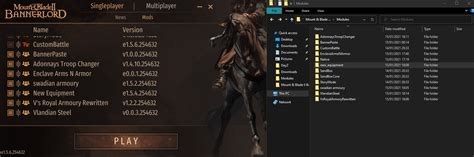
If your mod manager doesn’t pinpoint the issue, you’ll need to manually test. Start by disabling half of your mods and test the game. If the problem persists, the conflict is in the enabled half; if it’s gone, it’s in the disabled half. Repeat this process, halving the problematic group each time, until you find the conflicting mod(s). This is arguably the most effective, albeit time-consuming, method.
Step 4: Read Error Logs
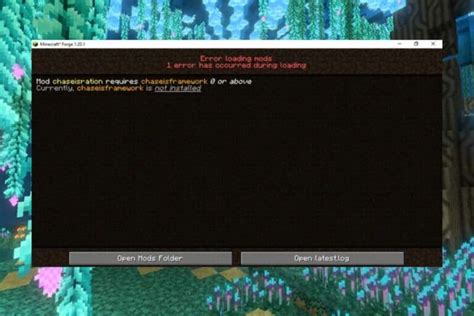
Many games or modding frameworks generate error logs (e.g., Papyrus logs for Skyrim). These can provide cryptic but vital clues about which scripts or files are failing. Search online for interpretations of common error messages.
Step 5: Consult Mod Pages and Forums
The mod’s page on Nexus Mods or similar sites is a goldmine of information. Check the “Bugs” or “Posts” sections for similar issues reported by other users and potential solutions. Community forums are also excellent resources.
Essential Tools for Modding Success
Beyond mod managers, several tools can significantly aid your modding journey:
- LOOT (Load Order Optimization Tool): Automatically sorts your plugin load order for many Bethesda games, minimizing conflicts.
- xEdit (SSEEdit, FO4Edit, etc.): A powerful, low-level editor that allows you to view, compare, and resolve conflicts between individual records within your plugins. It’s advanced but indispensable for complex setups.
- Conflict Detectors: Some mod managers have robust built-in conflict detection, but dedicated tools can offer deeper insights.
- Archiver Tools (7-Zip, WinRAR): Essential for extracting mod archives.
Conclusion
Modding can be one of the most rewarding aspects of PC gaming, transforming familiar worlds into fresh experiences. While mod conflicts are an inevitable part of the process, a methodical approach, combined with the right tools and a bit of patience, will empower you to overcome most challenges. Always prioritize safe installation practices, leverage mod managers, and don’t hesitate to consult the vast modding communities for assistance. Happy modding!

