How to troubleshoot common game mod conflicts & ensure stable gameplay?
Game modifications, or mods, can transform a good game into an unforgettable one, adding new content, improving graphics, or enhancing gameplay mechanics. However, the more mods you install, the higher the chances of encountering conflicts that can lead to crashes, freezes, or strange in-game behavior. Troubleshooting these conflicts can seem daunting, but with a systematic approach, you can identify and resolve issues, ensuring your modded game runs smoothly and stably.
Understanding the Root of Mod Conflicts
Mod conflicts arise when two or more modifications try to alter the same game asset, script, or system in incompatible ways. These can manifest as:
- File Overwrites: One mod replaces files that another mod needs or modifies, leading to broken textures, models, or data.
- Script Errors: Competing scripts from different mods try to execute conflicting instructions, causing crashes or unexpected behavior.
- Load Order Issues: The order in which mods are loaded can dictate which mod’s changes take precedence. Incorrect load orders are a frequent cause of instability.
- Missing Dependencies: A mod requires another specific mod or a game version to function, which is not present or is outdated.
Essential Pre-Troubleshooting Steps
Before diving into complex diagnostics, establish a good foundation:
- Back Up Your Game Files: Always create a backup of your vanilla game and your modding setup. This is your safety net.
- Read Mod Descriptions Carefully: Many conflicts are preventable by simply reading the mod page. Look for compatibility notes, required patches, and known issues.
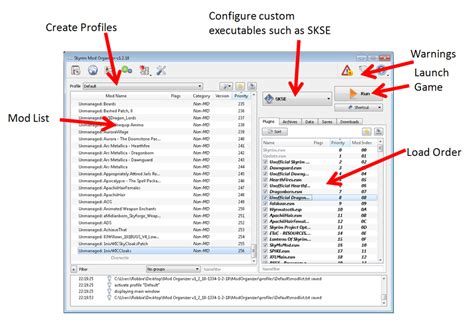
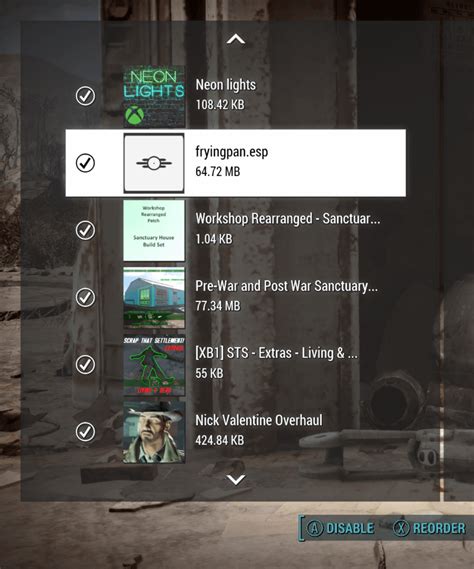
- Use a Mod Manager: Tools like Mod Organizer 2, Vortex, or Nexus Mod Manager streamline installation, uninstallation, and conflict resolution by clearly showing conflicts and managing load orders.
- Install One Mod at a Time: Especially for larger or more complex mods, add them individually and test thoroughly before adding the next.
Common Troubleshooting Techniques
The 50/50 Method to Isolate Culprits
This is a classic and highly effective strategy:
- Disable half of your currently active mods.
- Launch the game and check if the issue persists.
- If the issue is gone, the conflict is in the disabled half. Re-enable half of those and repeat.
- If the issue persists, the conflict is in the remaining active half. Disable half of *those* and repeat.
- Continue halving the problematic set until you pinpoint the conflicting mod or pair of mods.
Optimizing Your Load Order
Many games are sensitive to mod load order. Tools like LOOT (Load Order Optimization Tool) for Bethesda games automatically sort mods for optimal stability. For other games, consult community guides or mod managers for best practices.
Checking for Compatibility Patches and Fixes
Often, mod authors or the community create specific patches to make two popular mods work together. Search for “Mod A compatibility patch Mod B” on Nexus Mods or relevant forums.
Advanced Troubleshooting and Resources
Interpreting Crash Logs
When your game crashes, it often generates a crash log. These logs can be dense, but they frequently point to the specific file or script that caused the crash. Tools like Crash Logger for Skyrim or community log readers can help decipher them.
Leveraging Community Support
Game-specific modding communities (Reddit, Discord servers, official forums, Nexus Mods forums) are invaluable resources. Describe your problem clearly, list your mods, and attach crash logs if applicable. Chances are someone has encountered and solved a similar issue.
Utilizing Game-Specific Tools
Many games have specialized tools. For example, for Bethesda games, xEdit (TES5Edit, SSEEdit, FO4Edit) allows you to view, clean, and resolve direct conflicts between plugin files. Understanding how to use these can be a game-changer for stability.

Best Practices for Future Stable Modding
- Start Small and Build Up: Don’t install hundreds of mods at once. Add a few, test them, and then add more.
- Read, Read, Read: Always read mod descriptions, installation instructions, and compatibility notes.
- Keep Mods Updated: Many mod updates include bug fixes and compatibility improvements.
- Maintain Your Load Order: Re-sort your load order regularly, especially after adding or removing mods.
- Clean Your Master Files: For some games (like Bethesda titles), cleaning dirty edits in the base game files can prevent issues.
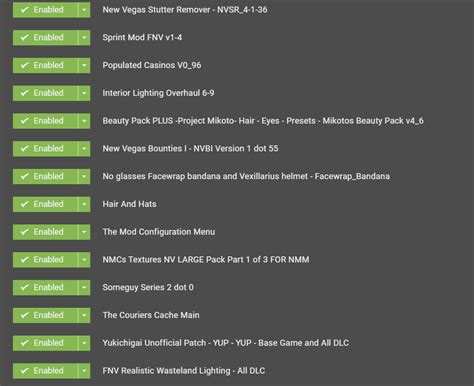
When All Else Fails: The Nuclear Option (and Rebuilding)
If you’ve tried everything and your game remains unstable, a complete fresh installation might be necessary. This involves:
- Uninstalling the game completely.
- Manually deleting any leftover game files, save files (back them up!), and modding tool data.
- Reinstalling the game from scratch.
- Carefully reinstalling your essential mods, testing frequently.
While frustrating, a clean slate often provides the quickest path back to stable gameplay. Remember, modding is an art form that requires patience and persistence. By following these troubleshooting steps and best practices, you can significantly reduce conflicts and enjoy the rich, enhanced experiences that mods offer.