





How to troubleshoot common mod conflicts causing game crashes?
Understanding Mod Conflicts and Why They Happen
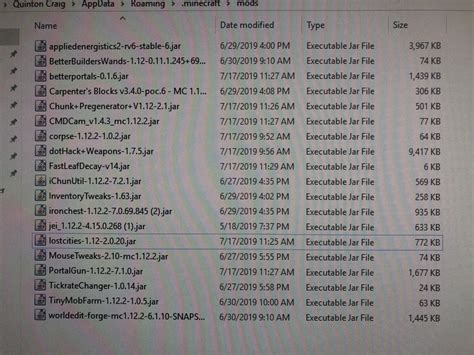
Modding your favorite games can dramatically enhance your experience, introducing new content, visuals, and gameplay mechanics. However, this power comes with a common challenge: mod conflicts. These occur when two or more mods try to alter the same game files or records in incompatible ways, leading to unexpected behavior, glitches, and most frustratingly, game crashes. Understanding the root causes is the first step toward effective troubleshooting.
Common Culprits Behind Crashes
- Incompatible Mod Interactions: Some mods are simply not designed to work together, especially if they modify the same systems (e.g., two different combat overhauls).
- Incorrect Load Order: The order in which your mods load can dictate which changes take precedence. A disorganized load order is a prime cause of conflicts.
- Missing Master Files: Many mods rely on “master” files (either the base game or other large mods) to function. If a master is missing or incorrectly loaded, the dependent mod will fail.
- Outdated or Corrupt Mods: Mods developed for older game versions, or those that have become corrupted during download or installation, can cause instability.
- System Overload: While not strictly a conflict, too many resource-intensive mods can push your system beyond its limits, leading to crashes.

Initial Steps: Preparation and Basic Diagnostics
Before diving deep into troubleshooting, a little preparation can save a lot of headaches.
Always Backup Your Saves!
This cannot be stressed enough. Before making any significant changes to your mod setup, create a backup of your game saves. This way, if something goes wrong, you can revert to a stable point.
Utilize Your Mod Manager Effectively
Whether you’re using Vortex, Mod Organizer 2, Nexus Mod Manager (legacy), or another tool, learn its features. Mod managers are designed to help you organize, install, uninstall, and often detect basic conflicts.
The 50/50 Method: Isolating the Culprit
This is a classic and highly effective troubleshooting technique. If your game crashes and you suspect a mod conflict:
- Disable half of your installed mods.
- Launch the game.
- If the game no longer crashes, the conflicting mod is in the disabled half. Re-enable half of that group and repeat.
- If the game still crashes, the conflicting mod is in the enabled half. Disable half of that group and repeat.
Continue this binary search until you’ve narrowed down the problematic mod or small group of mods.
Advanced Troubleshooting: Load Order and Conflict Resolution Tools
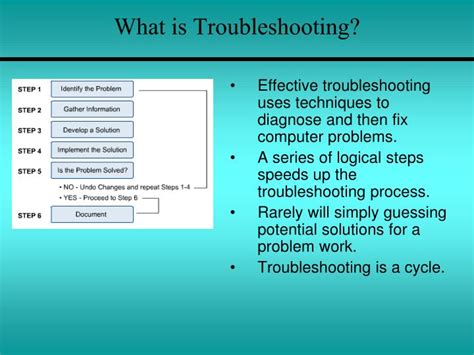
Once you have a suspicion about specific mods or if the 50/50 method is too tedious for a large mod list, it’s time to bring in more specialized tools.
Optimizing Your Load Order with LOOT
LOOT (Load Order Optimization Tool) is an essential utility for many games (e.g., Bethesda titles). It automatically sorts your mod load order, identifies missing masters, and warns you of potential issues. Always run LOOT after installing new mods.
Checking for Missing Master Files
If a mod manager or LOOT reports missing masters, carefully read the description of the problematic mod to identify its dependencies. Ensure all required mods are installed and enabled. Sometimes, a missing master might be a separate plugin that wasn’t installed correctly.

Deep Dive with xEdit (SSEEdit, FO4Edit, TES4Edit, etc.)
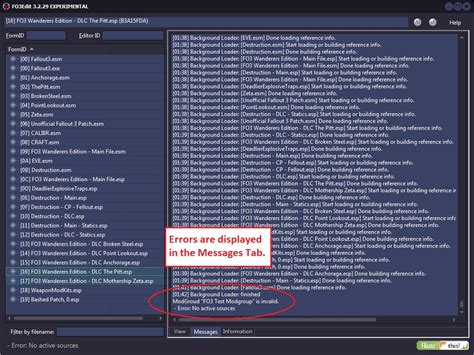
For complex conflicts, xEdit is an indispensable power user tool. It allows you to view detailed information about every record a mod modifies. When two mods conflict, xEdit will highlight the conflicting records, showing you which mod is overwriting which. This enables you to:
- Identify exact conflicts.
- Create “merged patches” or “bashed patches” to combine compatible changes from multiple mods.
- Manually resolve specific record conflicts by deciding which mod’s changes you want to prioritize.
Using xEdit requires a learning curve, but tutorials are widely available and the skill is invaluable for serious modders.
Final Steps and Community Resources
Even with all the tools at your disposal, some conflicts can be incredibly stubborn. Don’t despair!
Read Mod Descriptions and Compatibility Sections
Many mod authors proactively list known incompatibilities and offer compatibility patches. Always check these first.
Seek Community Help
The modding community is a vast resource. If you’re stuck, try:
- Modding Forums: Specific game forums (e.g., Nexus Forums, official game forums) often have dedicated troubleshooting sections.
- Discord Servers: Many large modding communities or specific mod author communities have Discord servers where you can get real-time help.
- Reporting Crash Logs: If your game generates crash logs, learn how to interpret them or post them in relevant forums, as they can provide crucial clues.
Consider a Clean Install (Last Resort)
If all else fails and you’re at your wit’s end, a complete clean install of the game and your mods can sometimes resolve deeply entrenched issues. This means uninstalling the game, manually deleting any leftover files, and then reinstalling from scratch.
Conclusion
Troubleshooting mod conflicts can be a daunting and time-consuming process, but it’s an integral part of the modding experience. With patience, systematic diagnosis using methods like the 50/50 technique, and leveraging powerful tools like LOOT and xEdit, you can conquer most conflicts. Remember to always back up your saves, read mod descriptions, and don’t hesitate to reach out to the vibrant modding community for assistance. Happy modding!

