How to troubleshoot common mod conflicts for stable, crash-free PC gaming?
The Unseen Battle: Understanding Mod Conflicts
Modding PC games can unlock incredible new experiences, from enhanced graphics and quality-of-life improvements to entirely new quests and gameplay mechanics. However, this power comes with a potential pitfall: mod conflicts. When two or more mods try to alter the same game asset, script, or system in incompatible ways, it can lead to crashes, bugs, performance issues, or even prevent your game from launching altogether. Understanding the root causes of these conflicts is the first step towards a stable gaming setup.

Preparation is Key: Before You Troubleshoot
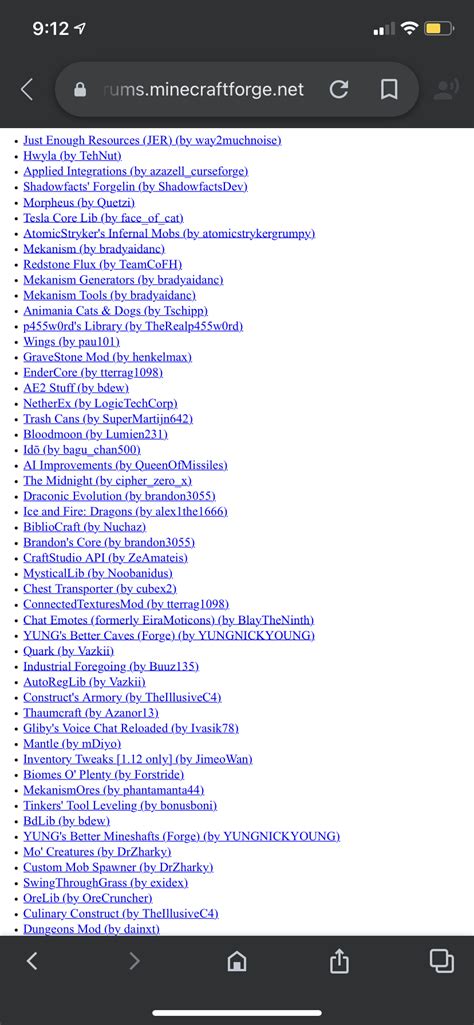
Before diving into the thick of troubleshooting, a few preparatory steps can save you immense headache. Always back up your save files, and if possible, your entire game directory before making significant changes. Secondly, utilize a reputable mod manager (like Mod Organizer 2, Vortex, or NMM). These tools are invaluable for installing, uninstalling, and managing mods, often providing features for conflict detection and load order management, which are crucial for stability.
Ensuring your game is updated to its latest version and that your graphics drivers are current is also fundamental. Many mods are built for specific game versions, and outdated drivers can introduce their own set of stability issues, making conflict diagnosis more difficult.
Identifying the Culprit: Troubleshooting Techniques
When your game starts misbehaving, identifying which mod or combination of mods is causing the conflict can feel like finding a needle in a haystack. Here are the most effective methods:
The 50/50 Method
This is a classic and highly effective method, especially for a large mod list. Disable half of your mods and test the game. If the problem persists, the conflict is in the enabled half. If the problem disappears, it’s in the disabled half. Repeat this process, halving the problematic group each time until you narrow it down to a small handful or even a single mod. This binary search approach is much faster than testing one by one.

One-by-One Enabling/Disabling
For smaller mod lists or when you suspect a specific recent addition, enabling or disabling mods one at a time can be more straightforward. Start with all mods disabled, then enable them one by one, testing the game after each activation until the issue reappears. Conversely, if your game is crashing with all mods enabled, try disabling them one by one until the game becomes stable. This helps pinpoint the exact troublesome mod.
Reading Error Logs and Crash Reports
Many modern games and modding utilities generate logs when crashes or errors occur. These logs can often provide cryptic but valuable clues about what file or script caused the crash. Look for references to specific mod names, file paths, or game assets in the log. Tools like LOOT (Load Order Optimisation Tool) also provide warnings and suggestions based on known conflicts and dirty edits within your mod list.

Resolving Mod Conflicts: Strategies for Stability
Once you’ve identified the conflicting mods, the next challenge is resolving the issue. Several strategies can be employed:
Adjusting Load Order
The load order dictates which mod’s changes take precedence when multiple mods modify the same asset. Generally, mods loaded later will overwrite changes made by mods loaded earlier. Mod managers often provide tools to manually adjust load order, and utilities like LOOT can automatically sort your plugins for optimal compatibility. Pay close attention to any warnings LOOT provides.
Finding Compatibility Patches
Many popular mods have dedicated compatibility patches created by their authors or the community. These patches are specifically designed to make two otherwise incompatible mods work together seamlessly. Always check the mod pages on Nexus Mods or other repositories for “Requirements” or “Patches” sections.
Cleaning Dirty Edits and Merging Patches
Some mods, especially older ones, might contain “dirty edits” – unintended changes to vanilla game records that can cause instability. Tools like xEdit (TES5Edit, FO4Edit, SSEEdit, etc.) allow you to identify and clean these dirty edits. Furthermore, for complex setups, merging multiple small patches into a single plugin can reduce your overall plugin count and improve stability, especially for games with plugin limits like Bethesda titles.

Mod Specific Solutions and Alternatives
Sometimes, two mods are fundamentally incompatible, and no amount of tweaking will make them work together. In such cases, you might have to choose one over the other or seek out an alternative mod that provides similar functionality without the conflict. Always read mod descriptions thoroughly for known incompatibilities.
Preventing Future Conflicts
An ounce of prevention is worth a pound of cure. To minimize future conflicts:
- Read Mod Descriptions Carefully: Pay attention to requirements, known incompatibilities, and installation instructions.
- Install Mods Incrementally: Add a few mods at a time, test the game, and then add more. This makes it easier to pinpoint new issues.
- Prioritize Stable Versions: If available, choose “stable” or “legacy” versions over “alpha” or “beta” releases unless you’re prepared for potential issues.
- Keep Documentation: Make notes of what mods you installed, when, and any specific steps you took.
Conclusion
Modding can be an incredibly rewarding aspect of PC gaming, offering endless possibilities for customization and enhancement. While mod conflicts are an inevitable part of the experience, armed with the right knowledge and troubleshooting techniques, you can overcome these hurdles. By approaching modding methodically, backing up your data, and utilizing the tools available, you can achieve a stable, crash-free, and personalized gaming setup that truly elevates your experience.