





How to troubleshoot common PC gaming FPS drops and stuttering?
Understanding FPS Drops and Stuttering
There’s nothing more frustrating for a PC gamer than experiencing sudden frame rate drops (FPS drops) or noticeable stuttering during gameplay. These issues can range from minor annoyances to game-breaking problems, severely impacting your immersion and competitive edge. Understanding the difference is key: FPS drops are sustained periods of lower frame rates, while stuttering refers to brief, sudden pauses or hitches in the visual flow, often irrespective of the average FPS.
Both problems typically point to your system struggling to render game frames consistently. This guide will walk you through a systematic approach to identify and resolve these common performance bottlenecks, getting you back to smooth, enjoyable gaming.
Initial Checks: The Basics
Before diving into more complex solutions, start with these fundamental checks:
- Restart Your PC: A simple restart can often clear temporary issues, memory leaks, and background processes that might be hogging resources.
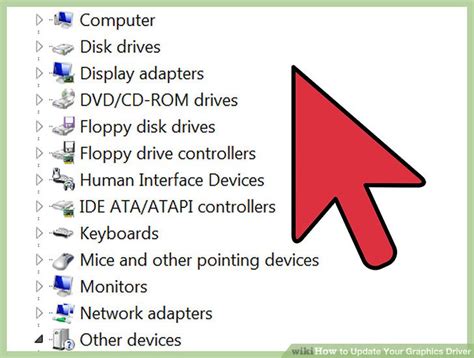
- Update Your Drivers: Outdated graphics drivers are a leading cause of performance problems. Always ensure you have the latest drivers from NVIDIA, AMD, or Intel installed. Also, check for motherboard chipset drivers and sound drivers.
- Close Background Applications: Browsers with many tabs, streaming software, torrent clients, and even antivirus scans can consume significant CPU and RAM. Close anything you don’t need while gaming.
- Check Game System Requirements: Ensure your PC meets or exceeds the minimum (and ideally recommended) specifications for the game you’re playing.
In-Game Settings Optimization
Often, the easiest improvements come from adjusting game settings. Developers provide a range of graphical options to accommodate different hardware:
- Lower Resolution: Running games at a lower resolution (e.g., 1080p instead of 1440p or 4K) significantly reduces the load on your GPU.
- Reduce Graphics Quality: Settings like texture quality, shadow quality, anti-aliasing, and post-processing effects have a major impact on performance. Experiment with lowering these incrementally.
- Disable V-Sync/G-Sync/FreeSync: While these technologies aim to prevent screen tearing, V-Sync can introduce input lag and sometimes stuttering if your frame rate drops below your monitor’s refresh rate. Test with it off.
- Cap FPS: Some games allow you to set an FPS cap. If your GPU struggles to maintain a high, fluctuating FPS, capping it at a slightly lower, stable rate (e.g., 60 FPS) can provide a smoother experience than erratic jumps between 45 and 70 FPS.
Hardware-Related Troubleshooting
Your hardware plays a critical role in gaming performance. Issues here often manifest as severe or consistent problems.
Overheating Components
Thermal throttling is a major culprit for performance drops. When your CPU or GPU gets too hot, it automatically reduces its clock speed to prevent damage, leading to massive FPS drops and stuttering. Monitor your temperatures using tools like HWMonitor or MSI Afterburner while gaming.
- Clean Your PC: Dust accumulation in fans and heatsinks is common. Regularly clean your CPU cooler, GPU cooler, and case fans with compressed air.
- Improve Airflow: Ensure your PC case has good airflow with properly oriented intake and exhaust fans.
- Reapply Thermal Paste: If temperatures remain high after cleaning, the thermal paste on your CPU or GPU might have dried out and needs reapplying.
Power Supply Unit (PSU) Issues
An insufficient or failing PSU can lead to instability and performance issues. If your components aren’t receiving stable power, they can underperform or cause crashes. Ensure your PSU has enough wattage for your system, especially if you’ve upgraded components.
RAM and Storage
- Insufficient RAM: Modern games can be memory-intensive. If you have less than 16GB of RAM, consider upgrading. Running out of RAM forces your system to use slower page files on your storage drive, causing stuttering.
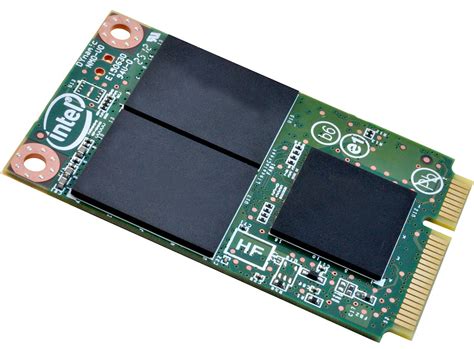
- Slow Storage: While not directly impacting FPS, a slow HDD can cause significant stuttering and long loading times as game assets are loaded. Installing games on an SSD (Solid State Drive) is highly recommended for a smoother experience.
- Check Drive Health: Use tools like CrystalDiskInfo to check the health of your storage drives.
System-Wide Optimizations
Beyond individual components, your operating system and settings can influence performance:
- Windows Game Mode: Ensure Windows Game Mode is enabled. It prioritizes game processes and minimizes background tasks.
- Disable Superfetch/SysMain: For systems with SSDs, disabling Superfetch (now called SysMain) can sometimes prevent stuttering, as it preloads frequently used apps, which can conflict with game asset loading.
- Power Plan Settings: Set your Windows power plan to ‘High Performance’ or ‘Ultimate Performance’ to ensure your CPU and GPU aren’t being throttled by power-saving measures.
- BIOS/UEFI Settings: Ensure XMP (Extreme Memory Profile) is enabled for your RAM to run at its advertised speeds. Check for any CPU throttling settings.
Advanced Troubleshooting
- Check for Malware: Malicious software can consume system resources. Run a full scan with a reputable antivirus.
- Driver Rollback or Clean Installation: If a recent driver update caused issues, try rolling back to an older, stable version. For persistent issues, use Display Driver Uninstaller (DDU) to perform a clean installation of your graphics drivers.
- Verify Game Files: Most game launchers (Steam, Epic Games, etc.) have an option to verify the integrity of game files. Corrupted files can lead to crashes or performance issues.
- Monitor for Bottlenecks: Use monitoring software (MSI Afterburner with RivaTuner Statistics Server, or HWMonitor) to check CPU and GPU utilization, temperatures, and clock speeds while gaming. A consistently low GPU utilization with high CPU utilization might indicate a CPU bottleneck, while the opposite suggests a GPU bottleneck or other issues.
Conclusion
Troubleshooting FPS drops and stuttering often requires a methodical approach, checking one potential cause at a time. By systematically going through software optimizations, in-game settings, and hardware checks, you can pinpoint the root cause of your performance issues. Remember to test changes one by one to see their impact. With patience and persistence, you can restore your PC gaming experience to its smooth, intended glory.


