





How to troubleshoot & fix common mod conflicts for PC games?

Modding PC games opens up a world of enhanced graphics, new content, and unique gameplay experiences. However, this freedom often comes with the challenge of mod conflicts, which can lead to crashes, glitches, or even unplayable games. Understanding how to identify and resolve these conflicts is a crucial skill for any dedicated PC gamer. This guide will walk you through common causes and effective troubleshooting strategies to get your modified games running smoothly.
Understanding Mod Conflicts: The Root Cause
Mod conflicts occur when two or more mods try to alter the same game file, script, or resource in incompatible ways. The game engine gets confused, not knowing which instruction to follow, leading to errors. Common culprits include:
- File Overwrites: Mods replacing or altering core game files or assets that another mod also targets.
- Script Mismatches: Different mods using conflicting versions of scripts or trying to modify the same script simultaneously.
- Load Order Issues: The sequence in which mods are loaded can dictate which mod “wins” a conflict. An incorrect load order can break dependencies or introduce unintended interactions.
- Version Incompatibility: Mods designed for different game versions or requiring specific DLCs can conflict if those prerequisites aren’t met.

Essential Preparations Before Troubleshooting
Before diving into fixes, a little preparation can save a lot of headaches:
- Use a Mod Manager: Tools like Nexus Mod Manager, Mod Organizer 2, or Vortex are indispensable. They help manage installations, load orders, and often have built-in conflict detection.
- Backup Your Game: Always back up your save files and, ideally, your entire game directory before installing new mods or making significant changes. This provides a safe rollback point.
- Read Mod Descriptions Carefully: Many mod authors list known incompatibilities, required patches, and load order recommendations. Ignoring these is a common mistake.
- Start with a Clean Slate: If you’re overwhelmed, sometimes the best approach is to uninstall all mods, verify game files through your launcher (Steam, GOG, etc.), and then reinstall mods incrementally.
Step-by-Step Troubleshooting Strategies
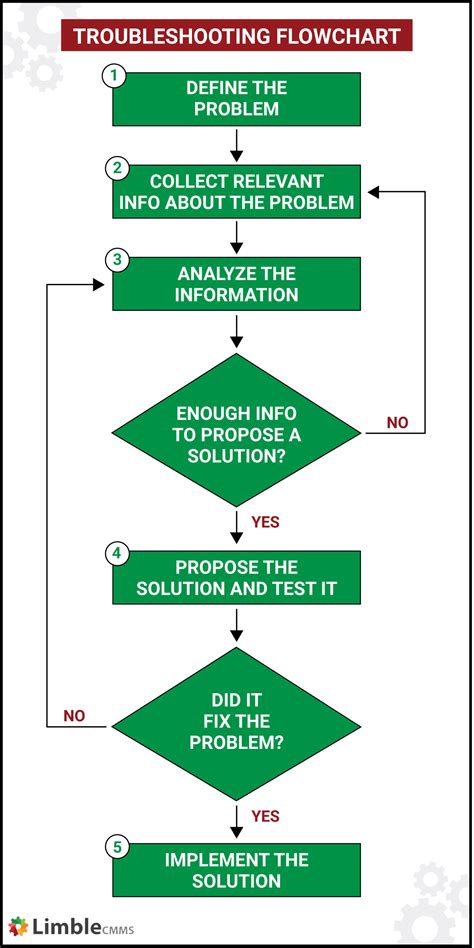
1. Isolate the Problematic Mod (The 50/50 Method)
If your game suddenly breaks after installing multiple mods, finding the culprit can seem daunting. The 50/50 method is highly effective:
- Disable half of your installed mods.
- Launch the game.
- If the problem persists, the conflicting mod is in the active half. If it’s resolved, the mod is in the disabled half.
- Repeat the process, halving the problematic group each time until you pinpoint the exact mod (or mods).
2. Adjust Your Load Order
Many conflicts stem from an incorrect load order. Mods loaded later will often overwrite or take precedence over mods loaded earlier. Mod managers usually have a load order sorter (e.g., LOOT for Bethesda games) that automatically optimizes this based on community data. If using a manual approach, general rules include:
- Core game files first.
- Unofficial patches next.
- Gameplay overhauls.
- New content (quests, items).
- Texture/mesh replacers (often last).
3. Check for Compatibility Patches
Many popular mods have dedicated compatibility patches available, often created by their authors or the community. These patches are designed specifically to make two otherwise conflicting mods work together. Search for “[Mod A] [Mod B] compatibility patch” on Nexus Mods or similar sites.
4. Verify Game Files
Sometimes, modding can corrupt core game files, or an update might revert changes. Using your game launcher’s “verify integrity of game files” feature can fix this, though it might disable or break some mods in the process, requiring reinstallation.

5. Clean Save Games
Certain mods can leave residual data in your save files even after uninstallation. If you’re experiencing issues after removing a mod, try loading an older save game from before the mod was installed, or even start a new game to test stability. Tools like FallrimTools for Skyrim can help clean save files, but use them with caution.
Advanced Conflict Resolution & Prevention
Utilize Conflict Resolution Tools
For games like Skyrim or Fallout, tools such as xEdit (TES5Edit/FO4Edit) allow you to directly view and resolve conflicts by creating a “merged patch” or “conflict resolution patch.” This involves deciding which mod’s changes you want to keep for specific records. This is an advanced technique and requires careful study of the tool and game records.
Script Mergers
Some games allow for script merging, combining multiple scripts that modify the same base script into a single, unified script. This is highly technical and specific to certain game engines and modding communities.
Prevention is Key
- Install Incrementally: Don’t install 50 mods at once. Add a few, test, then add more.
- Follow Recommendations: Adhere to mod author instructions for installation, load order, and compatibility.
- Keep Mods Updated: Ensure your mods are compatible with your game version and check for mod updates.
- Consult Community Forums: If you’re stuck, chances are someone else has faced the same issue. Forums, Discord servers, and Reddit communities are invaluable resources.

Conclusion
While mod conflicts can be frustrating, they are an inevitable part of pushing the boundaries of your favorite PC games. By systematically approaching troubleshooting, utilizing the right tools, and understanding the core principles of mod interaction, you can overcome these hurdles. Patience and persistence are your greatest allies in transforming a jumbled mess of mods into a perfectly tailored gaming experience.

