





How to troubleshoot game mod conflicts for stable gameplay?
The Allure and Annoyance of Game Mods
Modding a game can dramatically enhance your experience, adding new content, improving graphics, or even completely transforming gameplay. However, the more mods you install, the higher the chance of encountering conflicts that can lead to crashes, glitches, or corrupted save files. Understanding how to systematically troubleshoot these conflicts is essential for anyone venturing into the world of extensive game modification.
Stable gameplay hinges on a harmonious interaction between all installed modifications. When mods clash, it can be a frustrating puzzle, but with the right approach, most conflicts can be resolved, allowing you to enjoy your curated game world without constant interruptions.
Common Causes of Mod Conflicts
Mod conflicts typically arise when two or more mods try to alter the same game file, script, or resource in incompatible ways. Here are the primary culprits:
- File Overwrites: Two mods might try to modify the same texture, mesh, or script file, with the last one loaded overwriting the changes of the former, potentially leading to visual glitches or broken functionalities.
- Script Incompatibilities: Mods that introduce complex new systems or alter core game mechanics often rely on scripts. If multiple scripts try to control the same game event or object simultaneously, errors and crashes can occur.
- Load Order Issues: Many games process mods in a specific sequence, known as the load order. If a mod that relies on another mod is loaded before its dependency, or if two conflicting mods are loaded in an unfavorable order, problems will arise.
- Missing Dependencies: Some mods require other specific mods or game DLCs to function correctly. Without these dependencies, the mod will fail to load or cause errors.
- Outdated Mods: Mods designed for older game versions may become incompatible after official game updates, leading to instability or non-functionality.

Identifying the Source of Conflict
Pinpointing which mods are clashing is often the most challenging part of troubleshooting. A systematic approach is key:
1. Check Crash Logs and Error Messages
Many games or mod managers generate crash logs. These logs often contain valuable information about the last files accessed or scripts running before a crash, which can point you toward the problematic mod. Learning to interpret these logs is a powerful skill.
2. The Binary Search Method
This is a classic troubleshooting technique: Disable half of your mods and test the game. If the problem persists, the conflict is in the remaining active half. If it disappears, the conflict is in the disabled half. Repeat this process, halving the problematic set each time, until you isolate the offending mod(s).
3. In-Game Glitches and Visual Artifacts
Sometimes, conflicts manifest as strange visual bugs, incorrect textures, missing objects, or unusual character behavior rather than outright crashes. Pay close attention to when and where these anomalies occur, as they can hint at the affected game areas and potentially the responsible mods.
4. Utilize Mod Managers with Conflict Detection
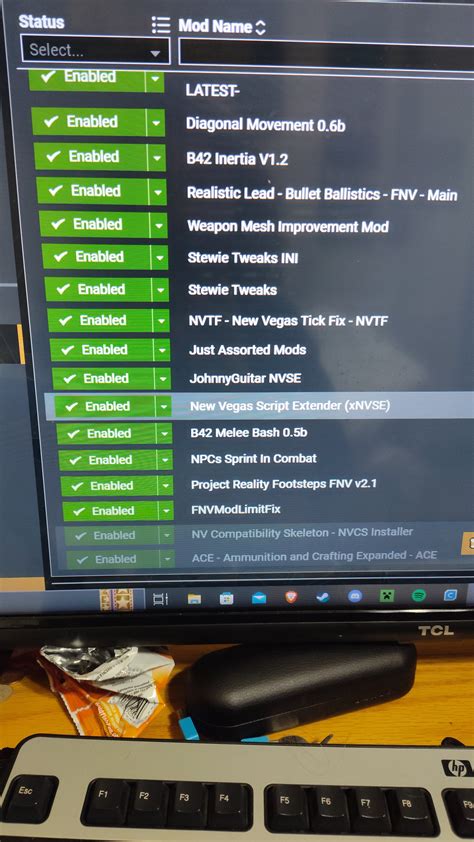
Tools like Mod Organizer 2 (MO2) for Bethesda games, Vortex, or others for specific titles often feature built-in conflict detection. These managers can highlight files that are being overwritten by multiple mods, giving you a strong starting point for investigation.
Effective Troubleshooting Steps
Once you have an idea of potential culprits or general areas of conflict, you can begin the resolution process:
1. Consult Mod Documentation and Requirements
Always read the mod description, installation instructions, and any known incompatibilities listed by the author. Many conflicts can be avoided or resolved simply by following the recommended setup or using provided patches.
2. Manage Your Load Order
Correct load order is paramount. For games like Skyrim or Fallout, tools like LOOT (Load Order Optimization Tool) can automatically sort your mods for optimal compatibility. For others, manual sorting based on mod author recommendations or community guides might be necessary. Generally, foundational mods should load first, followed by major overhauls, new content, and then smaller patches or texture mods.
3. Use Compatibility Patches and Mergers
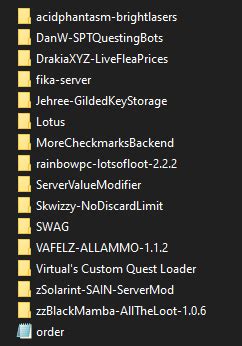
Many mod authors or community members create patches specifically designed to make two otherwise incompatible mods work together. Search for these. Additionally, tools exist that can merge smaller mods or create custom patches to resolve specific conflicts, reducing your plugin count and improving stability.
4. Update or Reinstall Mods
Ensure all your mods are up to date. Authors often release updates to fix bugs or improve compatibility. If a mod is acting erratically, try a clean reinstallation. For critical mods, consider completely removing and then adding them back to your mod list.
5. Clean Your Save Files
Sometimes, removing or adding script-heavy mods mid-playthrough can bake script errors into your save file. While not always effective, trying to load a clean save (one made before the problematic mods were installed or after they were removed) can help determine if the issue is save-game related.
Preventive Measures for Future Stability
Prevention is always better than cure. Adopting these habits can significantly reduce future conflicts:
- Read Everything: Before installing any mod, thoroughly read its description, requirements, known issues, and comments section.
- Back Up Your Game: Always back up your game installation folder and save files before embarking on a major modding session.
- Start Small: Install mods in small batches and test your game regularly. This makes it easier to identify which new mod caused a problem.
- Use a Dedicated Mod Manager: These tools provide isolation, making it safer to experiment with mods without altering your base game installation directly.
- Follow Community Guides: For popular, heavily modded games, comprehensive community modding guides (like those on Nexus Mods or specific game wikis) are invaluable resources.

Conclusion
Troubleshooting game mod conflicts can seem daunting at first, but it’s a learnable skill that empowers you to tailor your gaming experience without sacrificing stability. By understanding common conflict causes, employing systematic identification methods like the binary search, and utilizing proper resolution techniques such as load order management and compatibility patches, you can conquer most mod-related issues. Patience, persistence, and a willingness to learn from your mistakes are your best allies in maintaining a rich, stable, and uniquely modded game world.

