





How to troubleshoot mod conflicts causing game crashes?

Navigating the Modding Minefield: Resolving Game Crashes
Modding can vastly enhance your gaming experience, adding new content, improving graphics, or introducing unique gameplay mechanics. However, with the freedom of customization comes the potential for instability. One of the most common and frustrating issues mod users face is game crashes caused by conflicting modifications. Understanding how to diagnose and resolve these conflicts is crucial for any dedicated modder. This guide will walk you through a systematic approach to identifying and fixing the culprits behind your crashing game.
Understanding Mod Conflicts
Game crashes due to mods often stem from conflicts where two or more mods attempt to modify the same game files, scripts, or assets in incompatible ways. These conflicts can manifest in various forms:
- File Overwrites: Mods replacing or altering core game files or files introduced by other mods, leading to unexpected behavior or missing assets.
- Scripting Errors: Incompatible scripts trying to run simultaneously, causing the game engine to halt.
- Load Order Issues: The sequence in which mods are loaded by the game can be critical. If a mod relies on another being loaded first, or if an overwrite happens in the wrong order, crashes can occur.
- Missing Dependencies: A mod might require another specific mod or DLC to function, and without it, the game will crash.

Preparation Before Troubleshooting
Before diving into the troubleshooting process, a few preparatory steps can save you significant headaches:
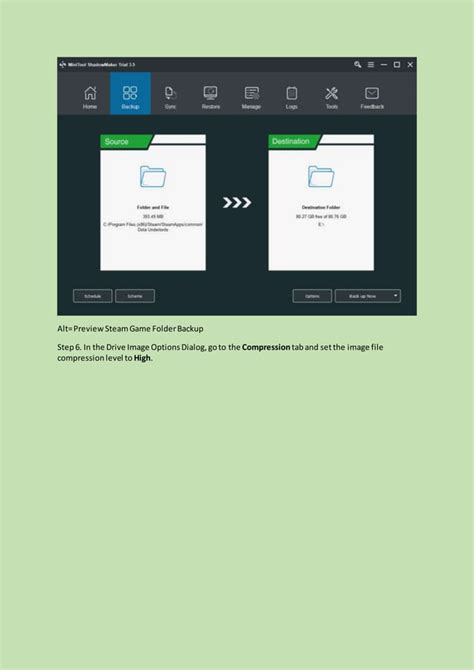
1. Back Up Your Save Games
Always back up your save files! Troubleshooting involves removing and adding mods, which can corrupt saves. Create a copy of your save game folder in a safe location.
2. Back Up Your Game Installation (Optional but Recommended)
If you’re making extensive changes, consider backing up your entire game directory. This provides a clean slate to revert to if things go severely wrong.
3. Use a Mod Manager
Tools like Mod Organizer 2 (MO2), Vortex, or Nexus Mod Manager (NMM) are invaluable. They manage installations, handle file conflicts, and often allow for easy enabling/disabling of mods without directly touching your game’s data folder. This makes troubleshooting much more efficient.
Step-by-Step Troubleshooting Methods
Here’s a systematic approach to pinpointing mod conflicts:
1. Check Crash Logs (If Available)
Many games or modding frameworks generate crash logs (e.g., Papyrus logs for Skyrim, F4SE logs for Fallout 4). These logs can often provide clues about which file or script was being processed at the moment of the crash. Search online for how to enable and read crash logs for your specific game.
2. The 50/50 Method (Binary Elimination)
This is often the most efficient method for identifying a problematic mod within a large load order:
- Disable half of your currently active mods.
- Launch the game.
- If the game still crashes, the conflicting mod is in the half that is still enabled.
- If the game doesn’t crash, the conflicting mod is in the half you disabled.
- Repeat the process, halving the problematic group of mods each time, until you isolate the single mod causing the crash.
3. One-by-One Method
If the 50/50 method proves too complex or you have a smaller mod list, this method is more thorough:
- Disable all your mods.
- Enable one mod at a time.
- Launch the game after enabling each mod.
- Continue until the game crashes. The last mod you enabled is likely the culprit, or at least one piece of the conflict.
4. Load Order Optimization
Once you’ve narrowed down potential conflicts, or even as a preventive measure, optimize your load order. Many games have community-developed tools (like LOOT for Bethesda games) that automatically sort your mods for optimal compatibility. For others, manual adjustment based on mod descriptions and community guides might be necessary. Generally, smaller, foundational mods go first, followed by larger content mods, and then patches/overhauls that depend on them.

5. Mod-Specific Patches and Compatibility Fixes
Sometimes, mods are known to conflict with popular alternatives. Check the mod pages on Nexus Mods or other platforms for:
- Compatibility Patches: Other users or mod authors may have created patches to make two conflicting mods work together.
- Installation Instructions: Read them thoroughly. They often specify known conflicts and required load orders.
- Bug Reports/Forum Posts: Search the mod’s bug reports or forum threads. Your issue might already have a solution or explanation.
6. Reinstall Problematic Mods
If a mod is identified as a likely cause, try a clean reinstallation. Completely remove it (including any leftover files if manually installed), redownload it, and install it fresh. This can resolve corrupted installations.
7. Verify Game Files
If you suspect core game files might be corrupted due to modding or an incomplete uninstall, use your game launcher’s (Steam, Epic Games, GOG Galaxy) built-in function to verify the integrity of game files. This will replace any missing or corrupted original game files.
Preventive Measures for Future Modding
- Read Mod Descriptions Carefully: Always check for required dependencies, known conflicts, and specific installation instructions.
- Install Mods Incrementally: Don’t install 50 mods at once. Add a few at a time and test frequently.
- Test Regularly: After installing new mods, play the game for a while to ensure stability before adding more.
- Stay Updated: Keep your game, mod manager, and essential script extenders (like SKSE for Skyrim) up to date.
- Consult Community Resources: Forums, wikis, and Discord servers for your specific game’s modding community are invaluable sources of information and help.
Conclusion
Troubleshooting mod conflicts requires patience and a systematic approach. By following these steps, you can effectively diagnose the source of your game crashes and restore stability to your modded experience. Remember, the modding community is often a great resource, so don’t hesitate to seek advice if you get stuck. Happy modding!

