





Is my CPU bottlenecking my GPU? How to check and fix for optimal gaming performance?

Understanding the CPU-GPU Relationship in Gaming
In the intricate world of PC gaming, every component plays a crucial role in delivering a smooth and immersive experience. Your CPU (Central Processing Unit) and GPU (Graphics Processing Unit) are the dynamic duo, working in tandem to render game worlds and calculate physics. Ideally, these two powerhouses should be balanced, feeding each other data efficiently. However, sometimes one component can lag behind, holding back the other. This scenario, often referred to as a ‘bottleneck’, can severely impact your gaming performance, leading to lower frame rates and an inconsistent experience.
What is a CPU Bottleneck?
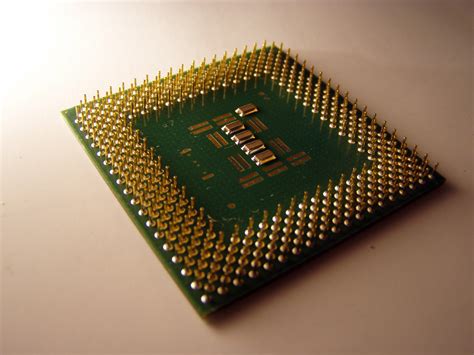
A CPU bottleneck occurs when your CPU isn’t powerful enough to keep up with your GPU, failing to process game logic, AI, physics, and draw calls fast enough to feed the GPU with the data it needs. As a result, your high-end GPU ends up waiting for instructions from the CPU, operating at less than its full potential. This means you’re not getting the performance you paid for from your graphics card.
Symptoms of a CPU Bottleneck
Identifying a CPU bottleneck often requires a keen eye and some diagnostic tools. Here are common symptoms that might indicate your CPU is struggling:
- Low GPU Usage, High CPU Usage: This is the most telling sign. While gaming, if your GPU usage consistently hovers below 90-99% (e.g., 60-70%) while your CPU usage is frequently at or near 100%, your CPU is likely the limiting factor.
- Inconsistent Frame Rates (Stuttering): Even with a high average FPS, sudden drops and stutters can indicate the CPU is struggling to deliver frames consistently.
- Lower Than Expected FPS: If benchmark results for your GPU with similar hardware configurations show significantly higher frame rates than what you’re experiencing, a bottleneck might be present.
- FPS Doesn’t Change with Resolution: If you lower the game’s resolution significantly (e.g., from 1440p to 1080p) but see little to no improvement in frame rate, it suggests the GPU isn’t the limiting factor, and the CPU is.

How to Check for a CPU Bottleneck
To accurately diagnose a CPU bottleneck, you’ll need monitoring tools:
1. Using Monitoring Tools
- MSI Afterburner (with RivaTuner Statistics Server): This is the go-to tool for many gamers. It allows you to display CPU usage (overall and per-core), GPU usage, temperatures, and frame rates directly on your screen while you play.
- Task Manager (Windows): While less granular, the Performance tab in Task Manager can give you a quick overview of CPU and GPU utilization.
- HWiNFO: Provides detailed information about all your hardware, including extensive sensor data for CPU and GPU.
How to interpret the data: Launch a demanding game and monitor your CPU and GPU usage. If your CPU is constantly at 90-100% and your GPU is well below that, you have a CPU bottleneck. If your GPU is at 99-100% and your CPU is lower, your GPU is the bottleneck (which is generally desired for gaming).
2. The Resolution Test
As mentioned in the symptoms, try running a game at a very low resolution (e.g., 720p) and then at your preferred resolution (e.g., 1080p or 1440p). If your frame rate doesn’t increase substantially when dropping the resolution, it indicates your CPU is already maxed out and can’t push more frames, regardless of how much easier the GPU’s job becomes.
How to Fix a CPU Bottleneck
Once you’ve confirmed a CPU bottleneck, there are several strategies to mitigate or eliminate it, ranging from software tweaks to hardware upgrades.
1. Software Solutions
- Adjust Game Settings: Games have various settings that are more CPU-intensive than others. Try lowering:
- Draw Distance / LOD (Level of Detail): How far objects are rendered.
- Population Density / AI Count: Number of NPCs or enemies.
- Physics Quality: Complexity of in-game physics.
- Shadow Quality: Some shadow calculations can be CPU-heavy.
- Anti-aliasing: While mostly GPU-bound, some older or specific AA methods can impact the CPU.
- Close Background Applications: Free up CPU cycles by closing web browsers, streaming apps, and other non-essential programs running in the background.
- Update Drivers: Ensure your CPU chipset drivers, GPU drivers, and operating system are up to date. Sometimes performance improvements come from software optimizations.
- Overclock Your CPU (Advanced): If your CPU and motherboard support it, and you have adequate cooling, a modest CPU overclock can provide a performance boost. Proceed with caution and research thoroughly.

2. Hardware Solutions
If software solutions aren’t enough, a hardware upgrade is often the most effective fix.
- Upgrade Your CPU: This is the most direct solution. Research compatible CPUs for your current motherboard and budget. Consider the generational improvements and core count relevant to modern games.
- Upgrade Your RAM: Faster RAM (higher MHz and lower CAS latency) can significantly improve CPU performance, especially for AMD Ryzen processors. Increasing RAM capacity (e.g., from 8GB to 16GB or 32GB) can also prevent stuttering caused by memory limits.
- Upgrade Your Motherboard: A new CPU often necessitates a new motherboard, especially if you’re upgrading across different generations or brands (e.g., Intel to AMD or vice-versa).
- Improve Cooling: An overheating CPU can throttle its performance. Ensure your CPU cooler is adequate and your case has good airflow.
Balancing Your System for Optimal Performance
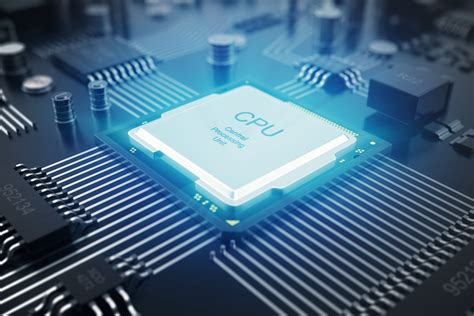
Achieving a perfect balance between your CPU and GPU is an ongoing endeavor, as game requirements and hardware evolve. The goal isn’t to eliminate bottlenecks entirely, as one component will always be slightly faster than the other. Instead, aim to shift the bottleneck to your GPU, ensuring it’s running at near 100% utilization while your CPU has some headroom. This configuration typically yields the smoothest and highest frame rates for gaming.
Conclusion
Understanding and addressing CPU bottlenecks is key to unlocking your PC’s full gaming potential. By using monitoring tools, interpreting the data correctly, and applying appropriate software or hardware fixes, you can significantly improve your gaming experience, enjoying higher, more consistent frame rates and fully utilizing your powerful GPU. A balanced system not only performs better but also provides a more satisfying and frustration-free gaming journey.


