





Is my CPU bottlenecking my new RTX 4070 in demanding PC games?
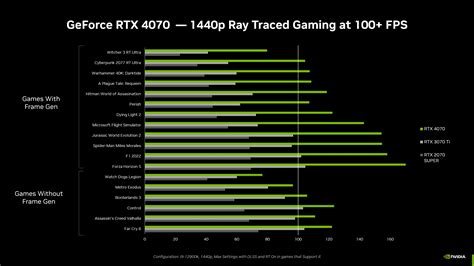
You’ve just invested in a powerful new RTX 4070 graphics card, eager to experience your favorite games with stunning visuals and smooth frame rates. It’s an exciting upgrade, but a common concern for many PC gamers is whether their existing CPU can keep up. A mismatch in processing power, where the CPU can’t feed data to the GPU fast enough, is known as a bottleneck, and it can prevent your new GPU from reaching its full potential. Let’s explore how to determine if your CPU is indeed holding back your RTX 4070.
Understanding the CPU Bottleneck
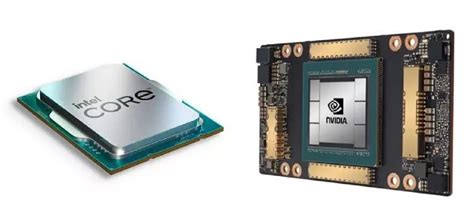
At its core, a CPU bottleneck occurs when your central processing unit (CPU) isn’t powerful enough to process game logic, AI, physics, and draw calls at the same rate your graphics card (GPU) can render frames. The GPU then spends time waiting for the CPU, leading to lower frame rates, inconsistent frame times, and overall underutilization of your expensive new graphics card.
Key Symptoms of a CPU Bottleneck
Identifying a bottleneck often requires observation and monitoring. Here are the tell-tale signs:
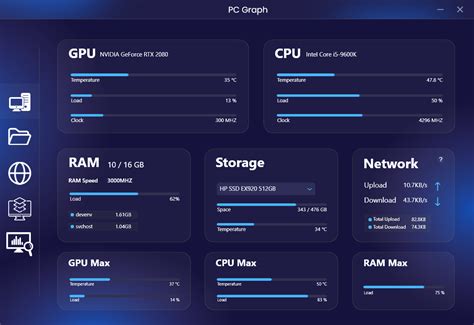
- Low GPU Utilization: If your RTX 4070 is consistently running at 60-80% utilization (or even lower) while your CPU is near 100% in demanding game scenarios, it’s a strong indicator.
- Stuttering and Frame Drops: Even if your average FPS seems decent, frequent micro-stutters or noticeable drops in frame rate, especially in CPU-intensive areas of games (e.g., crowded cities, large-scale battles), point towards a CPU limitation.
- Unsatisfactory Frame Rates: If benchmarks or expected performance for your RTX 4070 are significantly higher than what you’re experiencing, the CPU might be the limiting factor.
- Performance Doesn’t Scale with Resolution: If increasing your game’s resolution from 1080p to 1440p doesn’t significantly drop your frame rate, it suggests your GPU had overhead, and the CPU was already the bottleneck at lower resolutions.

How to Diagnose a CPU Bottleneck
Accurate diagnosis is crucial. Here’s how you can investigate:
- Use Monitoring Software: Tools like MSI Afterburner (with RivaTuner Statistics Server), HWMonitor, or even Windows Task Manager (Performance tab) are indispensable. Monitor your CPU utilization (per-core is best), GPU utilization, CPU temperature, and GPU temperature while gaming.
- Observe Core Utilization: Pay attention to individual CPU core usage. If one or two cores are maxed out while others are idle or underutilized, it might indicate a single-threaded bottleneck, common in older game engines.
- Test Different Settings:
- Lower Resolution: Play a demanding game at 1080p. If your GPU utilization is low and your FPS is similar to what you get at 1440p or higher, your CPU is likely the bottleneck.
- Graphics Presets: Switch between “Low” and “Ultra” graphics settings. If your frame rate doesn’t change much between these extremes, the CPU is the limiting factor, as it’s already maxed out regardless of how much work the GPU *could* do.
Factors Influencing Bottleneck Severity
The degree of bottlenecking isn’t static; it depends on several variables:
- Game Engine & Type: CPU-intensive games (e.g., open-world titles like Starfield, strategy games with many units, city builders) are more likely to hit a CPU limit than GPU-intensive linear action games.
- Resolution & Refresh Rate: Lower resolutions (1080p) and higher refresh rates (144Hz+) put more strain on the CPU, as it needs to prepare more frames per second for the GPU. At 4K, the GPU typically becomes the bottleneck.
- In-Game Settings: Certain settings like draw distance, crowd density, physics calculations, and AI complexity are primarily CPU-bound. Maximizing these can exacerbate a CPU bottleneck.
What to Do If You’re CPU Bottlenecked
If you’ve confirmed a CPU bottleneck, here are your options, from immediate workarounds to long-term solutions:
Short-Term Workarounds:
- Increase Resolution/Graphics Settings: This might sound counterintuitive, but if your GPU isn’t fully utilized, increasing resolution or demanding graphics settings (like texture quality, anti-aliasing) can shift more workload to the GPU, potentially balancing the load and making the GPU the bottleneck (which is generally preferable). This won’t increase your FPS but can improve visual quality at the same low FPS.
- Lower CPU-Intensive Settings: Reduce settings like crowd density, view distance, shadow quality (if CPU-based), or physics details.
Long-Term Solutions:
- Upgrade Your CPU: This is the most effective solution. Research compatible CPUs for your current motherboard and budget. Be aware that a CPU upgrade might also necessitate a new motherboard and RAM if your existing components are too old to support a modern processor.
- Overclock Your CPU (If Applicable): If your CPU and motherboard support it, a stable overclock can provide a performance boost. Ensure adequate cooling.
- Ensure Proper Cooling: An overheating CPU will throttle its performance. Make sure your CPU cooler is effective and your case has good airflow.
Conclusion
While an RTX 4070 is a formidable graphics card, its full potential can only be unlocked with a reasonably balanced CPU. Diagnosing a CPU bottleneck involves careful monitoring and understanding how different game settings and resolutions impact your system’s performance. By applying the right diagnostic steps and considering the appropriate solutions, you can ensure your gaming rig delivers the smooth, high-fidelity experience you expect from your new GPU.



