





Is my gaming PC bottlenecked? How to identify & upgrade key components?
Understanding the Gaming PC Bottleneck
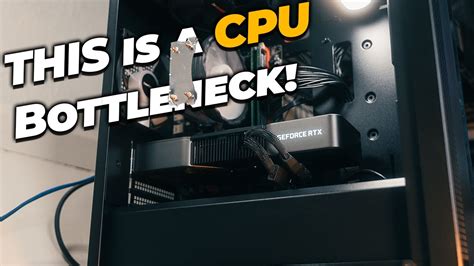
Many PC gamers strive for the ultimate performance, yet often find their systems aren’t running as smoothly or as fast as they expect. The culprit? A bottleneck. A bottleneck in a gaming PC occurs when one component limits the potential performance of other, more powerful components. Imagine a multi-lane highway suddenly narrowing to a single lane; traffic backs up, even if the rest of the highway is clear. Similarly, a weaker component can prevent your entire system from delivering its maximum frame rate and responsiveness.
Identifying and resolving bottlenecks is crucial for maximizing your gaming experience and ensuring that your hardware investments are truly paying off. This guide will walk you through the process of diagnosing performance bottlenecks and strategically upgrading your PC’s key components.
Common Signs Your PC Might Be Bottlenecked
Spotting a bottleneck often comes down to observing your system’s behavior during demanding tasks, particularly gaming. Here are some tell-tale signs:
- Low Frame Rates (FPS): Consistently lower FPS than expected for your hardware combination.
- Stuttering or Hitching: Sudden, brief freezes or slowdowns, even when average FPS seems decent.
- Inconsistent Performance: Frame rates fluctuate wildly, rather than remaining stable.
- High Utilization of One Component, Low of Others: For example, your CPU is at 100% while your GPU sits at 50%, or vice versa.
- Long Loading Times: Especially for games installed on older or slower storage drives.
How to Identify the Bottleneck
To definitively pinpoint the bottleneck, you’ll need to monitor your system’s performance in real-time while gaming. Several tools can help with this:
Software Monitoring Tools
- MSI Afterburner (with RivaTuner Statistics Server): This popular tool allows you to monitor CPU, GPU, RAM, and other metrics in an on-screen overlay while you play. It’s highly customizable and provides a clear view of component utilization.
- HWMonitor: Provides detailed information about temperatures, voltages, and utilization for various components, though typically not with an in-game overlay.
- Windows Task Manager: A built-in tool (Ctrl+Shift+Esc) that can give you a quick overview of CPU, GPU, RAM, and Disk utilization under the ‘Performance’ tab.
Analyzing Utilization Data
The key is to observe the utilization percentages of your CPU and GPU while playing a demanding game:
- GPU Bottleneck: If your GPU utilization is consistently at or near 99-100% while your CPU utilization is significantly lower (e.g., 50-70%), your graphics card is likely the limiting factor. This is often desirable, as it means your GPU is working as hard as it can to render frames.
- CPU Bottleneck: If your CPU utilization is consistently at or near 99-100% on multiple cores (or threads for games that utilize many), while your GPU utilization is lower (e.g., 60-80%), your processor is holding back your graphics card. This often happens in CPU-intensive games, open-world titles, or at lower resolutions where the CPU needs to prepare more frames faster.
- RAM Bottleneck: If your RAM usage is consistently at 90%+, and you experience stuttering or slow loading, you might not have enough RAM. Slow RAM speed can also bottleneck a fast CPU.
- Storage Bottleneck: Very long loading screens, texture pop-in, or slow game installations can point to a slow hard drive or an insufficient SSD.
Key Components and How They Bottleneck
Let’s delve deeper into how specific components contribute to bottlenecks:
Graphics Card (GPU)
The GPU is the most common bottleneck in gaming PCs, especially at higher resolutions (1440p, 4K) or with demanding graphical settings. It’s responsible for rendering all the visuals on your screen. If your GPU is maxed out, it can’t render frames any faster, even if your CPU has plenty of overhead.
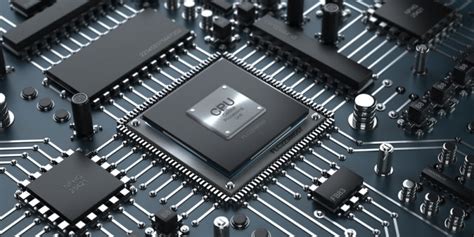
Processor (CPU)
While often less of a bottleneck than the GPU for pure frame rendering, the CPU is vital for game logic, physics, AI, and feeding data to the GPU. A weaker CPU can limit the maximum frame rate your GPU can achieve, particularly in games that are CPU-intensive or when aiming for very high frame rates at lower resolutions (e.g., 1080p with a 144Hz monitor).
RAM (Memory)
Insufficient RAM (e.g., 8GB in modern gaming) or slow RAM speeds can cause stuttering and poor performance. Games need enough memory to store assets, and if they run out, they resort to using slower storage, leading to significant slowdowns.
Storage (SSD/HDD)
While not directly impacting in-game FPS as much as CPU or GPU, slow storage can cause excruciatingly long load times, texture pop-in, and generally make the system feel sluggish. An NVMe SSD is now the gold standard for gaming.
Strategies for Upgrading Bottlenecked Components
Once you’ve identified the bottleneck, you can plan your upgrade strategy. Always consider your budget and overall system compatibility.
Prioritizing GPU Upgrades
If your GPU is consistently at 99-100% utilization, upgrading your graphics card will provide the most significant performance boost in most gaming scenarios. Research cards that offer a good performance-per-dollar ratio within your budget and ensure your Power Supply Unit (PSU) can handle the new card’s power requirements.
Considering CPU & Motherboard Upgrades
If your CPU is the bottleneck (high CPU usage, low GPU usage), a new processor is in order. Be aware that upgrading your CPU often requires a new motherboard as well, due to socket changes. This can be a more involved and expensive upgrade, potentially also requiring new RAM if your current RAM is an older generation (e.g., DDR3 vs. DDR4/DDR5).
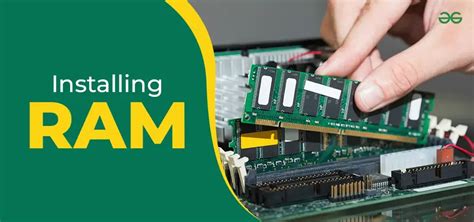
Adding or Upgrading RAM
If you have less than 16GB of RAM, upgrading to 16GB (or 32GB for very demanding games/multitasking) is a wise investment. Ensure your RAM modules are running in dual-channel mode (typically by installing two identical sticks) for optimal performance. Faster RAM (e.g., 3200MHz or 3600MHz for DDR4) can also benefit CPU-bound scenarios.
Switching to an SSD/NVMe
If you’re still using a traditional Hard Disk Drive (HDD) for your operating system and games, upgrading to an SSD (SATA or NVMe) will dramatically improve load times, boot times, and overall system responsiveness. NVMe drives offer even greater speeds than SATA SSDs for those who want the absolute fastest storage.
Power Supply (PSU)
Don’t forget the PSU! When upgrading power-hungry components like a GPU or CPU, ensure your existing PSU has sufficient wattage and the necessary connectors to support the new hardware. An underpowered PSU can lead to instability or even damage components.
Optimizing Without New Hardware
Sometimes, you can alleviate minor bottlenecks or improve performance without buying new components:
- Adjust In-Game Settings: Lowering settings like anti-aliasing, shadow quality, or texture detail can reduce the load on your GPU. Reducing resolution can shift the bottleneck to your CPU.
- Update Drivers: Keep your graphics card drivers (NVIDIA, AMD) and chipset drivers up-to-date for optimal performance and stability.
- Clean Up Your System: Close unnecessary background applications and keep your operating system tidy.
- Overclocking: If comfortable, safely overclocking your CPU or GPU can squeeze out a bit more performance, but proceed with caution and research.

Conclusion
Identifying and addressing bottlenecks is an essential skill for any PC gamer looking to get the most out of their system. By using monitoring tools and understanding how each component interacts, you can make informed decisions about where to invest your upgrade budget. Remember, the goal isn’t necessarily to eliminate all bottlenecks, but to shift them to the most appropriate component (usually the GPU) so your system can deliver its best possible performance for your chosen games and settings.


