





Lagging in online games? Optimize your router settings for lower ping.
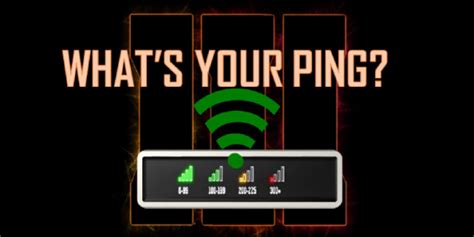
Few things are as frustrating for an online gamer as experiencing lag. That split-second delay, the stuttering movement, or the sudden disconnect can turn a winning streak into a defeat and immense enjoyment into pure exasperation. While a fast internet connection is crucial, it’s not the only factor. Your router, the gateway between your devices and the internet, plays a pivotal role in dictating your ping – the measurement of how long it takes for data to travel from your computer to the game server and back. Optimizing its settings can be the secret weapon against those infuriating delays.
Understanding Ping and Lag
Before diving into optimizations, let’s clarify what we’re fighting against. Ping, also known as latency, is the reaction time of your internet connection. It’s measured in milliseconds (ms). A lower ping means a faster response time, which is critical in fast-paced online games where every millisecond counts. Lag is the noticeable delay caused by high ping or packet loss, resulting in choppy gameplay, rubber-banding, or actions not registering immediately. While you can’t control the physical distance to a game server, you can optimize your local network to minimize any additional latency.
Accessing Your Router Settings
To begin optimizing, you first need to log into your router’s administration interface. Typically, you can do this by typing your router’s IP address into a web browser. Common default IP addresses include 192.168.1.1, 192.168.0.1, or 10.0.0.1. You can usually find your router’s IP address (the default gateway) in your computer’s network settings. Once prompted, enter your username and password. If you haven’t changed them, these are often generic defaults like ‘admin’ for both, or ‘admin’ for username and ‘password’ for password. It’s highly recommended to change these default credentials for security reasons.
Key Router Settings to Optimize for Gaming
1. Quality of Service (QoS)
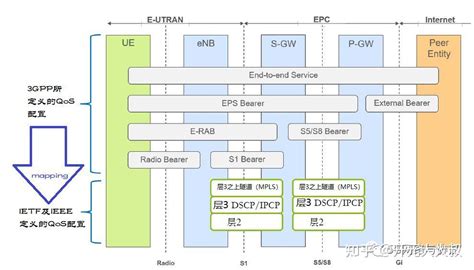
QoS is arguably the most impactful setting for gamers sharing a network. It allows you to prioritize certain types of network traffic over others. By enabling QoS and setting your gaming device or specific game applications to high priority, your router will ensure that gaming data packets get preferential treatment, even when others on your network are streaming video, downloading large files, or browsing heavily. Look for options like ‘Gaming Prioritization’, ‘Bandwidth Control’, or ‘Traffic Manager’ within your router settings.
2. Update Your Router’s Firmware
Router manufacturers frequently release firmware updates that improve performance, enhance security, and fix bugs. An outdated firmware can lead to instability and suboptimal performance. Check your router’s administration page for a ‘Firmware Update’ or ‘Maintenance’ section. Always follow the manufacturer’s instructions carefully when updating firmware to avoid bricking your device.
3. Optimize Wi-Fi Channel and Frequency
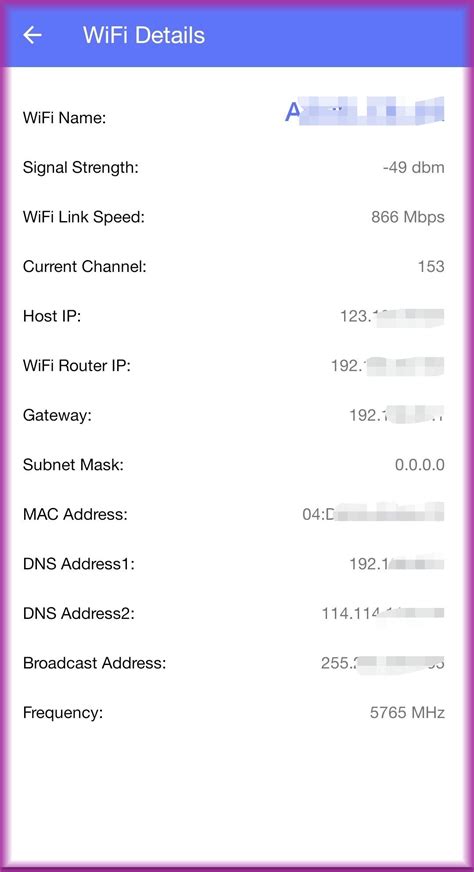
If you’re gaming wirelessly, Wi-Fi interference can significantly increase ping. Many routers operate on the 2.4GHz band, which is often crowded with other Wi-Fi networks, Bluetooth devices, and even microwaves. If your router supports it, the 5GHz band generally offers faster speeds and less interference, though its range is shorter. Within your Wi-Fi settings, you can also change the Wi-Fi channel. Use a Wi-Fi analyzer app on your smartphone or computer to identify the least congested channels (typically 1, 6, or 11 for 2.4GHz) and switch to one of them.

4. Port Forwarding and UPnP (Universal Plug and Play)
Some online games require specific ports to be open to function optimally. Port Forwarding manually directs incoming traffic on a specific port to a particular device on your local network. Consult your game’s support page for required ports. Alternatively, UPnP is a feature that allows devices to automatically open and close ports as needed. While convenient, UPnP can pose minor security risks and sometimes interfere with QoS. For most modern games, UPnP is sufficient, but if you’re experiencing connectivity issues, manual port forwarding might be necessary.
5. Change Your DNS Server
Your Domain Name System (DNS) server translates website names into IP addresses. While not directly affecting in-game ping, a faster DNS server can slightly speed up the initial connection to game servers and website loading. Consider using public DNS servers like Google DNS (8.8.8.8 and 8.8.4.4) or Cloudflare DNS (1.1.1.1 and 1.0.0.1), which often offer better performance and reliability than your ISP’s default servers. You can change this in your router’s WAN or Internet settings, or on your gaming device directly.
6. Router Placement and Wired Connection
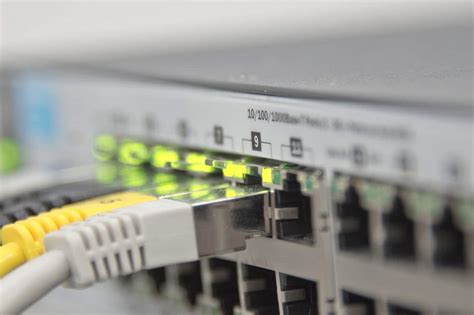
The physical location of your router matters. Place it in a central location, elevated, and away from obstructions and other electronics that could cause interference. However, for the absolute best and most stable connection, nothing beats a wired Ethernet connection. An Ethernet cable eliminates Wi-Fi interference and generally offers significantly lower and more consistent ping than even the most optimized wireless setup.
Final Tips for a Lag-Free Experience
- Reboot Your Router Regularly: A simple reboot can often clear minor issues and refresh your network connection.
- Limit Concurrent Usage: Ask others on your network to pause large downloads or high-bandwidth activities while you’re gaming.
- Test Your Speed: Periodically run internet speed tests to ensure you’re getting the speeds you pay for from your ISP.
By taking the time to delve into your router’s settings and implementing these optimizations, you can significantly reduce lag and enjoy a much smoother, more responsive online gaming experience. Don’t let your router be the weak link in your gaming setup!


