Laptop slow? Upgrade SSD or add more RAM first?
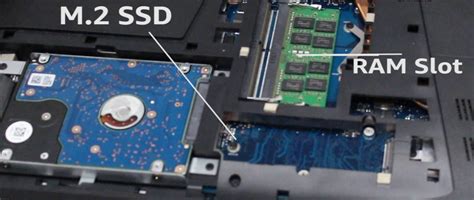
Is your once snappy laptop now crawling? It’s a common frustration, and when performance dips, the two most frequently recommended upgrades are a Solid State Drive (SSD) and additional Random Access Memory (RAM). But which one should you prioritize for the most significant impact on your daily usage?
Understanding Performance Bottlenecks
Before diving into upgrades, it’s crucial to understand how your laptop’s key components interact to affect speed. The CPU is the brain, RAM is the short-term memory, and storage (HDD or SSD) is the long-term memory. A bottleneck occurs when one component can’t keep up with the others.

The Role of RAM
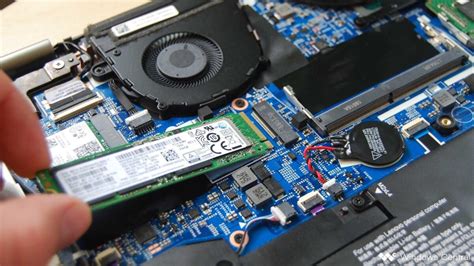
RAM acts as a temporary workspace for your computer. When you open applications, browse the web with multiple tabs, or edit large files, the data they need is loaded into RAM for quick access. If your laptop doesn’t have enough RAM, it will start using a portion of your storage drive (a process called “paging” or “swapping”) as virtual memory. This is significantly slower than actual RAM, leading to noticeable slowdowns, stuttering, and unresponsiveness, especially when multitasking heavily.
The Role of the SSD (Solid State Drive)
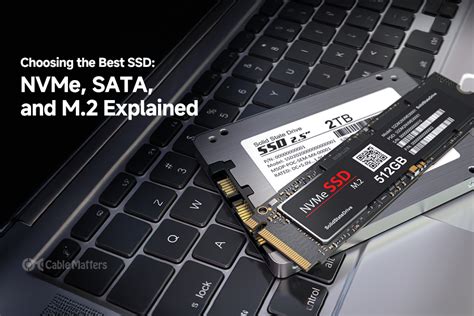
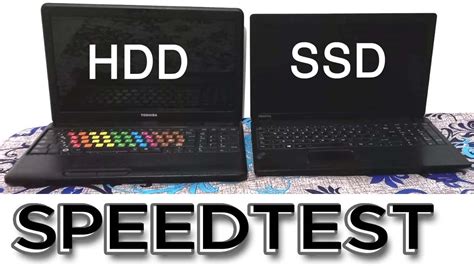
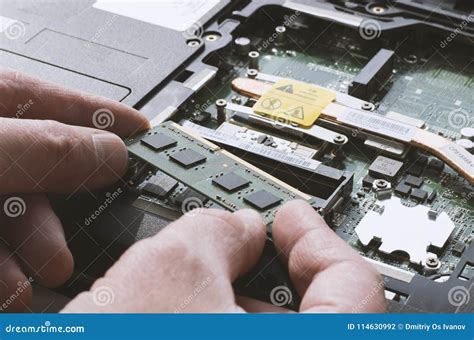
Your storage drive is where your operating system, applications, and files are permanently stored. Traditional Hard Disk Drives (HDDs) use spinning platters and read/write heads, making them mechanically slow. SSDs, on the other hand, use flash memory, offering vastly superior read and write speeds. Upgrading from an HDD to an SSD dramatically improves boot times, application loading speeds, file transfers, and overall system responsiveness, as the computer can access data much quicker.
When to Prioritize an SSD Upgrade
If your laptop currently uses a traditional Hard Disk Drive (HDD), an SSD upgrade is almost always the most impactful first step. Here’s why:
- Slow Boot Times: Your laptop takes an eternity to start up.
- Applications Load Slowly: Programs like your web browser, word processor, or photo editor take a long time to open.
- General Lag: Even simple tasks feel sluggish, and the system often freezes or becomes unresponsive for brief periods.
- Frequent File Transfers: Copying or moving large files is agonizingly slow.
- Insufficient RAM (with HDD): Even if you’re running out of RAM, the swapping to an SSD will still be significantly faster than swapping to an HDD.
An SSD breathes new life into an old laptop, making it feel like a completely new machine, often more so than adding RAM if you’re still on an HDD.
When to Prioritize a RAM Upgrade
If you already have an SSD or your laptop primarily suffers from specific types of slowdowns, RAM might be the better choice:
- Heavy Multitasking: You consistently have many applications open simultaneously, dozens of browser tabs, or switch between programs frequently.
- Memory-Intensive Applications: You use professional software like video editing suites (Adobe Premiere Pro, DaVinci Resolve), CAD programs, virtual machines, or large scientific simulation tools.
- “Out of Memory” Errors: Your system frequently displays warnings about low memory.
- Existing SSD: If your laptop already has an SSD but still struggles under heavy loads, more RAM is likely the next bottleneck.
Upgrading RAM will allow your laptop to handle more active processes without resorting to slower virtual memory, leading to smoother transitions and more stable performance during demanding tasks.
How to Identify Your Laptop’s Bottleneck
The best way to make an informed decision is to monitor your system’s performance:
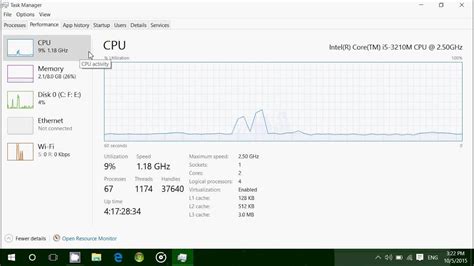
- Windows: Open Task Manager (Ctrl+Shift+Esc or Ctrl+Alt+Del) and go to the “Performance” tab. Observe the CPU, Memory (RAM), and Disk usage while performing tasks that cause slowdowns. High “Disk” usage (especially 100% for prolonged periods) points to an HDD bottleneck. High “Memory” usage (consistently near 90-100%) indicates a RAM shortage.
- macOS: Open Activity Monitor (Applications > Utilities). Check the “Memory” and “Disk” tabs. Look for high “Memory Pressure” (red/yellow graph) or high “Reads/Writes” under Disk, especially if your startup disk is an HDD.
Conclusion: The Bottom Line
For most users experiencing a slow laptop that still uses a traditional Hard Disk Drive (HDD), upgrading to an SSD will provide the most dramatic and noticeable performance improvement across the board. It transforms the overall snappiness and responsiveness of the system.
If your laptop already has an SSD, or if you consistently hit performance ceilings when juggling many applications or running memory-intensive software, then adding more RAM is likely the key to unlocking further speed and stability. Ideally, a laptop with sufficient RAM and an SSD offers the best balance of speed and responsiveness for modern computing tasks.