





My FPS drops in games. What are quick GPU/CPU optimization tips for gaming?
Nothing sours a gaming session faster than sudden, inexplicable Frame Per Second (FPS) drops. One moment you’re immersed in a fluid virtual world, the next you’re struggling through a choppy slideshow. These performance hiccups can be incredibly frustrating, often hinting at underlying issues with your system’s GPU (Graphics Processing Unit) or CPU (Central Processing Unit).
Understanding the Culprits: GPU vs. CPU Bottlenecks
Before diving into solutions, it’s helpful to understand what causes FPS drops. Often, it’s a “bottleneck” where one component isn’t keeping up with the other. A GPU bottleneck means your graphics card is struggling to render frames fast enough, usually due to demanding graphical settings. A CPU bottleneck means your processor can’t feed information to the GPU quickly enough, often due to too many background tasks or a very CPU-intensive game.
Quick GPU Optimization Tips
1. Update Your Graphics Drivers
This is arguably the most crucial step. NVIDIA, AMD, and Intel frequently release driver updates that include performance optimizations for new games, bug fixes, and general stability improvements. Always download the latest drivers directly from the manufacturer’s website.
2. Adjust In-Game Graphics Settings
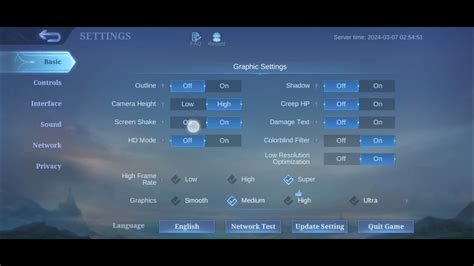
While tempting to crank everything to “Ultra,” your GPU might not be able to handle it. Start by lowering demanding settings like Anti-aliasing, Shadows, Volumetric Clouds, and Reflection Quality. Experiment by lowering one setting at a time and testing the performance. Resolution scaling can also be a quick win.

3. Optimize Via Control Panels (NVIDIA/AMD)
Both NVIDIA Control Panel and AMD Adrenalin Software offer global and game-specific settings. For example, you can set “Power Management Mode” to “Prefer Maximum Performance” in NVIDIA or disable Radeon Anti-Lag if it causes issues in AMD. Be cautious and research settings before changing them.
Quick CPU Optimization Tips
1. Close Unnecessary Background Applications
Many apps run in the background, consuming CPU cycles and RAM. Before gaming, close web browsers with multiple tabs, streaming services, communication apps (Discord, Teams, Zoom), and any other non-essential software. Use Task Manager (Ctrl+Shift+Esc) to identify and end resource-heavy processes.

2. Set Power Plan to High Performance
In Windows, navigate to Control Panel > Hardware and Sound > Power Options and select “High Performance.” This ensures your CPU doesn’t throttle its clock speed to save power, giving you maximum processing power for your game.
3. Update Chipset Drivers
Just like GPU drivers, motherboard chipset drivers are essential for optimal CPU performance and communication with other components. Visit your motherboard manufacturer’s website to download the latest versions.
4. Monitor CPU Usage and Temperatures
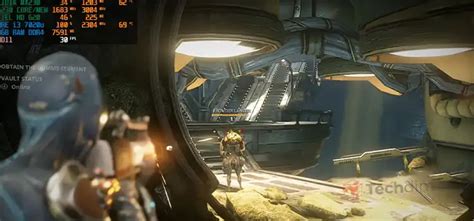
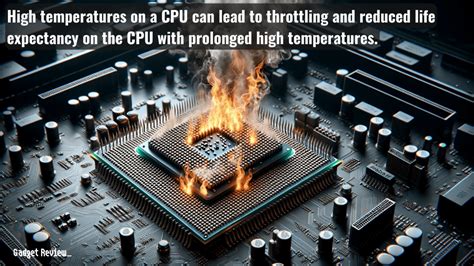
An overheating CPU can automatically throttle its performance to prevent damage. Use monitoring software like HWMonitor or MSI Afterburner to check CPU temperatures and usage during gaming. If temperatures are consistently high (e.g., above 85-90°C), investigate cooling solutions.
General System Health for Better Gaming
1. Keep Your PC Clean
Dust is the enemy of cooling. Regularly clean dust from your CPU cooler, GPU heatsink, and case fans. Better airflow means lower temperatures and less thermal throttling.
2. Ensure Adequate Cooling
Beyond cleaning, ensure your PC case has good airflow with properly oriented intake and exhaust fans. Consider upgrading your CPU cooler if stock solutions aren’t sufficient, especially for demanding CPUs.
3. Check for Malware and Viruses
Malicious software can consume significant system resources, leading to FPS drops. Run regular scans with a reputable antivirus program.
4. Keep Your Operating System Updated
Windows updates often include performance improvements, security patches, and driver updates that can indirectly benefit gaming performance.
Conclusion
Experiencing FPS drops can be a pain, but with these quick GPU and CPU optimization tips, you’re well-equipped to diagnose and alleviate most common issues. Start with driver updates and in-game settings, then delve into background processes and system health. Consistent maintenance and smart configuration are key to maintaining a smooth, enjoyable gaming experience.


