





My gaming PC drops frames. What are key GPU settings to optimize for better FPS?

Understanding Frame Drops and Your GPU
Experiencing frame drops in your favorite games can be incredibly frustrating, transforming an immersive experience into a stuttering mess. Often, the culprit lies in how your Graphics Processing Unit (GPU) is utilized and configured. Optimizing your GPU settings, both globally and within individual games, can significantly boost your Frames Per Second (FPS) and provide a much smoother gameplay experience. Before diving into specific settings, it’s crucial to understand that a drop in frames can stem from various factors, including outdated drivers, overheating, or CPU bottlenecks, but often, proper GPU configuration can make a substantial difference.
Diagnosing the Problem First
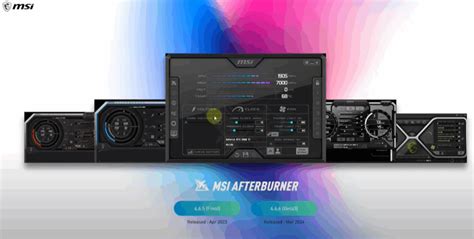
Before you start tweaking settings, it’s wise to get a baseline. Use monitoring software like MSI Afterburner, GeForce Experience’s performance overlay, or AMD Radeon Software’s metrics to observe your GPU usage, temperature, and current FPS. This helps identify if your GPU is hitting 100% usage (which is good if you want maximum performance but might indicate a bottleneck if you’re still dropping frames), or if it’s underutilized, suggesting a CPU bottleneck or other issues. High temperatures can also throttle your GPU’s performance, so keep an eye on those too.
Optimizing GPU Driver Settings (NVIDIA Control Panel / AMD Radeon Software)
Your GPU driver software provides a wealth of global settings that can impact all your games. Adjusting these can often yield immediate improvements.
NVIDIA Control Panel Key Settings:
- Power Management Mode: Set this to ‘Prefer Maximum Performance’. This ensures your GPU consistently runs at its highest clock speeds when gaming, preventing throttling.
- Texture Filtering Quality: Change this to ‘High Performance’. While ‘High Quality’ looks slightly better, ‘High Performance’ prioritizes FPS.
- Low Latency Mode: Experiment with ‘On’ or ‘Ultra’. This aims to reduce input lag by limiting the number of frames queued by the CPU, potentially improving FPS stability.
- Vertical Sync (V-Sync): Generally, turn this ‘Off’ for competitive gaming to minimize input lag. If you experience screen tearing and don’t have G-Sync/FreeSync, consider ‘Fast Sync’ (NVIDIA) or ‘Enhanced Sync’ (AMD), or Adaptive V-Sync.
- Anisotropic Filtering: Set to ‘Application-controlled’. This allows individual games to manage AF, preventing conflicts.
AMD Radeon Software Key Settings:
- Radeon Chill: Disable this if you want maximum FPS. Radeon Chill limits FPS to save power and reduce heat.
- Radeon Anti-Lag: Enable this to reduce input lag, similar to NVIDIA’s Low Latency Mode.
- Radeon Boost: Enable this. It dynamically lowers resolution in fast-motion scenes to improve FPS, often unnoticeably.
- Texture Filtering Quality: Set to ‘Performance’.
- Wait for Vertical Refresh (V-Sync): Similar to NVIDIA, turn ‘Off’ or use ‘Enhanced Sync’ if tearing is an issue.

Balancing In-Game Graphics Settings
Once global settings are optimized, delve into individual game settings. This is where most of your performance gains (or losses) are determined. Always start by lowering the most demanding settings first.
- Resolution: Play at your monitor’s native resolution if possible. Lowering resolution is a big FPS boost but can make the image blurry.
- Texture Quality: This impacts VRAM usage. If you have limited VRAM (e.g., 4GB or less), lowering texture quality can prevent stutters.
- Shadow Quality: Shadows are notoriously demanding. Reducing their quality or even disabling them in some games can significantly improve FPS.
- Anti-aliasing (AA): Techniques like MSAA, SSAA, and TXAA are very taxing. FXAA or TAA are less demanding alternatives. Consider lowering or disabling AA if you’re struggling for frames.
- Post-Processing Effects: Bloom, Depth of Field, Motion Blur, and Screen Space Reflections (SSR) can all impact performance. Experiment with disabling or reducing these.
- Volumetric Lighting/God Rays: These are visually impressive but often come with a high performance cost.
- View Distance / Draw Distance: Lowering these reduces the number of objects and details rendered in the distance, saving GPU power.

Monitoring and Fine-Tuning
The key to successful optimization is iterative testing. Change one setting at a time, test the game, and observe the FPS change. Use an in-game FPS counter or your monitoring software. Aim for a stable FPS that feels smooth to you, balancing visual quality with performance. A good target for general gaming is 60 FPS, while competitive players often aim for 120 FPS or higher.
Beyond GPU Settings: Other Considerations
If optimizing GPU settings doesn’t fully resolve your frame drops, consider these additional factors:
- Update Drivers: Always keep your GPU drivers updated to the latest stable version. New drivers often include performance optimizations for recent games.
- Close Background Applications: Ensure no unnecessary programs are running in the background, consuming CPU or RAM resources.
- Monitor Temperatures: Overheating GPU or CPU can lead to thermal throttling, reducing performance. Ensure good airflow in your case and clean dust from fans.
- Game Mode (Windows): Ensure Windows Game Mode is enabled. It prioritizes game processes.
- Overclocking (Advanced): For experienced users, a modest GPU overclock can provide a small FPS boost, but proceed with caution and monitor temperatures closely.
Conclusion
Tackling frame drops requires a methodical approach, starting with diagnosis and moving through both global driver settings and in-game adjustments. By carefully optimizing these key GPU settings, you can unlock better FPS, a smoother gaming experience, and reclaim the joy of uninterrupted play. Remember that the perfect balance between visual fidelity and performance is subjective, so experiment until you find what works best for your system and your eyes.


