





My gaming PC gets hot and FPS drops. How can I improve cooling and prevent thermal throttling?

Experiencing your gaming PC getting excessively hot, leading to frustrating FPS drops, is a common issue for many enthusiasts. This phenomenon, known as thermal throttling, occurs when your CPU or GPU automatically reduces its performance to prevent overheating and potential damage. While it’s a built-in safety mechanism, it directly impacts your gaming experience. The good news is that with a few strategic steps, you can significantly improve your system’s cooling and keep those frame rates stable.
Understanding Thermal Throttling and Its Impact
Thermal throttling is your computer’s way of protecting its components. When temperatures reach a critical threshold, your CPU (Central Processing Unit) and GPU (Graphics Processing Unit) will clock down their speeds, consuming less power and generating less heat. While this prevents hardware failure, it also means your games will run slower, with noticeable dips in performance and responsiveness. Identifying if your system is throttling is the first step towards a solution, often done by monitoring temperatures with software like HWMonitor or MSI Afterburner while gaming.
Essential First Steps: Cleaning and Airflow Optimization
Dust Removal is Crucial
One of the most overlooked culprits for poor cooling is dust. Over time, dust accumulates on fan blades, heatsinks, and vents, acting as an insulating layer and impeding airflow. Regularly cleaning your PC with compressed air, focusing on the CPU cooler, GPU heatsink, and case fans, can make a dramatic difference. Ensure your PC is powered off and unplugged before cleaning.
Cable Management and Fan Configuration
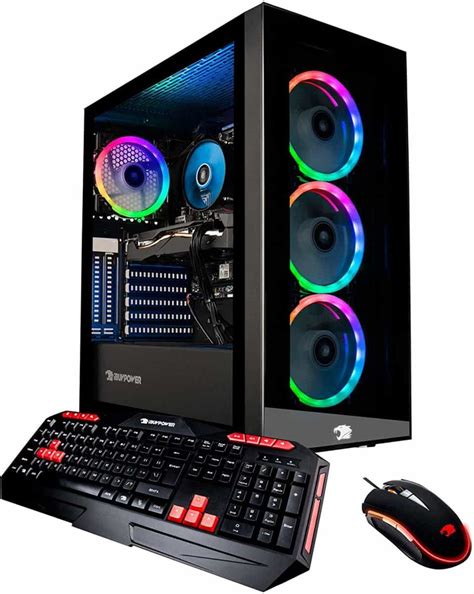
Messy cables inside your PC case can obstruct airflow, creating pockets of stagnant hot air. Neatly tying cables behind the motherboard tray or routing them strategically improves air circulation. Furthermore, ensure your case fans are configured for optimal airflow: typically, front and bottom fans should be intake (pulling cool air in), while rear and top fans should be exhaust (pushing hot air out).
Hardware Upgrades for Enhanced Cooling
Upgrade Your CPU Cooler
If you’re still using a stock cooler with a high-performance CPU, it’s likely insufficient. Investing in a quality aftermarket CPU cooler, whether it’s a beefy air cooler or an All-In-One (AIO) liquid cooler, can drastically lower CPU temperatures. Air coolers are generally more affordable and reliable, while AIOs offer superior performance and aesthetics but come with a higher price tag and a small risk of leaks.
Improve Case Fans
The fans that came with your PC case might not be the most efficient. Upgrading to higher quality, high static pressure (for radiators/heatsinks) or high airflow (for open case areas) fans can significantly improve your case’s ability to move air. Consider adding more fans if your case has empty mounts, ensuring a balanced pressure system (slightly positive pressure helps keep dust out).
Reapply Thermal Paste
The thermal paste between your CPU/GPU and their respective coolers degrades over time, losing its thermal conductivity. Reapplying fresh, high-quality thermal paste every few years (or when upgrading coolers) can improve heat transfer efficiency. Be sure to clean off the old paste thoroughly before applying a new, pea-sized amount.
Consider a Better Case
Some PC cases prioritize aesthetics over airflow. If your current case has solid front panels or limited ventilation, upgrading to a case designed for high airflow (e.g., mesh front panels, ample fan mounts) can provide an immediate and substantial improvement in internal temperatures.
Software Solutions and Environmental Control
Adjust Fan Curves
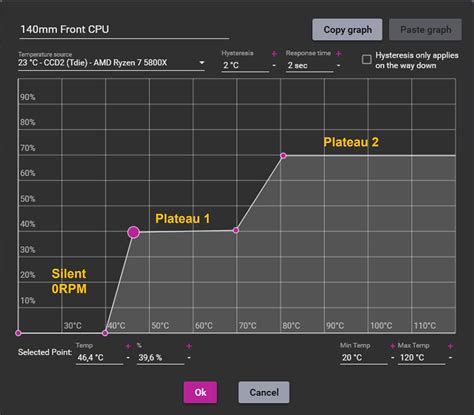
Your motherboard’s BIOS/UEFI allows you to customize fan speed curves based on temperature. You can set fans to spin faster at lower temperatures, proactively preventing heat buildup. Similarly, GPU fan curves can be adjusted using software like MSI Afterburner.
Undervolting Your CPU/GPU
Undervolting involves reducing the voltage supplied to your CPU or GPU without significantly impacting performance. Less voltage means less power consumption and, consequently, less heat generation. This requires careful testing and is an advanced technique, but it can yield excellent temperature improvements.
Monitor Temperatures Regularly
Tools like HWMonitor, Core Temp, or GPU-Z allow you to keep an eye on your components’ temperatures. Understanding your baseline and peak temperatures during gaming can help you identify if your cooling solutions are working effectively and when further adjustments might be needed.
Environmental Factors
Don’t overlook your room environment. A cooler room will naturally lead to a cooler PC. Ensure your PC is not placed in an enclosed cabinet or directly against a wall, as this can restrict airflow to its intake and exhaust vents. Give it some breathing room!
Conclusion
Combating thermal throttling and high temperatures in your gaming PC is a multi-faceted task, combining regular maintenance, potential hardware upgrades, and smart software adjustments. By systematically addressing dust, optimizing airflow, considering better cooling components, and fine-tuning your system’s settings, you can ensure your gaming rig runs cool, quiet, and delivers consistent, high-performance frame rates, letting you enjoy your games without frustrating interruptions.


