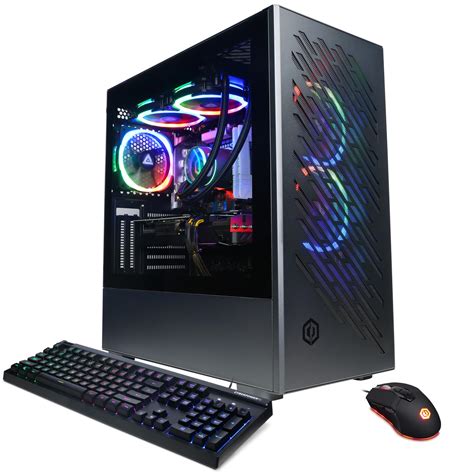
My gaming PC gets hot during long sessions. How to improve cooling & prevent FPS drops?

Gaming PCs are powerful machines, but that power generates significant heat. If you’ve noticed your frame rates dipping, stuttering, or even crashes during extended gaming sessions, chances are your PC’s cooling system is struggling to keep up. Overheating isn’t just an annoyance; it can lead to thermal throttling, reduced component lifespan, and a frustrating gaming experience. Fortunately, there are many ways to tackle this common issue.
Understanding Why Your PC Overheats
Modern CPUs and GPUs consume a lot of power, especially under heavy load during gaming, which directly translates to heat. If this heat isn’t effectively dissipated, internal temperatures rise. Common culprits include:
- Insufficient Airflow: Poor case design or fan placement can trap hot air inside.
- Dust Buildup: Dust acts as an insulator, coating heatsinks and impeding heat transfer.
- Stock Coolers: Entry-level CPU coolers might not be adequate for sustained high performance.
- Aged Thermal Paste: Over time, thermal paste between your CPU/GPU and their heatsinks can dry out and lose effectiveness.
Diagnosing Temperature Issues
Before you start making changes, it’s crucial to know how hot your components are actually getting. Use monitoring software like HWMonitor, MSI Afterburner (for GPU), or HWiNFO64 to keep an eye on your CPU and GPU temperatures while gaming. Aim for CPU temperatures below 80°C (ideally much lower, 60-70°C) and GPU temperatures below 85°C for prolonged sessions. Spikes above these can indicate trouble.
Simple & Immediate Cooling Improvements
1. Clean Your PC Regularly
The single most effective and cheapest fix is cleaning. Use compressed air to blow out dust from fans, heatsinks (CPU, GPU), and case vents. Do this outside or in a well-ventilated area.
2. Optimize Cable Management
Tidy cables improve internal airflow significantly. Use zip ties or Velcro straps to bundle cables and route them behind the motherboard tray or out of the direct airflow path.
3. Improve Case Placement
Ensure your PC case isn’t crammed into a tight space, restricting its air intake or exhaust. Give it room to breathe, ideally on a desk or a hard, elevated surface, away from walls or other obstructions.
Advanced Cooling Solutions & Hardware Upgrades
4. Enhance Case Airflow with More Fans
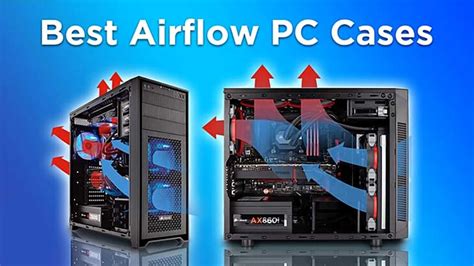
If your case has empty fan slots, consider adding more. A common setup involves intake fans at the front/bottom and exhaust fans at the top/rear to create a positive or neutral pressure system, pushing hot air out and drawing cool air in.
Fan Placement Strategy:
- Front/Bottom: Intake (pulls cool air in)
- Rear/Top: Exhaust (pushes hot air out)
5. Upgrade Your CPU Cooler
If you’re using a stock cooler, upgrading to an aftermarket air cooler (like those from Noctua or be quiet!) or an All-In-One (AIO) liquid cooler can dramatically reduce CPU temperatures, especially for high-TDP processors or overclocking.

6. Replace Thermal Paste
For both your CPU and GPU, reapplying fresh, high-quality thermal paste can make a significant difference, particularly if your PC is several years old. This is a more advanced step, especially for GPUs, but highly effective.
Software Optimizations & Settings Tweaks
7. Adjust Fan Curves
Many motherboards (via BIOS/UEFI) and GPU software (e.g., MSI Afterburner, Gigabyte AORUS Engine) allow you to customize fan curves. This lets you increase fan speeds at higher temperatures, providing more aggressive cooling when needed.
8. Undervolt Your CPU & GPU
Undervolting reduces the voltage supplied to your CPU and GPU without significantly impacting performance. Less voltage means less power consumption, and consequently, less heat generated. This requires careful testing but can be very rewarding.
9. Optimize In-Game Settings
Lowering graphics settings like anti-aliasing, shadow quality, or rendering resolution can reduce the load on your GPU, which in turn reduces heat generation and can help stabilize FPS without drastic visual sacrifices.
Conclusion
Maintaining optimal temperatures in your gaming PC is vital for both performance stability and component longevity. By regularly cleaning your system, optimizing airflow, and considering targeted hardware or software adjustments, you can prevent frustrating FPS drops and ensure your gaming rig runs smoothly and efficiently, even during the longest and most intense gaming sessions. A cooler PC is a happier PC, and it will serve you better for years to come.