





My gaming PC overheats & throttles. Best budget cooling tips for better FPS?

Is your gaming PC struggling to keep its cool, leading to frustrating frame rate drops and system slowdowns? You’re not alone. Overheating and subsequent thermal throttling are common culprits behind a less-than-optimal gaming experience. Fortunately, you don’t need to spend a fortune to bring your temperatures down and reclaim those lost frames per second. This guide will walk you through effective, budget-friendly cooling tips that can significantly improve your PC’s performance.
The Dust Buster: Clean Your PC Regularly
The single most overlooked and easiest cooling solution is simply cleaning your PC. Dust acts as an insulating blanket, trapping heat and preventing proper airflow. Over time, it can clog heatsinks, fans, and vents, severely hindering your system’s ability to dissipate heat.
- Tools: A can of compressed air, anti-static wipes, and a Phillips head screwdriver (if you need to open specific components).
- Process: Unplug your PC. Take it outside or to a well-ventilated area. Open the side panel and carefully blast dust from all fans (CPU, GPU, case fans), heatsinks, and vents. Hold fan blades gently while blowing to prevent over-spinning or damage.
Mastering Airflow: Optimize Your Case Fan Setup
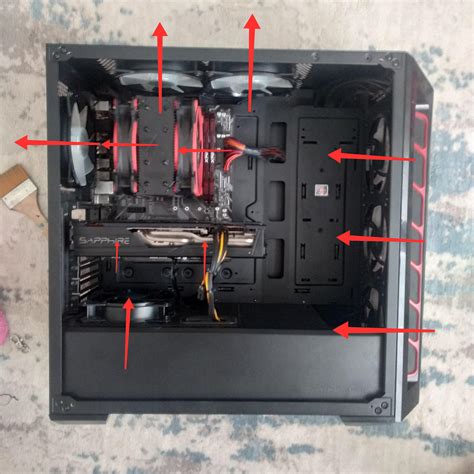
Proper airflow within your PC case is crucial for effective cooling. Many budget builds come with minimal or poorly configured fans. Understanding intake and exhaust can make a big difference.
- Intake vs. Exhaust: Fans at the front and bottom of your case should typically be intake, pulling cool air in. Fans at the back and top should be exhaust, pushing hot air out.
- Positive vs. Negative Pressure: Aim for slightly positive pressure (more intake than exhaust) to help prevent dust buildup.
- Cable Management: Tidy up your cables! Messy cables obstruct airflow, creating dead zones where heat can accumulate. Use zip ties or velcro straps to route cables behind the motherboard tray or along the case edges.
Reapply Thermal Paste: A Small Change, Big Impact
The thermal paste between your CPU (and sometimes GPU) and its cooler is essential for efficient heat transfer. Over time, it can dry out, crack, or degrade, losing its effectiveness. Reapplying fresh, high-quality thermal paste is an inexpensive way to see noticeable temperature drops.
- Process: Carefully remove your CPU cooler, clean off the old paste from both the CPU IHS (Integrated Heat Spreader) and the cooler’s base using isopropyl alcohol and a lint-free cloth. Apply a pea-sized dot or a thin line of new paste to the center of the CPU, then reattach the cooler.
- Frequency: For budget builds, reapplying every 2-3 years, or whenever you notice high temps, is a good practice.
![How To Apply Thermal Paste To A CPU [2024 Guide] - CPU Ninja](/images/aHR0cHM6Ly90czQubW0uYmluZy5uZXQvdGg/aWQ9T0lQLnZDbUhtM21pRks5ZFNpWXd4cXRfWWdIYUVLJnBpZD0xNS4x.webp)
Leverage Software: Monitoring and Undervolting
Before buying new hardware, use software to understand and manage your temperatures. You might also find performance gains through careful undervolting.
- Monitoring Tools: Tools like HWMonitor, MSI Afterburner, or NZXT CAM can provide real-time temperature readings for your CPU and GPU. This helps identify hot spots and confirm if your cooling efforts are working.
- Undervolting: This advanced technique involves reducing the voltage supplied to your CPU or GPU while maintaining stable clock speeds. Lower voltage means less heat generation. It requires careful testing and research specific to your hardware but can be a powerful, free cooling solution. Proceed with caution and follow guides specific to your CPU/GPU.

Strategic Budget Fan Upgrades
If cleaning and optimizing don’t quite get you where you need to be, consider a few targeted, budget-friendly hardware upgrades:
- Extra Case Fans: Adding one or two inexpensive 120mm or 140mm fans (check your case’s compatibility) can significantly improve airflow for minimal cost. Look for fans with decent CFM (cubic feet per minute) ratings.
- Aftermarket CPU Cooler (Entry-Level): The stock coolers that come with many CPUs (especially Intel non-K series or older AMD) are often adequate but not great. A budget tower cooler, like a Cooler Master Hyper 212 Black Edition or similar, can offer vastly superior performance for around $30-40.

Conclusion
Don’t let an overheating PC ruin your gaming experience. By implementing these budget-friendly cooling tips – from simply cleaning out dust to optimizing airflow, reapplying thermal paste, and even dabbling in software solutions or minor hardware upgrades – you can drastically lower your system’s temperatures. A cooler PC is a happier PC, delivering more consistent performance, higher FPS, and extending the lifespan of your valuable components. Start with the easiest steps and work your way up; you’ll be surprised at the difference you can make without spending a fortune.


