





My gaming PC overheats. What are the best cooling solutions for sustained FPS?

Gaming PCs are powerhouses, but pushing hardware to its limits generates significant heat. When your system overheats, it can lead to thermal throttling – a mechanism where components reduce their clock speed to prevent damage – resulting in frustrating frame rate drops and inconsistent performance. To achieve and maintain those coveted high frame rates, effective cooling is not just a luxury, it’s a necessity.
Understanding the Causes of Overheating
Before diving into solutions, it’s helpful to understand why your PC might be running hot. Common culprits include inadequate stock coolers, poor case airflow, dust accumulation, old or improperly applied thermal paste, and simply pushing powerful components harder than their cooling solution can handle. Identifying the root cause is the first step towards a lasting fix.
CPU Cooling: The Core of Your System’s Performance
High-Performance Air Coolers
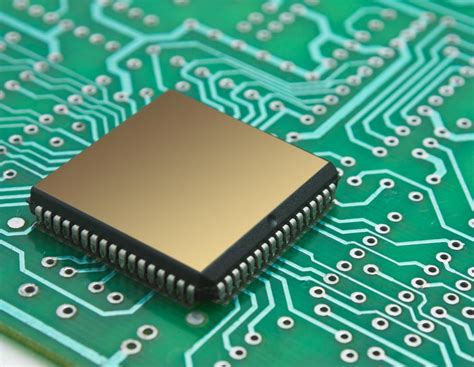
For many gamers, a robust air cooler is an excellent balance of performance and value. These typically consist of a large heatsink with multiple heat pipes to transfer heat away from the CPU, which is then dissipated by one or more fans. Leading brands offer tower-style coolers that can rival entry-level liquid coolers in performance while being simpler to install and maintain. Look for models with large fin stacks and multiple 120mm or 140mm fans for optimal heat dissipation.
All-in-One (AIO) Liquid Coolers
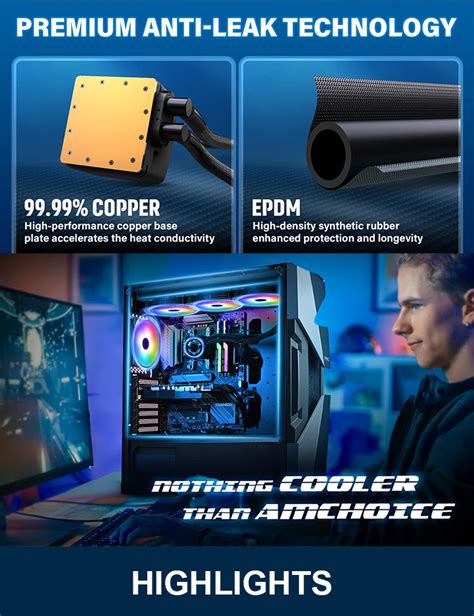
AIO liquid coolers, also known as closed-loop liquid coolers, offer superior cooling performance compared to most air coolers, especially for high-end CPUs or overclocking enthusiasts. They use a pump and radiator system to move heat away from the CPU via a liquid coolant. Radiator sizes vary (e.g., 120mm, 240mm, 280mm, 360mm), with larger radiators generally offering better cooling. While more complex than air coolers, AIOs are still relatively easy to install and require minimal maintenance compared to custom open-loop systems.
GPU Cooling: Keeping Graphics in Check
Your graphics card is often the hottest component in your gaming PC, especially under load. While most GPUs come with competent stock coolers, intense gaming sessions can still push them to their limits. Ensure your GPU’s fans are spinning freely and aren’t obstructed. Some advanced users might consider aftermarket GPU coolers or even custom water blocks for extreme performance and aesthetics, though this is a more complex undertaking.
Optimizing Case Airflow and Fan Configuration
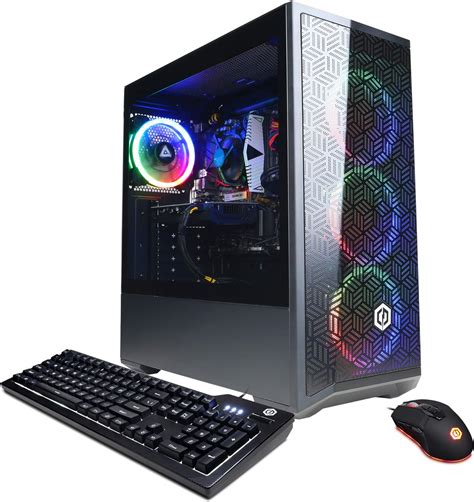
Effective airflow within your PC case is paramount. It ensures that cool air is brought in and hot air is exhausted efficiently. The general principle is positive pressure (more intake than exhaust) or balanced pressure. Intake fans typically draw air from the front and bottom, while exhaust fans push hot air out from the rear and top. Strategically placed fans can create a smooth airflow path, preventing hot spots and allowing all components to breathe.
Fan Types and Placement
Consider static pressure fans for radiators or restrictive intakes, and airflow-optimized fans for open areas. Ensure your case has sufficient fan mounts and that you fill them appropriately. Clean dust filters regularly to maintain unobstructed airflow.
The Importance of Thermal Paste
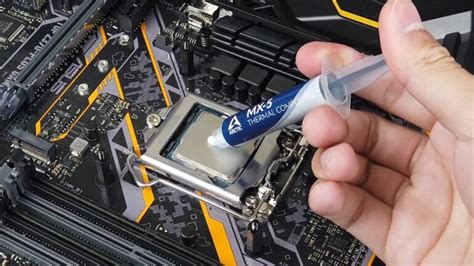
Thermal paste is a crucial interface material applied between your CPU (or GPU) and its cooler. It fills microscopic imperfections on both surfaces, ensuring maximum heat transfer. Over time, thermal paste can dry out and become less effective, especially after several years of use or if the cooler has been removed and reinstalled without fresh application. Reapplying high-quality thermal paste can significantly reduce CPU temperatures, often by several degrees.
Additional Tips for Cooler Gaming
- Cable Management: Neatly routed cables don’t just look good; they improve airflow by preventing obstructions.
- Dusting: Regularly clean your PC, especially heatsinks, fans, and dust filters, to prevent heat-trapping buildup.
- Ambient Temperature: A cooler room environment naturally helps your PC stay cooler.
- Monitoring: Use software like HWMonitor, MSI Afterburner, or NZXT CAM to keep an eye on your CPU and GPU temperatures. Understand what temperatures are safe for your components (typically below 80-85°C under load is good).
- Undervolting: For advanced users, slightly reducing the voltage to your CPU or GPU can lower temperatures with minimal impact on performance.

Conclusion
Combating PC overheating for sustained FPS requires a multi-faceted approach. By upgrading to a capable CPU cooler (air or AIO), optimizing case airflow, regularly cleaning dust, and ensuring fresh thermal paste, you can significantly lower your system’s operating temperatures. Investing in these cooling solutions not only prevents performance throttling but also extends the lifespan of your valuable gaming hardware, allowing you to enjoy smooth, uninterrupted gaming sessions for years to come.


