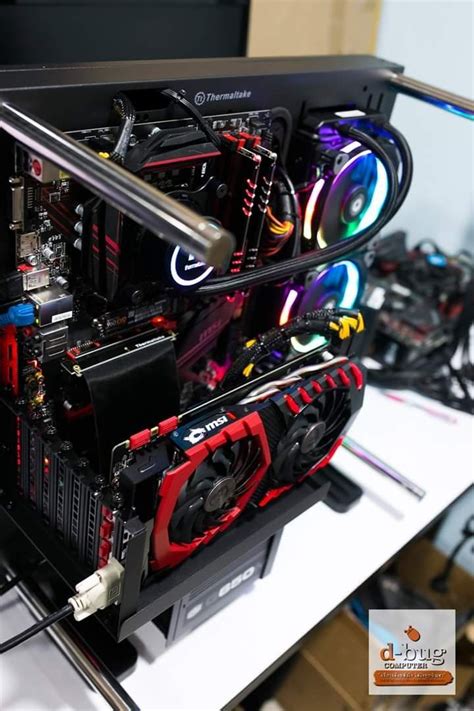
My gaming PC runs hot. How can I improve airflow & cooling for better FPS?
Why Overheating Harms Your Gaming Performance
A gaming PC running hot isn’t just a minor annoyance; it’s a significant bottleneck for performance. When components like your CPU and GPU reach high temperatures, they initiate a process called ‘thermal throttling’. This mechanism automatically reduces their clock speeds to prevent damage, directly leading to lower frame rates (FPS) and inconsistent gameplay. Ensuring optimal cooling isn’t just about longevity; it’s crucial for extracting every bit of performance your hardware has to offer.
Optimizing Case Airflow: The Foundation of Good Cooling
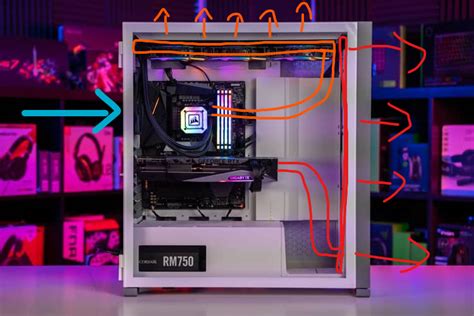
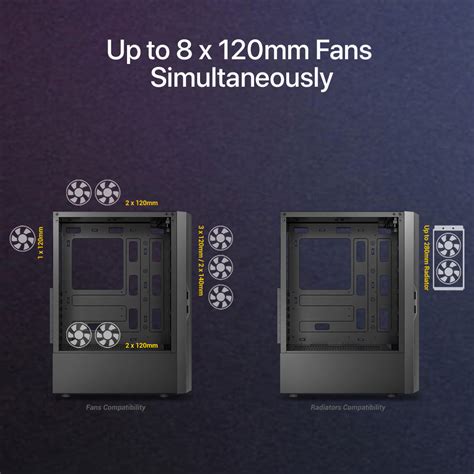
The most fundamental aspect of PC cooling is effective case airflow. This involves creating a clear path for cool air to enter your system and hot air to exit efficiently. Most modern PC cases are designed to facilitate this, but proper fan placement is key. Generally, you want ‘intake’ fans at the front and bottom, drawing cool air in, and ‘exhaust’ fans at the rear and top, pushing hot air out. Aim for a slightly positive air pressure (more intake than exhaust) to help prevent dust ingress.
Consider the type of fans as well. High-airflow fans are great for unrestricted areas, while high static-pressure fans excel when pushing air through radiators or restrictive mesh panels. Upgrading stock case fans to higher quality, higher RPM alternatives can often yield significant temperature drops.
Upgrading Your CPU & GPU Cooling Solutions
While case airflow is critical, your CPU and GPU have their own dedicated cooling systems. The stock cooler that comes with many CPUs is often sufficient for basic tasks but struggles under heavy gaming loads. Upgrading to an aftermarket CPU cooler, whether a large air cooler or an All-in-One (AIO) liquid cooler, can dramatically reduce CPU temperatures and allow for sustained boost clocks.
For your GPU, monitoring its temperatures during gaming is essential. If it’s consistently hitting high 80s or 90s (Celsius), it’s likely throttling. You can sometimes improve GPU cooling by ensuring good case airflow around it. More advanced users might consider undervolting their GPU – reducing its voltage while maintaining performance, which generates less heat. For extreme cases, aftermarket GPU coolers or custom water loops exist, though these are more complex installations.

The Unsung Heroes: Cable Management and Dust Control
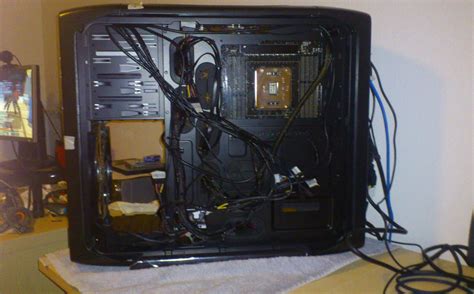
Often overlooked, effective cable management plays a vital role in airflow. A tangled mess of cables can obstruct the path of air, creating ‘hot pockets’ and reducing the efficiency of your fans. Spending some time routing cables neatly behind the motherboard tray and using zip ties or Velcro straps can significantly improve internal airflow.
Dust is the mortal enemy of PC cooling. Over time, dust accumulates on fan blades, heatsinks, and vents, acting as an insulating layer that traps heat. Regularly cleaning your PC with compressed air (while holding fan blades to prevent over-spinning) is one of the easiest and most effective ways to maintain optimal temperatures. Aim for a thorough clean every 3-6 months, depending on your environment.
Advanced Cooling Techniques and Maintenance
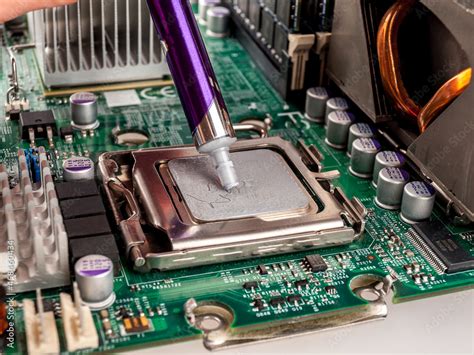
For CPU and sometimes GPU cooling, the thermal paste applied between the component and its heatsink is crucial. Over time, thermal paste can dry out and become less effective. Reapplying a fresh layer of high-quality thermal paste every few years can often lead to a noticeable drop in temperatures. Ensure you clean off all old paste thoroughly before applying new.
Don’t forget the external environment. A PC in a hot room will always struggle more than one in a cool room. Ensure your PC isn’t crammed into a tight space without adequate ventilation. Monitoring software like HWMonitor, MSI Afterburner, or NZXT CAM can provide real-time temperature readings, helping you identify problem areas and gauge the effectiveness of your cooling solutions.
Putting It All Together for Peak Performance
Improving your PC’s cooling is a multi-faceted endeavor, but the rewards are well worth the effort. By systematically addressing case airflow, upgrading key cooling components, maintaining cleanliness, and practicing smart cable management, you can significantly reduce temperatures. This not only prevents thermal throttling and boosts your FPS, but also prolongs the lifespan of your valuable hardware. A cool PC is a happy PC, ready to deliver consistent, high-performance gaming sessions.