





My gaming PC runs hot. What are the best cooling solutions for stable FPS?
Understanding PC Overheating and Its Impact on FPS
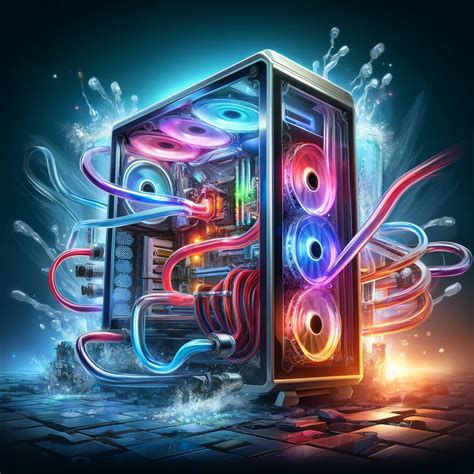
Is your gaming PC feeling more like a space heater than a high-performance machine? High temperatures are a common problem for gamers, leading to thermal throttling, reduced component lifespan, and most frustratingly, inconsistent or unstable frame rates (FPS). When your CPU or GPU gets too hot, it automatically reduces its clock speed to prevent damage, directly impacting your gaming performance. Addressing heat issues is crucial for a smooth, enjoyable, and stable gaming experience.
Identifying the Culprits: Why Your PC Runs Hot
Before diving into solutions, it’s helpful to understand common reasons for overheating:
- Insufficient Cooling: Stock CPU coolers often aren’t enough for demanding games or overclocking.
- Poor Case Airflow: Lack of proper intake and exhaust fans, or obstructed airflow due to cables.
- Dust Buildup: Dust acts as an insulator, trapping heat and impeding fan efficiency.
- Old Thermal Paste: Over time, thermal paste between the CPU/GPU and their heatsinks can dry out, losing effectiveness.
- High Ambient Temperatures: Your room temperature significantly affects your PC’s internal temps.
- Overclocking: Pushing components beyond their factory settings generates more heat.
Core Cooling Solutions: CPU & GPU Heat Dissipation
Upgrade Your CPU Cooler
The CPU is often the primary heat generator. Upgrading from a stock cooler is one of the most effective steps you can take.
Air Coolers
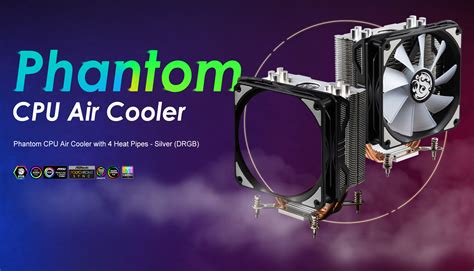
High-performance air coolers feature large heatsinks with multiple heat pipes and powerful fans. They are generally reliable, durable, and don’t involve liquids, minimizing leak risks. Look for large tower coolers with dual fans for excellent thermal performance.
Liquid Coolers (AIOs)
All-in-One (AIO) liquid coolers offer superior cooling performance compared to most air coolers, especially in compact cases where air coolers might struggle with space. They use a pump, radiator, and fans to dissipate heat. Radiator sizes typically range from 120mm to 360mm, with larger radiators offering better cooling capacity. Ensure your case has adequate mounting points for your chosen radiator size.
GPU Cooling
Your graphics card also generates significant heat. While most GPUs come with competent factory cooling, some high-end cards can still run hot. Aftermarket GPU coolers exist but are less common for beginners, often involving a complex installation that may void your warranty. Focus on good case airflow to help your GPU’s existing cooler do its job more effectively.
Optimizing Case Airflow: The Foundation of Good Cooling
Even the best CPU or GPU cooler won’t perform optimally if hot air is trapped inside your PC case. Proper airflow creates a clear path for cool air to enter and hot air to exit.
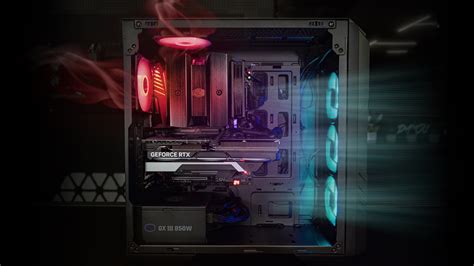
- Fan Placement: A common and effective setup is to have intake fans at the front (pulling cool air in) and exhaust fans at the rear and top (pushing hot air out). Aim for a slightly positive air pressure (more intake than exhaust) to reduce dust ingress.
- Fan Type: Static pressure fans are better for pushing air through restrictive areas (like radiators or tight drive cages), while airflow fans excel at moving large volumes of air in open spaces.
- Cable Management: Untidy cables obstruct airflow. Route cables neatly behind the motherboard tray to ensure unimpeded air movement.
- Dust Filters: Ensure your intake fans have dust filters and clean them regularly.
Thermal Paste and Regular Maintenance
Applying Fresh Thermal Paste
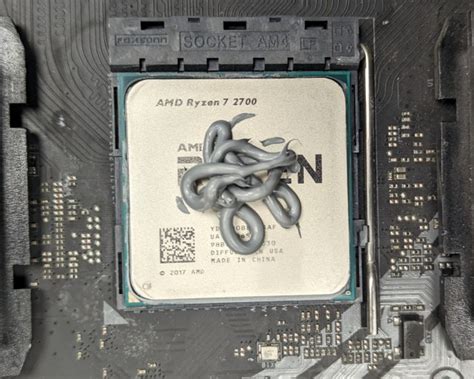
The thermal paste bridges the microscopic gaps between your CPU/GPU die and the cooler’s heatsink, ensuring efficient heat transfer. If your PC is several years old or you’re installing a new cooler, applying fresh, high-quality thermal paste can significantly improve temperatures. Be sure to clean off old paste thoroughly with isopropyl alcohol before applying new.
Keep it Clean: Dust is Your Enemy
Regularly cleaning your PC is non-negotiable for good cooling. Use compressed air to blow out dust from heatsinks, fans, and case filters every few months. Pay particular attention to the CPU cooler fins and GPU heatsink, as these areas tend to accumulate the most dust.
Software Solutions and Monitoring
Beyond hardware, software can also play a role in managing temperatures:
- Fan Curve Customization: Most motherboards and GPU utilities (e.g., MSI Afterburner, ASUS GPU Tweak) allow you to create custom fan curves, increasing fan speeds at higher temperatures to maintain lower temps during gaming.
- Undervolting: Carefully undervolting your CPU or GPU can reduce power consumption and heat generation without significant performance loss, or sometimes even improving stability. This is an advanced technique and requires research.
- Monitoring Software: Tools like HWMonitor, Core Temp, or MSI Afterburner allow you to keep an eye on your CPU and GPU temperatures in real-time, helping you identify if your cooling solutions are effective.

Conclusion: A Cooler PC for Consistent Performance
A hot gaming PC is a struggling gaming PC. By strategically upgrading your CPU cooler, optimizing your case’s airflow, keeping your system clean, and utilizing proper thermal paste, you can dramatically lower temperatures and achieve the stable, high FPS you desire. Investing in good cooling not only enhances your current gaming experience but also prolongs the life of your valuable hardware. Take these steps, and enjoy a cooler, quieter, and more powerful rig.


