





My gaming PC runs hot. What’s the best way to improve CPU/GPU cooling for stable FPS?
Understanding the Enemy: Thermal Throttling
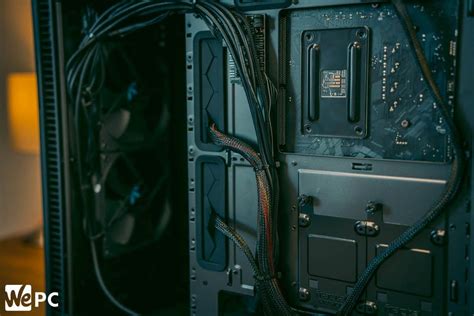
A gaming PC running hot isn’t just a minor inconvenience; it’s a direct threat to your system’s longevity and performance. When your CPU and GPU temperatures climb too high, they initiate a process called thermal throttling. This mechanism intentionally reduces clock speeds and power draw to prevent hardware damage, but the side effect is a noticeable drop in frame rates and overall system responsiveness. To maintain stable FPS, effective cooling is paramount.
First Steps: Basic Maintenance & Diagnostics
Clean Your PC Thoroughly
Dust is the number one enemy of PC cooling. Over time, dust accumulates on heatsinks, fans, and vents, acting as an insulating layer that traps heat. Regularly cleaning your PC with compressed air, focusing on CPU coolers, GPU fans, and case fan filters, can dramatically improve airflow and reduce temperatures.
Monitor Your Temperatures
Before making any changes, know your baseline. Use monitoring software like HWMonitor, MSI Afterburner, or NZXT CAM to track your CPU and GPU temperatures while gaming. This data will help you understand the severity of your heating issue and evaluate the effectiveness of your cooling improvements.
Optimizing CPU Cooling
CPU Cooler Upgrades
If your CPU is consistently hitting high temperatures (e.g., above 85°C/185°F under load), upgrading your cooler is often the most impactful step.
- Air Coolers: High-end air coolers with large heatsinks and multiple fans offer excellent cooling performance, often rivaling liquid solutions, while being generally more affordable and easier to install.
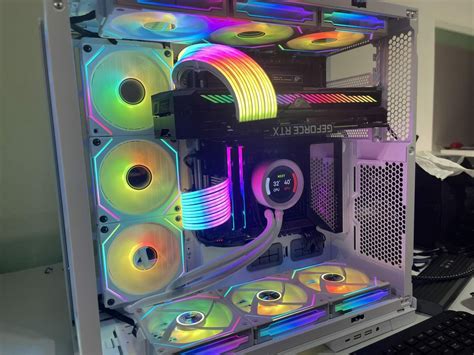
- All-in-One (AIO) Liquid Coolers: These sealed units use a pump, radiator, and fans to dissipate heat. They are highly effective, especially in smaller cases where large air coolers might not fit, and can offer aesthetic benefits.
Reapplying Thermal Paste
The thermal paste between your CPU’s integrated heat spreader (IHS) and the cooler’s base helps transfer heat efficiently. Over time, or with a poorly applied initial layer, this paste can dry out or degrade, reducing its effectiveness. Carefully cleaning off old paste and applying a fresh, high-quality thermal paste can yield a few degrees Celsius improvement.
Enhancing GPU Cooling
While GPU coolers are typically robust, their effectiveness heavily relies on good case airflow.
Improving Case Airflow for GPU
Ensure your case has adequate intake and exhaust fans to move cool air across the GPU and expel hot air. If your GPU has multiple fans, make sure they are spinning correctly and are free of obstructions.
GPU Undervolting
Undervolting your GPU means reducing the voltage supplied to it while maintaining its clock speeds. This can significantly lower power consumption and heat generation with minimal to no performance loss, often improving stability and thermals. Tools like MSI Afterburner allow you to adjust voltage curves.
Mastering Case Airflow
Your case’s internal environment is critical for both CPU and GPU cooling.
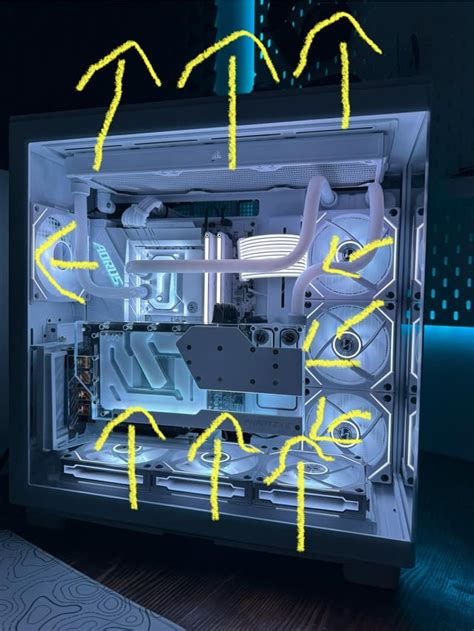
Fan Placement Strategies
- Intake Fans: Positioned at the front and bottom of your case, these draw cool air into the system.
- Exhaust Fans: Located at the rear and top, these expel hot air out of the system.
Aim for a balanced or slightly positive pressure setup (more intake than exhaust) to minimize dust entry.
Cable Management
Tidy cable management isn’t just for aesthetics; it plays a role in airflow. Poorly managed cables can obstruct the path of cool air, creating pockets of stagnant hot air. Route cables behind the motherboard tray or in discreet channels to ensure unrestricted airflow.
Advanced Considerations & Best Practices
Choosing the Right Case
Some PC cases are designed with superior airflow in mind, featuring mesh front panels, ample fan mounts, and spacious interiors. If your current case is a ‘hotbox’ with poor ventilation, consider upgrading to a more airflow-centric model.

Custom Fan Curves
Most motherboards and GPU utility software allow you to customize fan curves. Instead of relying on default settings, you can set your fans to spin faster at lower temperatures, proactively preventing heat buildup before it becomes an issue. Experiment to find a balance between cooling performance and noise levels.
Conclusion: Cool PC, Consistent Performance
Improving your gaming PC’s cooling involves a combination of basic maintenance, strategic upgrades, and intelligent configuration. By addressing dust, optimizing thermal paste, upgrading CPU coolers, managing case airflow effectively, and potentially undervolting your GPU, you can significantly reduce temperatures. This not only protects your hardware from degradation but, more importantly for gamers, ensures stable frame rates and a smooth, uninterrupted gaming experience, allowing you to get the most out of your system.


