





My gaming PC stutters. How to diagnose & fix FPS drops in-game?

Nothing sours a gaming session faster than unexpected FPS drops and stutters. Whether you’re in a heated competitive match or enjoying a visually stunning single-player adventure, sudden dips in performance can break immersion and lead to frustration. Diagnosing the root cause of these issues can feel like detective work, but with a systematic approach, you can pinpoint the problem and get back to smooth gameplay. This guide will walk you through the common culprits and practical solutions to banish stuttering from your gaming PC.
Understanding FPS Drops: What Causes Them?
FPS (Frames Per Second) drops can stem from a variety of sources, ranging from hardware limitations to software conflicts. Identifying whether the issue is consistent across all games or specific to one, and noting when the drops occur (e.g., during intense action, after prolonged play), are crucial first steps.
- Hardware Bottlenecks: Your CPU, GPU, RAM, or even your storage drive might not be keeping up with the demands of the game.
- Overheating: Components like your CPU and GPU will throttle their performance to prevent damage if they get too hot.
- Outdated or Corrupt Drivers: Graphics drivers, chipset drivers, and even audio drivers can cause performance issues if not up-to-date or if they’ve become corrupt.
- Software Conflicts: Background applications, antivirus software, or even Windows services can hog resources, leading to stuttering.
- In-game Settings: Pushing graphical settings too high for your hardware can inevitably lead to poor performance.
- Power Delivery Issues: Inadequate power from your PSU or incorrect power settings can also cause instability.
Step-by-Step Diagnosis: Pinpointing the Problem
Effective troubleshooting starts with monitoring and observation. These tools and methods will help you gather the data needed to understand what’s happening under the hood.
1. Monitor Your System
Tools like MSI Afterburner (with RivaTuner Statistics Server), HWMonitor, or even Windows Task Manager can display crucial real-time information:
- CPU Usage and Temperature: High CPU usage (near 100%) or temperatures (above 85°C) can indicate a bottleneck or overheating.
- GPU Usage and Temperature: Similar to the CPU, observe GPU usage (ideally near 99-100% in demanding games if not CPU limited) and temperatures.
- RAM Usage: If your RAM is consistently near its limit, it could be causing slowdowns as the system offloads data to the slower page file.
- Disk Usage: High disk usage, especially from an HDD, can cause stutters if the game is constantly loading assets.
Run these monitors while playing a game where you experience stutters and note down the readings when the performance drops.
2. Check Your Drivers
Outdated or corrupt graphics drivers are a very common cause of FPS drops. Always start here.
- Graphics Drivers: Download the latest drivers directly from NVIDIA, AMD, or Intel’s official websites. Use DDU (Display Driver Uninstaller) in Safe Mode to completely remove old drivers before installing new ones for a clean slate.
- Chipset Drivers: Ensure your motherboard’s chipset drivers are up-to-date, downloaded from your motherboard manufacturer’s website.
3. Test Other Games & Scenarios
Does the stuttering happen in only one game or all games? This helps determine if it’s game-specific optimization, a universal hardware/software issue, or a driver conflict related to a specific game profile.
Practical Solutions: Fixing Those FPS Drops
Once you have an idea of the potential causes, it’s time to apply solutions.
1. Optimize In-Game Settings
This is often the quickest fix. Experiment by lowering demanding graphical settings like:
- Texture Quality (if VRAM limited)
- Shadow Quality
- Anti-Aliasing
- Volumetric Lighting
- Draw Distance / View Distance
- Post-processing effects (e.g., motion blur, depth of field)
Target a stable FPS (e.g., 60 or 144) and adjust settings until you achieve it without significant drops.
2. Manage Background Processes
Open Task Manager (Ctrl+Shift+Esc) and go to the “Processes” tab. Close any unnecessary applications or background processes that are consuming significant CPU, GPU, or RAM resources.
- Disable startup programs you don’t need via Task Manager’s “Startup” tab.
- Ensure your antivirus isn’t running a full scan during gameplay.
- Consider disabling Game Bar or other overlays if they cause issues.
3. Address Overheating
If monitoring showed high temperatures:
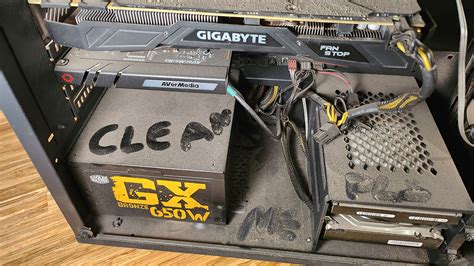
- Clean Your PC: Dust accumulation is a major culprit. Use compressed air to clean fans on your CPU cooler, GPU, and case.
- Improve Airflow: Ensure proper fan orientation in your case. Add more case fans if necessary.
- Reapply Thermal Paste: For more advanced users, reapplying fresh thermal paste to your CPU and GPU (if comfortable with disassembly) can dramatically lower temperatures.
4. Check Power Settings
- Windows Power Plan: Ensure your Windows power plan is set to “High Performance” or “Ultimate Performance.”
- NVIDIA/AMD Control Panel: In your graphics card control panel, set the power management mode to “Prefer maximum performance.”

5. Verify Game Files & Update OS
- Verify Game Files: Most game launchers (Steam, Epic Games, GOG) have an option to verify the integrity of game files, which can fix corrupted installations.
- Windows Updates: Ensure your operating system is fully up-to-date, as Windows updates often include performance improvements and bug fixes.
6. Storage & Malware Check
- SSD vs. HDD: If your game is on an HDD, consider moving it to an SSD for faster loading and fewer stuttering issues, especially in open-world games.
- Scan for Malware: Run a full system scan with reputable antivirus software to rule out malware as a cause.
When All Else Fails: Hardware Upgrade Considerations
If you’ve tried everything and still experience significant FPS drops, especially in newer games, your hardware might simply be reaching its limits. Review your monitoring data: if your CPU or GPU is consistently at 100% usage while temperatures are fine, it’s likely a hardware bottleneck. Upgrading the bottlenecking component (e.g., a newer graphics card, more RAM, or a faster CPU) will be the ultimate solution.
Conclusion
Diagnosing and fixing FPS drops can be a multi-step process, but by systematically checking hardware, drivers, software, and settings, you can often restore your gaming PC to its peak performance. Patience and a methodical approach are key. Happy gaming!


