





My PC games stutter, how do I boost FPS without upgrading my GPU?
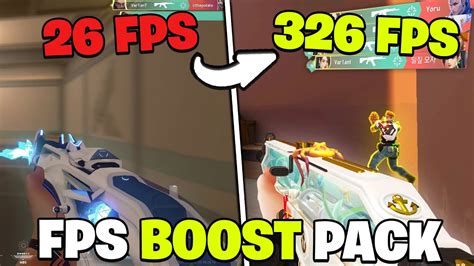
Experiencing stuttering or low frames per second (FPS) in your favorite PC games can be incredibly frustrating. While a new graphics card is often the go-to solution, it’s not always necessary or feasible. Many performance bottlenecks can be resolved through strategic software adjustments and system maintenance, significantly improving your gaming experience without spending a dime on new hardware.
Understanding the Cause of Stuttering
Before diving into solutions, it’s helpful to understand why games stutter. This can stem from various issues:
- CPU Bottleneck: Your processor can’t feed data to the GPU fast enough.
- RAM Limitations: Not enough memory, or slow memory, causing excessive paging to disk.
- Driver Issues: Outdated or corrupted graphics drivers.
- Game Settings: Graphics settings too high for your current hardware.
- Background Processes: Other applications consuming vital system resources.
- Overheating: Components throttling performance to prevent damage.
- Storage Speed: Games installed on slow hard drives.
Driver Updates and Game Settings: The First Line of Defense
The easiest and often most effective way to boost FPS is by ensuring your software is up-to-date and correctly configured.
Update Your Graphics Drivers
Graphics card manufacturers (NVIDIA, AMD, Intel) frequently release driver updates that include performance optimizations for new games and bug fixes. Always download the latest stable drivers directly from the manufacturer’s website.
Optimize In-Game Graphics Settings
This is crucial. Reducing certain graphics settings can yield massive FPS improvements with minimal visual impact. Focus on:
- Resolution: Lowering this can significantly boost FPS. Try one step down (e.g., 1080p to 900p).
- Texture Quality: Lowering this frees up VRAM.
- Shadows: Often very demanding, reducing shadow quality or distance can help.
- Anti-Aliasing: Can be a massive performance hog. Try turning it off or using a less demanding option.
- Post-Processing Effects: Bloom, depth of field, motion blur can be resource-intensive.
- View Distance/Draw Distance: Reducing this can help with CPU-bound scenarios.
Experiment with settings. Start by lowering the most demanding options one by one until you find a balance between visual quality and performance.
System Optimization: Freeing Up Resources
Your PC’s overall health plays a big role in gaming performance.
Close Background Applications
Before launching a game, close any unnecessary programs running in the background. Browsers with many tabs, streaming services, chat applications, and even some system utilities can consume CPU, RAM, and network bandwidth. Use Task Manager (Ctrl+Shift+Esc) to identify and close resource-intensive apps.

Manage Startup Programs
Prevent unnecessary applications from launching with Windows. In Task Manager, go to the ‘Startup’ tab and disable programs you don’t need immediately after booting.
Update Windows
Ensure your operating system is up-to-date. Windows updates often include performance enhancements and bug fixes that can benefit gaming.
Game Mode (Windows 10/11)
Enable Windows Game Mode. This feature prioritizes your game’s resources and prevents Windows Update from installing drivers or performing background tasks during gameplay.
Storage Solutions and Power Settings
Sometimes, the bottleneck isn’t processing power but how data is accessed and managed.
Move Games to an SSD
If your games are on a traditional Hard Disk Drive (HDD), moving them to a Solid State Drive (SSD) can drastically reduce loading times and sometimes even alleviate in-game stuttering, particularly in open-world games that stream assets frequently. While not a direct FPS boost, it improves the overall responsiveness and experience.
Adjust Power Settings
Ensure your PC’s power plan is set to ‘High Performance’ (or ‘Ultimate Performance’ if available) in Windows Power Options. This prevents the CPU and GPU from downclocking to save power, ensuring they always run at their maximum potential.
Keeping Your PC Clean and Cool
Overheating is a common culprit for performance throttling.
Clean Your PC Internals
Dust buildup inside your PC can obstruct airflow and reduce the efficiency of heatsinks and fans, leading to higher temperatures. Regularly clean your case fans, CPU cooler, and GPU heatsink with compressed air. Make sure all fans are spinning correctly.

Monitor Temperatures
Use monitoring software like HWMonitor or MSI Afterburner to keep an eye on your CPU and GPU temperatures while gaming. If temperatures are consistently high (e.g., above 85°C for GPU or CPU), you might need better cooling or a more thorough clean.
Advanced Tweaks (Use with Caution)
Overclocking (CPU/RAM/GPU)
While this technically boosts hardware performance, it can void warranties and carries risks if done incorrectly. If you’re comfortable and have adequate cooling, a modest CPU, RAM, or GPU overclock can provide a noticeable FPS bump. Start with small increments and thoroughly test for stability. Many modern GPUs can be safely auto-overclocked with software like MSI Afterburner or AMD Adrenalin.
BIOS/UEFI Settings
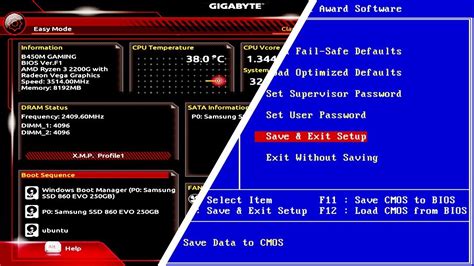
Check your BIOS/UEFI for settings like XMP (Extreme Memory Profile) for RAM to ensure it’s running at its advertised speed, not a slower default. Also, ensure your PCIe slot is set to its highest generation (e.g., PCIe Gen3 or Gen4) if your hardware supports it.
By systematically working through these optimization steps, you can significantly improve your gaming experience and boost your FPS without the immediate need for a new GPU. Patience and experimentation are key to finding the right balance for your specific system and games.


