





My PC gets low FPS in new games. How do I troubleshoot GPU bottlenecks or optimize settings?
Understanding Low FPS and GPU Bottlenecks
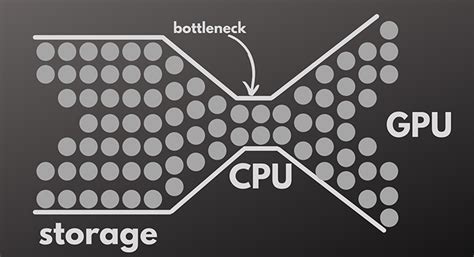
Experiencing low frames per second (FPS) in new games can be incredibly frustrating, turning an anticipated gaming session into a slideshow. Often, the culprit is a GPU bottleneck, or simply settings that are too demanding for your current hardware. A GPU bottleneck occurs when your graphics card isn’t powerful enough to keep up with the demands of the game and the rest of your system (CPU, RAM), limiting overall performance. Identifying and addressing this is key to a smoother gaming experience.
Initial Troubleshooting Steps: Diagnosing the Problem
Before diving into complex optimizations, let’s run through some fundamental checks to rule out common issues.
1. Check System Requirements
Compare your PC’s specifications (GPU, CPU, RAM) against the game’s minimum and recommended requirements. If your hardware barely meets the minimum, expect to play on lower settings.
2. Update Graphics Drivers
Outdated graphics drivers are a frequent cause of poor performance. Always ensure you have the latest drivers for your NVIDIA, AMD, or Intel GPU. Visit the manufacturer’s website or use their dedicated software (e.g., GeForce Experience, AMD Adrenalin) to update.
3. Monitor System Performance
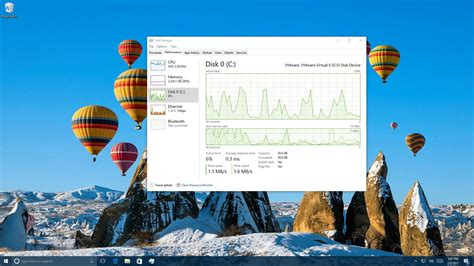
Tools like MSI Afterburner (with RivaTuner Statistics Server), NZXT CAM, or even Windows Task Manager can provide real-time data on your CPU and GPU usage, temperatures, and clock speeds. Play a demanding game and observe these metrics:
- GPU Usage: If it consistently hovers around 90-100%, your GPU is likely the bottleneck.
- CPU Usage: High CPU usage with low GPU usage might indicate a CPU bottleneck, or a game that’s very CPU-intensive.
- Temperatures: High temperatures can lead to thermal throttling, where your components slow down to prevent damage.
Optimizing In-Game Graphics Settings
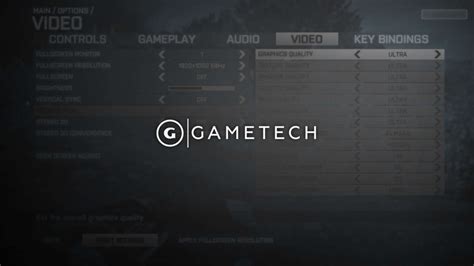
This is where you’ll make the most significant impact on FPS. Start by adjusting these settings:
1. Resolution
Lowering the display resolution (e.g., from 4K to 1440p, or 1080p to 900p) has a massive impact on GPU load. This is often the first setting to tweak if FPS is critically low.
2. Texture Quality
Affects the sharpness and detail of textures. Higher settings require more VRAM (video memory). If you have a GPU with limited VRAM (e.g., 4GB or less), reducing this can help.
3. Shadows
Shadows are notoriously demanding. Lowering shadow quality, resolution, or even disabling them can provide a significant FPS boost.
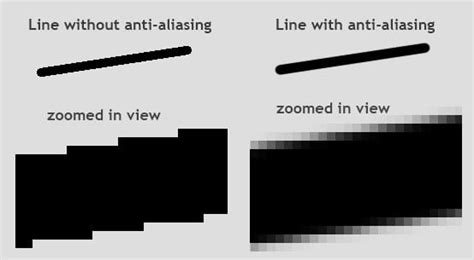
4. Anti-Aliasing (AA)
Removes jagged edges but can be very resource-intensive. Experiment with different AA methods (FXAA, TAA, SMAA, MSAA) or turn it off entirely if needed. TAA is often a good balance of quality and performance.
5. View Distance / Draw Distance
Determines how far objects, terrain, and details are rendered. Reducing this can lessen the load, especially in open-world games.
6. Post-Processing Effects
Effects like motion blur, depth of field, bloom, and ambient occlusion add realism but come at a cost. Try turning them off or lowering their quality.
7. V-Sync / FreeSync / G-Sync
These technologies synchronize your game’s frame rate with your monitor’s refresh rate to prevent screen tearing. While beneficial, V-Sync can sometimes introduce input lag or cap your FPS. If you have a FreeSync or G-Sync monitor, ensure it’s enabled. Otherwise, try disabling V-Sync if you don’t mind some tearing, or enable an adaptive sync solution if available.
Further Optimization Tips
1. Close Background Applications
Ensure no unnecessary applications, browser tabs, or background processes are consuming CPU, RAM, or GPU resources while gaming.
2. Adjust Power Settings
In Windows, set your power plan to “High performance” to ensure your CPU and GPU aren’t being throttled by power-saving measures.
3. Game Mode and Graphics Settings in Windows
Enable Windows Game Mode (Settings > Gaming > Game Mode) and review graphics settings (Settings > System > Display > Graphics settings) to ensure your game is set to “High performance.”
4. Overclocking (Advanced)
Carefully overclocking your GPU or CPU can provide a modest performance boost, but this should only be attempted by experienced users as it can void warranties and potentially damage hardware if not done correctly.
5. Clean Your PC
Dust buildup can hinder cooling, leading to higher temperatures and thermal throttling. Regularly clean your fans and heatsinks.
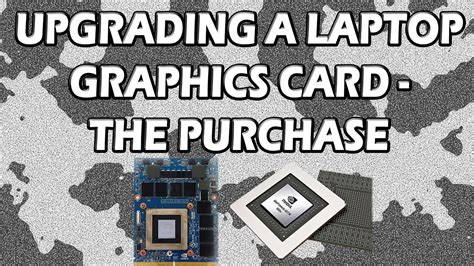
6. Consider a Hardware Upgrade
If after all these steps, your FPS remains unplayable, your hardware might simply be too old or underpowered for the new games you want to play. In this case, upgrading your GPU, CPU, or even RAM might be the only solution.
Conclusion
Troubleshooting low FPS and optimizing game settings is often an iterative process. Start with the easiest solutions like driver updates and monitoring, then gradually adjust in-game settings from most impactful (resolution, shadows, anti-aliasing) to least. Don’t be afraid to experiment, and always test your changes by playing for a while to observe the impact on your frame rates and overall experience. With a bit of patience, you can often find a sweet spot that balances visual fidelity with smooth, enjoyable gameplay.


