





My PC overheats during gaming. How to improve cooling and boost FPS?
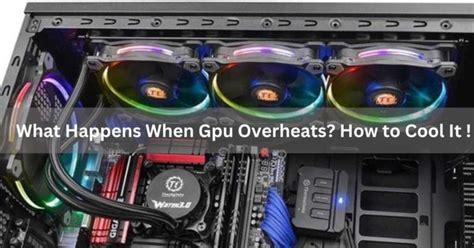
The Frustration of an Overheating Gaming PC
Few things are more frustrating for a PC gamer than experiencing performance drops, stuttering, or even system crashes due to overheating. When your CPU or GPU gets too hot, they automatically reduce their clock speeds – a process called thermal throttling – to prevent damage. This directly translates to lower FPS and a less enjoyable gaming experience. The good news is that most overheating issues can be resolved with a combination of proper maintenance and strategic upgrades.
Understanding Why Your PC Overheats
Before diving into solutions, it’s crucial to understand the common culprits behind PC overheating. These often include:
- Dust Accumulation: Dust acts as an insulating layer, trapping heat on components like heatsinks and fans, hindering their ability to dissipate heat.
- Poor Airflow: Inadequate case fans, incorrect fan orientation, or cluttered internal cabling can severely restrict the flow of cool air into and hot air out of your system.
- Aged Thermal Paste: The thermal paste between your CPU/GPU and their respective heatsinks degrades over time, losing its heat-transferring efficiency.
- Inadequate Cooling Hardware: Stock CPU coolers or insufficient case fans might not be enough for high-performance components under heavy gaming loads.

Immediate Steps to Improve Cooling
You can often see significant improvements by addressing some basic maintenance tasks:
1. Clean Your PC Thoroughly
The first and most effective step is a deep clean. Disconnect your PC and use compressed air to blast dust out of your CPU cooler, GPU heatsink, case fans, and PSU. Pay close attention to any filters your case might have.
2. Optimize Cable Management
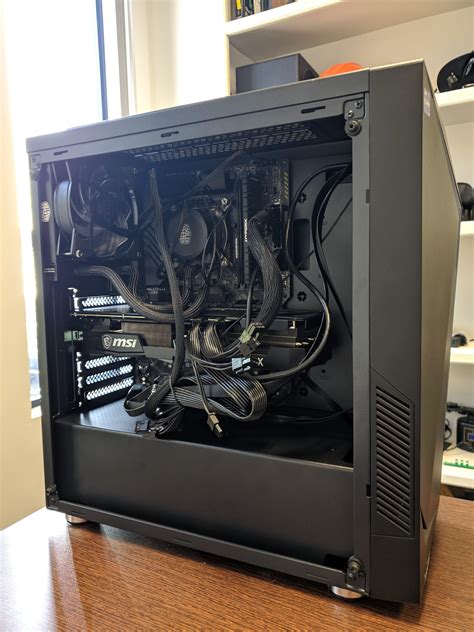
Messy cables inside your PC can obstruct airflow. Take the time to neatly route cables behind the motherboard tray or out of the direct path of air, allowing for smoother circulation.
3. Ensure Proper Case Airflow
Verify your case fans are oriented correctly. Generally, front and bottom fans should be intake (bringing cool air in), while rear and top fans should be exhaust (pushing hot air out). Aim for a balanced or slightly positive pressure setup.
Hardware Upgrades for Enhanced Cooling
If cleaning and optimization don’t fully solve the issue, consider upgrading your cooling hardware.
1. Upgrade Your CPU Cooler
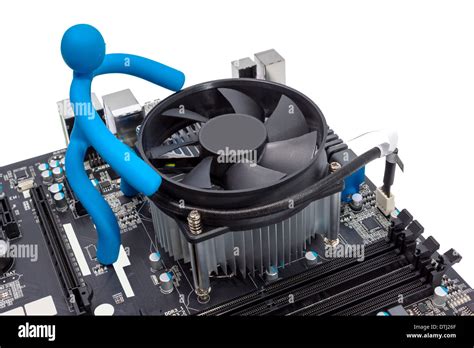
Stock CPU coolers are often just barely adequate. Investing in a larger air cooler (with more surface area and better fans) or an All-in-One (AIO) liquid cooler can dramatically reduce CPU temperatures, especially for high-end processors.
2. Reapply Thermal Paste
Replacing old, dried-out thermal paste with a fresh application of high-quality paste can make a noticeable difference in heat transfer from your CPU/GPU to their coolers.
3. Add or Upgrade Case Fans
If your case has empty fan mounts, adding more fans can improve airflow. Even upgrading existing stock fans to higher-performance, quieter models can boost cooling efficiency.
4. Consider GPU Cooling Solutions
While more complex, some users opt for aftermarket GPU coolers or even hybrid kits that add liquid cooling to their graphics card if it’s the primary source of overheating.
5. Invest in a Better PC Case
Some PC cases are simply designed with poor airflow in mind. A case with a mesh front panel, ample fan mounts, and a spacious interior can significantly improve your system’s thermal performance.
How Better Cooling Boosts FPS
The link between improved cooling and higher FPS is direct: it prevents thermal throttling. When your components stay within optimal temperature ranges, they can consistently operate at their boosted clock speeds as intended by the manufacturer. This sustained performance directly translates to smoother gameplay and higher frame rates, especially in demanding titles or prolonged gaming sessions. You’re simply getting the full performance out of the hardware you paid for.
Software Optimizations for Performance
Beyond hardware, software plays a role in managing temperatures and maximizing FPS.
- Update Drivers: Always keep your GPU drivers (NVIDIA, AMD) and chipset drivers updated. New drivers often include performance optimizations and better thermal management profiles.
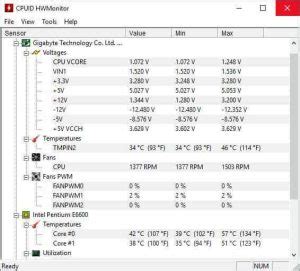
- Monitor Temperatures: Use monitoring software like HWMonitor, MSI Afterburner, or HWiNFO64 to keep an eye on your CPU and GPU temperatures. This helps you identify problem areas and gauge the effectiveness of your cooling solutions.
- Adjust In-Game Settings: While not directly cooling, reducing graphically demanding settings like shadows, anti-aliasing, or texture quality can lower the load on your GPU and CPU, indirectly reducing heat generation and boosting FPS.
Conclusion
An overheating gaming PC is a solvable problem that, once addressed, can significantly enhance your gaming experience. By regularly cleaning your system, optimizing airflow, and upgrading cooling components where necessary, you can prevent thermal throttling and ensure your hardware performs at its peak. A cooler PC isn’t just about higher FPS; it’s about prolonging the lifespan of your valuable components and enjoying a stable, immersive gaming environment.


