





Optimal PC gaming setup: How to reduce input lag and boost FPS?

Unlocking Peak PC Gaming Performance
In the competitive and immersive world of PC gaming, every millisecond counts. Input lag, the delay between your action and its on-screen representation, can be the difference between victory and defeat. Similarly, a high frame rate per second (FPS) ensures a buttery-smooth visual experience, allowing for quicker reactions and a more enjoyable game. Achieving an optimal PC gaming setup involves a meticulous balance of hardware choices and software tweaks. This guide will walk you through the essential steps to dramatically reduce input lag and boost your FPS, elevating your gaming to its highest potential.
Understanding the Core Concepts: Input Lag and FPS
Before diving into optimizations, it’s crucial to understand what we’re targeting. Input lag encompasses all delays from your mouse click or keyboard press to the game engine processing it, the GPU rendering it, and finally, your monitor displaying it. It’s an accumulation of various latencies. FPS (Frames Per Second), on the other hand, measures how many individual images your graphics card can render and your monitor can display each second. Higher FPS results in smoother motion and a more responsive feel, especially when paired with a high refresh rate monitor.
Hardware Essentials for Low Latency and High FPS
The Graphics Card (GPU): Your Performance Engine
The GPU is the heart of your gaming PC, responsible for rendering all visual data. A powerful GPU is paramount for achieving high FPS. Ensure your graphics card is up-to-date, and consider upgrading if it’s struggling with your favorite titles. Within your GPU’s control panel (NVIDIA Control Panel or AMD Adrenalin), experiment with settings. Prioritize performance over quality where possible, and look for features like NVIDIA Reflex or AMD Anti-Lag, which specifically target and reduce system latency.
The Central Processing Unit (CPU): Preventing Bottlenecks
While the GPU handles graphics, the CPU manages game logic, AI, and physics. A weak CPU can “bottleneck” a powerful GPU, preventing it from reaching its full potential. Ensure your CPU is robust enough for modern games. Overclocking your CPU (if your hardware supports it) can provide a modest performance boost, but proceed with caution.
Random Access Memory (RAM): Speed and Capacity
Aim for at least 16GB of DDR4 (or DDR5 for newer systems) RAM running at a high frequency (e.g., 3200MHz+ for DDR4). Faster RAM reduces loading times and improves overall system responsiveness, directly contributing to smoother gameplay.
Storage: Solid-State Drives (SSDs) are a Must
Traditional Hard Disk Drives (HDDs) are slow. An NVMe SSD for your operating system and primary games is essential for lightning-fast loading times and quicker asset streaming, which can indirectly reduce perceived lag.
The Monitor: The Window to Your Game
A high refresh rate monitor (144Hz, 240Hz, or even 360Hz) is crucial for experiencing high FPS. Pair this with a low response time (1ms GTG is ideal) to minimize ghosting. Technologies like NVIDIA G-Sync or AMD FreeSync dynamically synchronize your monitor’s refresh rate with your GPU’s frame rate, eliminating screen tearing and reducing stutter, which further enhances responsiveness. Disable V-Sync in-game if you have G-Sync/FreeSync enabled, as V-Sync can introduce input lag.
Peripherals: Direct Control
Your mouse and keyboard are your direct interface with the game. Opt for high-quality gaming peripherals with high polling rates (1000Hz is standard for gaming mice) and low actuation distances for keyboards. Wired peripherals generally offer lower latency than wireless, though modern wireless gaming gear has significantly closed this gap.
Software Optimizations for Maximum Performance
Keep Drivers Updated
Regularly update your graphics card drivers, chipset drivers, and other essential system drivers. Manufacturers frequently release optimized drivers that improve performance and fix bugs for new game titles.
Operating System Tweaks
- Game Mode: Windows Game Mode prioritizes system resources for your game. Ensure it’s enabled.
- Background Processes: Close unnecessary applications running in the background (browsers, chat apps, streaming services) before launching a game.
- Power Plan: Set your Windows power plan to “High Performance” to ensure your CPU and GPU aren’t throttled.
In-Game Settings: The Fine-Tuning Dial
This is where you’ll find the most immediate impact. Experiment with graphics settings:
- Texture Quality: Often has a minimal FPS impact if you have sufficient VRAM.
- Shadows: Can be very demanding. Reducing shadow quality often yields significant FPS gains.
- Anti-Aliasing: Resource-intensive. Consider FXAA or TAA over MSAA if performance is an issue.
- Draw Distance / View Distance: Lowering this can improve FPS, especially in open-world games.
- Post-Processing Effects: Bloom, motion blur, depth of field can be taxing. Disable or reduce them.
Aim for a balance where you maintain high FPS above your monitor’s refresh rate (if using G-Sync/FreeSync) or a consistent, high FPS without noticeable drops.

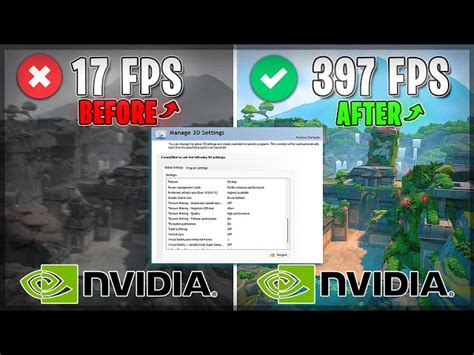
GPU Control Panel Settings
Beyond in-game settings, your GPU’s control panel offers global and game-specific optimizations:
- NVIDIA Low Latency Mode / AMD Radeon Anti-Lag: These technologies reduce the render queue, significantly cutting down input lag. Enable them!
- Image Sharpening / FidelityFX CAS: Can improve visual clarity with minimal performance cost.
- Power Management Mode: For NVIDIA, set to “Prefer maximum performance.”
System Maintenance for Sustained Performance
An optimized setup isn’t a one-time affair. Regular maintenance is key:
- Keep it Cool: Ensure good airflow within your PC case. Overheating can lead to thermal throttling, reducing performance. Clean dust filters regularly.
- Disk Cleanup: Periodically clear temporary files and optimize your drives.
- Organized Desktop: A cluttered desktop with many icons can subtly consume resources.
Conclusion
Achieving an optimal PC gaming setup for minimal input lag and maximum FPS is a journey of continuous refinement. By investing in the right hardware, diligently updating drivers, and meticulously tweaking both in-game and system settings, you can unlock a level of responsiveness and visual fluidity that transforms your gaming experience. Remember, the goal is not just high numbers, but a smoother, more engaging, and ultimately more enjoyable time in your favorite virtual worlds. Experiment, monitor your performance, and tailor these strategies to your specific system and gaming habits.


