
Optimal settings: How to reduce input latency and boost FPS in competitive shooters?
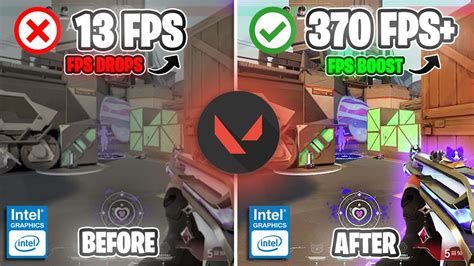
In the fast-paced world of competitive shooters, every millisecond counts. Whether you’re aiming for headshots in CS:GO, out-maneuvering opponents in Valorant, or building furiously in Fortnite, a smooth, responsive gaming experience is paramount. Input latency and Frames Per Second (FPS) are the two pillars of performance that directly impact your ability to react swiftly and precisely. Reducing input latency ensures your actions register instantly, while boosting FPS provides a clearer, more fluid visual representation of the game world.
Why Every Millisecond and Frame Counts
Input latency refers to the delay between your action (e.g., clicking your mouse) and the corresponding reaction on screen. High latency can make your game feel sluggish and unresponsive, leading to missed shots and frustrating deaths. In a game where fractions of a second decide victory or defeat, minimizing this delay is crucial for peak performance.
FPS, or Frames Per Second, dictates how many individual images your display shows per second. A higher FPS provides a smoother, more detailed view of the action, making it easier to track targets, anticipate movements, and react faster. While a human eye might not perceive individual frames beyond a certain point, the visual fluidity and reduced motion blur offered by high FPS (144Hz, 240Hz, or even 360Hz monitors combined with high FPS) offers a distinct advantage.

Hardware Adjustments for Peak Performance
Optimizing your hardware is the foundational step towards a low-latency, high-FPS setup.
Monitor: The Window to Your Game
- High Refresh Rate: Invest in a monitor with a high refresh rate (144Hz, 240Hz, 360Hz). This allows your monitor to display more frames per second, directly translating to a smoother visual experience, provided your GPU can output enough frames.
- Low Response Time: Look for monitors with 1ms or faster GtG (Grey-to-Grey) response times to minimize ghosting and motion blur.
- Adaptive Sync (G-Sync/FreeSync): If your GPU supports it, enable G-Sync (NVIDIA) or FreeSync (AMD). While these technologies can add a tiny bit of latency at lower FPS, they prevent screen tearing without the input lag penalty of traditional V-Sync, especially useful when your FPS fluctuates below your monitor’s refresh rate.
Input Devices: Your Direct Connection
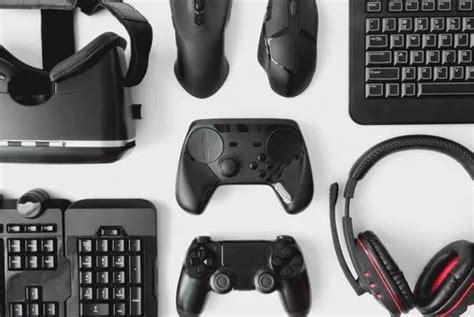
- Gaming Mouse: Opt for a lightweight gaming mouse with a high polling rate (1000Hz is standard for competitive play) and a good sensor. Ensure your mouse DPI is set to a comfortable level for precise aim. Wired mice generally offer lower latency than wireless, though modern wireless gaming mice are closing the gap.
- Gaming Keyboard: Mechanical keyboards are preferred for their tactile feedback and consistent actuation. Some keyboards offer higher polling rates and advanced debounce settings that can further reduce input lag.
Core Components: CPU, GPU, RAM, and Storage
- Powerful CPU & GPU: These are the backbone of your system. Ensure your CPU and GPU are powerful enough to consistently deliver high FPS in your chosen competitive titles. Modern GPUs also feature dedicated low-latency technologies (NVIDIA Reflex, AMD Anti-Lag).
- Latest GPU Drivers: Always keep your graphics drivers up to date. Manufacturers frequently release optimized drivers for new game releases and performance improvements.
- Fast RAM: Ensure you have sufficient RAM (16GB is ideal for most gaming) and that it’s running at its advertised speed (XMP/DOCP enabled in BIOS). Faster RAM can significantly impact CPU performance, which in turn boosts minimum FPS.
- SSD Storage: Store your operating system and competitive games on an NVMe or SATA SSD. This won’t directly boost in-game FPS, but it dramatically reduces loading times, getting you into the action faster.
System and Software Optimization
Once your hardware is in order, fine-tuning your operating system and game settings can unlock even more performance.
Operating System Settings
- Windows Game Mode: Ensure Windows Game Mode is enabled. It prioritizes system resources for your game.
- Power Plan: Set your power plan to ‘High Performance’ or ‘Ultimate Performance’ to prevent CPU throttling.
- Disable Background Apps: Close all unnecessary background applications, browser tabs, and processes before launching your game.
- Mouse Pointer Precision: Disable ‘Enhance pointer precision’ in Windows mouse settings. This is mouse acceleration and can hinder muscle memory.
GPU Control Panel Settings (NVIDIA/AMD)
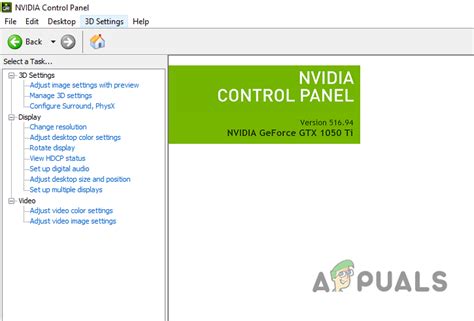
- Low Latency Mode (NVIDIA): Set to ‘Ultra’ to submit frames just in time for the GPU to process them, significantly reducing input lag.
- Max Pre-Rendered Frames (NVIDIA, older drivers): Set to ‘1’ for lowest latency, if Low Latency Mode is not an option.
- Anti-Lag (AMD): Enable AMD Anti-Lag for a similar effect to NVIDIA’s Low Latency Mode.
- Power Management Mode (NVIDIA): Set to ‘Prefer maximum performance’.
- Texture Filtering Quality (NVIDIA/AMD): Set to ‘High Performance’.
In-Game Graphics Settings
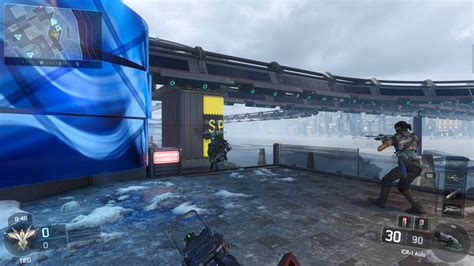
This is where you make the biggest trade-offs between visual fidelity and performance. For competitive play, always prioritize FPS.
- Resolution: Play at your monitor’s native resolution. Downscaling can introduce blur and input lag.
- Graphics Presets: Start with ‘Low’ or ‘Very Low’ graphics presets.
- Specific Settings to Lower/Disable:
- Shadows: Often the most demanding setting. Set to lowest or disable.
- Reflections: Disable or set to lowest.
- Anti-Aliasing: Can be very demanding. Use FXAA or SMAA if needed, or disable entirely.
- Post-Processing: Lower or disable.
- V-Sync: Disable V-Sync unless you experience unbearable screen tearing and do not have adaptive sync. V-Sync introduces significant input lag.
- Motion Blur, Depth of Field, Lens Flare: Disable these for a clearer view and less distraction.
- NVIDIA Reflex / AMD Anti-Lag: Enable these features within the game settings if available. They are designed to further reduce system latency directly at the game engine level.
Network Considerations for Online Play
While not directly related to FPS or local input latency, network performance is critical for online competitive shooters. High ping (network latency) can negate all your local optimizations.
- Wired Connection: Always use an Ethernet cable instead of Wi-Fi for a stable, lower-latency connection.
- Prioritize Game Traffic: If your router supports Quality of Service (QoS), configure it to prioritize gaming traffic.
- Close Bandwidth-Hogging Apps: Ensure no one else on your network is streaming 4K video or downloading large files while you’re gaming.
Conclusion: Gain Your Competitive Edge
By systematically optimizing your hardware, operating system, GPU drivers, and in-game settings, you can drastically reduce input latency and boost your FPS in competitive shooters. These adjustments won’t instantly turn you into a pro, but they will provide you with the most responsive and visually fluid environment possible, allowing your skill to shine through unhindered by technical limitations. Take the time to fine-tune your setup, and feel the difference as you gain a tangible advantage over your opponents.