





Optimize gaming PC for max FPS: What BIOS/Windows settings improve performance?

Unleash Your Gaming PC’s True Potential
Are you chasing every last frame per second (FPS) to gain a competitive edge or simply enjoy a buttery-smooth gaming experience? While powerful hardware is essential, even the most cutting-edge components can be bottlenecked by sub-optimal software configurations. Diving into your PC’s BIOS and tweaking Windows settings can unlock hidden performance, transforming your gaming experience.
This guide will walk you through the most impactful BIOS and Windows settings that can significantly improve your gaming PC’s performance, helping you squeeze every drop of power out of your rig.

Critical BIOS Settings for Peak Performance
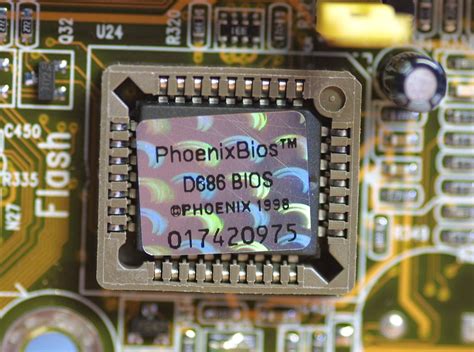
The BIOS (Basic Input/Output System) or UEFI (Unified Extensible Firmware Interface) is the firmware that initializes your hardware before Windows even starts. Accessing it usually requires pressing a specific key (e.g., Del, F2, F10) during boot-up. Be cautious when making changes, as incorrect settings can lead to instability.
1. Enable XMP/DOCP (Extreme Memory Profile / Direct Overclock Profile)
One of the easiest and most effective performance boosts comes from ensuring your RAM runs at its advertised speed. Out of the box, RAM often defaults to slower JEDEC speeds. XMP (Intel) or DOCP (AMD) profiles allow your memory to run at its optimal frequency and timings. Look for this setting in the ‘Advanced’, ‘Overclocking’, or ‘Tweaker’ section of your BIOS.
2. Disable Unnecessary Peripherals and Ports
Your motherboard likely has onboard components you don’t use, such as extra SATA ports, USB controllers, or integrated audio if you use a dedicated sound card. Disabling these can free up system resources and reduce potential conflicts. Scour sections like ‘Integrated Peripherals’ or ‘Onboard Devices’.
3. Enable Resize BAR / Smart Access Memory (SAM)
For modern NVIDIA (RTX 30-series and newer) and AMD (RX 6000-series and newer) GPUs paired with compatible CPUs and motherboards, enabling Resizable BAR (ReBAR) or Smart Access Memory (SAM) allows the CPU to access the entire GPU memory at once, potentially boosting performance in supported games. Ensure your motherboard BIOS is updated and look for options like ‘Above 4G Decoding’ and ‘Resizable BAR Support’.
4. PCIe Slot Speed
Verify that your primary graphics card slot is set to its highest available generation (e.g., PCIe Gen 4 or Gen 5) and lane count (e.g., x16). While often automatic, misconfigurations can limit GPU bandwidth. Find this in ‘Advanced’ or ‘PCI Subsystem Settings’.
5. CPU Virtualization Technology
If you don’t run virtual machines (like Hyper-V or Bluestacks), disabling Intel VT-d or AMD-V can sometimes provide a marginal performance gain by eliminating overhead. If you do use virtualization, leave it enabled.
Windows Settings for Gaming Supremacy
Once you’ve optimized your BIOS, turn your attention to Windows. A clean, optimized operating system can make a significant difference in game performance and responsiveness. These settings are easily accessible within the Windows ‘Settings’ app or ‘Control Panel’.

1. Power Plan Settings
Set your power plan to ‘High Performance’ or ‘Ultimate Performance’ (if available). This ensures your CPU and other components consistently run at their maximum potential, rather than scaling back to save power. You can find this in ‘Control Panel > Hardware and Sound > Power Options’.
2. Enable Game Mode
Windows Game Mode aims to prioritize your game’s processes and resources while minimizing background tasks. While its impact varies, it’s generally recommended to keep it on. Go to ‘Settings > Gaming > Game Mode’.
3. Hardware-accelerated GPU Scheduling
This feature, available on modern GPUs and Windows 10/11 versions, offloads some GPU scheduling tasks from the CPU to the GPU, potentially reducing latency and improving performance. Find it under ‘Settings > System > Display > Graphics > Change default graphics settings’.

4. Disable Background Apps and Startup Programs
Many apps run in the background or launch with Windows, consuming precious CPU, RAM, and network resources. Review ‘Settings > Apps > Apps & features > Background apps’ and ‘Task Manager > Startup’ to disable anything non-essential.
5. Adjust Visual Effects for Performance
Windows’ aesthetic visual effects can use up resources. For maximum FPS, consider sacrificing some eye candy. Search for ‘Adjust the appearance and performance of Windows’ and select ‘Adjust for best performance’ or customize to disable specific animations and shadows.
6. Optimize Graphics Settings per App
Windows 10/11 allows you to specify GPU preference for individual applications. For games, ensure they are set to ‘High performance’ using your dedicated GPU. Go to ‘Settings > System > Display > Graphics’.
7. Keep Drivers Updated
This isn’t a setting, but it’s crucial. Always keep your graphics card drivers (NVIDIA GeForce Experience, AMD Radeon Software), chipset drivers, and network drivers up to date. Manufacturers frequently release updates that include performance optimizations for new games and hardware.

Conclusion
Optimizing your gaming PC is a continuous process. By carefully adjusting your BIOS and Windows settings, you can unlock significant performance gains, leading to higher FPS, smoother gameplay, and a more responsive system. Remember to make changes incrementally, testing after each adjustment to identify what works best for your specific hardware configuration. With a bit of patience and strategic tweaking, you’ll be well on your way to maximizing your gaming PC’s potential and dominating the digital battlefield.


