





Optimize gaming PC for maximum FPS in Warzone and Cyberpunk.
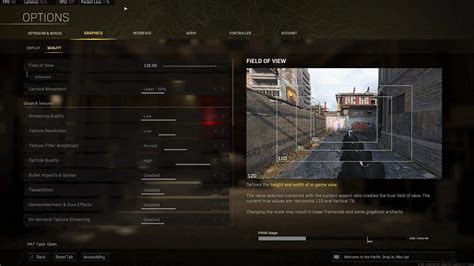
Achieving peak performance in graphically intensive games like Call of Duty: Warzone and Cyberpunk 2077 requires more than just powerful hardware; it demands meticulous optimization across your entire system. This guide will walk you through essential steps, from driver updates to in-game settings, to squeeze every possible frame per second (FPS) out of your gaming PC, ensuring a smoother and more immersive experience.
GPU Drivers: The Foundation of Performance
The single most impactful step for immediate FPS gains is ensuring your graphics card drivers are up to date. NVIDIA and AMD regularly release Game Ready or Adrenalin drivers specifically optimized for new game releases and performance improvements. Always download the latest stable version directly from the manufacturer’s website.
A clean installation is often recommended, especially if you’re experiencing issues. Use the driver installer’s custom or clean installation option to remove previous driver files completely before installing the new ones. This prevents conflicts and ensures optimal performance.
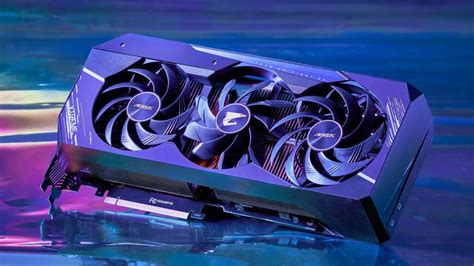
In-Game Graphics Settings Deep Dive
While powerful hardware can handle higher settings, tweaking in-game graphics options is crucial for maximizing FPS, especially in competitive titles like Warzone or graphically demanding ones like Cyberpunk. Here’s a general approach:
- Start with Presets: Begin with a ‘Medium’ or ‘High’ preset and then fine-tune individual settings.
- Texture Quality: This significantly impacts VRAM usage. If you have 8GB or more VRAM, you can usually keep this on ‘High’ or ‘Ultra’. Lower it if you experience stuttering.
- Shadows and Lighting: These are often the biggest FPS killers. Reducing shadow quality, turning off ray tracing (if applicable and not a priority), and decreasing global illumination can provide substantial gains.
- Anti-Aliasing: TAA (Temporal Anti-Aliasing) is common but can blur the image. FXAA or SMAA are less demanding but also less effective. Experiment to find a balance.
- View Distance/Draw Distance: Lowering this can help, especially in open-world games like Cyberpunk, but keep it at a comfortable level for competitive play in Warzone.
- Post-Processing Effects: Motion blur, depth of field, film grain, and lens flare often add little to gameplay but can impact FPS. Turn these off for competitive advantage and performance.
Warzone Specifics:
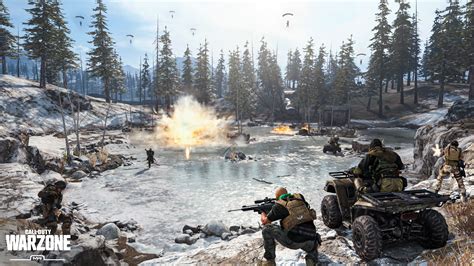
For Warzone, prioritize visibility and high frame rates above all else. Turn off most post-processing effects, reduce shadow quality, and set texture quality to a level your VRAM can handle comfortably. NVIDIA Reflex Low Latency and AMD Anti-Lag are critical settings to enable for reduced input lag.
Cyberpunk 2077 Specifics:
Cyberpunk 2077 is famously demanding. Ray Tracing (RT) is a massive performance hit. If you have an RTX card, consider using DLSS (NVIDIA) or FSR (AMD) to upscale the image from a lower resolution, providing near-native image quality with significant FPS improvements. If you don’t have RT cores, turn RT off entirely. Prioritize a steady framerate over ultra-high visual fidelity for a smoother experience.
System-Level Optimizations for Windows
Beyond in-game settings, your operating system can also be optimized for gaming performance.
- Windows Game Mode: Ensure Game Mode is enabled in Windows settings. This prioritizes your game and suppresses background processes.
- Power Plan: Set your power plan to ‘High Performance’ or ‘Ultimate Performance’ (if available). This ensures your CPU and GPU operate at their maximum clock speeds.
- Background Applications: Close any unnecessary background applications (browsers, Discord, Spotify, etc.) while gaming to free up RAM and CPU cycles.
- NVIDIA/AMD Control Panel Settings: Dig into your GPU control panel. For NVIDIA, set ‘Power management mode’ to ‘Prefer maximum performance’. Ensure ‘Low Latency Mode’ is set to ‘Ultra’ and ‘Texture filtering – Quality’ is set to ‘High performance’. AMD users should look for similar settings like ‘Radeon Anti-Lag’ and ‘Radeon Boost’.
![Buy Windows 11 Pro Key – Windows 11 License [Cheap Price]](/images/aHR0cHM6Ly90czQubW0uYmluZy5uZXQvdGg/aWQ9T0lQLmdnZ2xzNW1XeU9POUhERVkxTjFSalFIYUhhJnBpZD0xNS4x.webp)
Hardware Considerations & Cooling
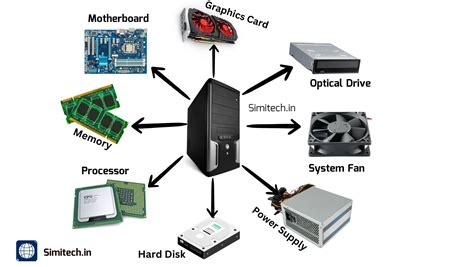
While software optimization is powerful, sometimes hardware limits are present. Ensure your CPU isn’t bottlenecking your GPU. Monitor CPU and GPU usage while gaming. If your CPU is constantly at 90-100% while your GPU is lower, a CPU upgrade might be necessary. Adequate RAM (16GB is the current standard) and an SSD for game installation are also crucial for load times and overall system responsiveness.
Overheating can lead to thermal throttling, where your CPU or GPU automatically reduces its clock speed to prevent damage, resulting in sudden FPS drops. Ensure your PC has good airflow, clean your fans and heatsinks regularly, and consider upgrading your CPU cooler if temperatures are consistently high.
Regular Maintenance for Sustained Performance
Optimizing your PC isn’t a one-time task. Regular maintenance is key to sustaining high FPS:
- Keep Drivers Updated: Continue to update GPU drivers as new versions are released.
- Disk Cleanup: Periodically run Windows Disk Cleanup or use tools like CCleaner to remove temporary files.
- Defragment (HDD only): If you still use an HDD, defragging it regularly can help, but SSDs should never be defragmented.
- Monitor Temperatures: Use software like HWMonitor or MSI Afterburner to keep an eye on your CPU and GPU temperatures.
- Physical Cleaning: Dust buildup is an enemy of performance. Clean your PC’s internals with compressed air every few months.
By diligently following these steps, you can significantly enhance your gaming experience in Warzone, Cyberpunk 2077, and other demanding titles. A well-optimized PC not only delivers higher frame rates but also ensures greater stability and responsiveness, letting you fully enjoy the immersive worlds and competitive action these games offer.



