





Optimize GPU settings for max FPS in competitive esports titles?
Unleashing Peak Performance: Why FPS Matters in Esports
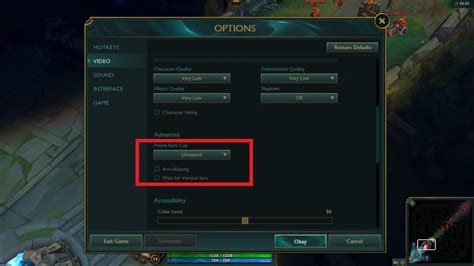
In the high-stakes world of competitive esports, every frame per second (FPS) can be the difference between victory and defeat. A higher frame rate translates to smoother visuals, reduced input lag, and a more immediate response from your game to your actions. This critical advantage allows players to react faster, track enemies more effectively, and execute precise movements with unparalleled fluidity. Optimizing your Graphics Processing Unit (GPU) settings is paramount to achieving these maximum frame rates, ensuring your hardware doesn’t bottleneck your skill.

GPU Driver Optimization: The Foundation of Performance
The first step in any GPU optimization journey begins with your drivers. Always ensure you’re running the latest stable version of your GPU drivers (NVIDIA GeForce Game Ready Drivers or AMD Radeon Software). These updates often include performance enhancements and bug fixes specifically tailored for popular esports titles.
NVIDIA Control Panel Settings:
- Power Management Mode: Set to “Prefer maximum performance.” This ensures your GPU is always running at its highest clock speeds.
- Low Latency Mode: Experiment with “Ultra” for games that are CPU-bound. This can significantly reduce input lag.
- Texture Filtering – Quality: Set to “High Performance.”
- Vertical Sync (V-Sync): Turn “Off.” V-Sync introduces input lag; if you experience screen tearing, consider using G-Sync/FreeSync if you have a compatible monitor, or cap your frame rate just below your monitor’s refresh rate.
- Shader Cache Size: Set to “Driver Default” or increase if you have issues.
AMD Radeon Software Settings:
- Radeon Anti-Lag: Enable for reduced input latency.
- Radeon Boost: Enable for dynamic resolution scaling during fast motion, which can boost FPS.
- Radeon Chill: Disable, as it limits FPS to save power.
- Texture Filtering Quality: Set to “Performance.”
- Image Sharpening: Disable or set to a low value if you prefer.
- Enhanced Sync: Similar to NVIDIA’s Fast Sync, can reduce tearing without V-Sync’s input lag but can cause stuttering for some. Use with caution.
In-Game Settings: Striking the Balance
After optimizing your drivers, fine-tuning in-game graphics settings is crucial. The goal is to minimize graphical fidelity settings that don’t offer a competitive advantage while maximizing those that improve visibility or responsiveness.
- Resolution: Always play at your monitor’s native resolution. Lowering it makes the image blurry and harder to spot enemies.
- Render Scale / Resolution Scale: Keep at 100% (or equivalent). Lowering this drastically reduces visual quality, while increasing it puts immense strain on your GPU.
- Texture Quality: Often has a minimal impact on FPS, especially with modern GPUs. Set to Medium or High based on your GPU’s VRAM.
- Shadow Quality: One of the most demanding settings. Lower to Low or Medium. High-quality shadows can obscure enemies.
- Anti-Aliasing (AA): Can be very demanding. Consider disabling it or using a less intensive option like FXAA if necessary. TAA often blurs the image, which is detrimental in competitive play.
- Post-processing Effects (Bloom, Motion Blur, Depth of Field): Turn these off completely. They add visual clutter and can reduce FPS.
- Reflections & Water Quality: Reduce to Low or Off.
- Foliage/Draw Distance: Lowering this can sometimes help, but be mindful of visibility implications.

Windows Optimization for Gaming
Your operating system can also impact game performance. A few adjustments can free up resources for your game:
- Game Mode: Ensure Windows Game Mode is enabled (Settings > Gaming > Game Mode). It prioritizes your game’s resources.
- Power Plan: Set to “Ultimate Performance” or “High Performance” in Windows Power Options.
- Background Apps: Disable unnecessary background apps (Settings > Privacy > Background apps).
- Startup Programs: Disable non-essential programs from launching with Windows.
- GPU Scheduling: (Windows 10/11) Enable Hardware-accelerated GPU scheduling in Graphics settings. This offloads some work from the CPU to the GPU, potentially reducing latency.
Monitor, Test, and Adjust
Optimization is an iterative process. Use tools like MSI Afterburner, NVIDIA’s Performance Overlay (Alt+R), or AMD’s Performance Overlay (Alt+R) to monitor your FPS, GPU usage, and temperatures while playing. Make one change at a time, test its impact, and then decide if it benefits your gameplay. The ideal settings will be a balance between visual clarity and maximum stable FPS, specific to your hardware and preferred game.
Conclusion
Achieving maximum FPS in competitive esports titles is a continuous pursuit of optimization across multiple layers: updated drivers, meticulous GPU control panel settings, intelligent in-game graphics choices, and a finely tuned operating system. By systematically applying these strategies, you can unlock your GPU’s full potential, gaining a competitive edge through smoother gameplay, reduced input lag, and the consistent high frame rates essential for peak performance. Remember, consistency and responsiveness are key in esports, and your GPU settings are a vital component of that equation.



