





Optimize monitor for competitive FPS: refresh rate, response time, adaptive sync setup?
In the high-stakes world of competitive first-person shooters (FPS), every millisecond counts. Your monitor, often overlooked beyond its initial purchase, is a critical component that can significantly impact your performance. Optimizing its settings and understanding key specifications like refresh rate, response time, and adaptive sync is not just about a pretty picture; it’s about minimizing input lag, reducing ghosting, and achieving the smoothest possible visual feedback to react faster and aim more precisely.
Refresh Rate: The Foundation of Fluidity
The refresh rate, measured in Hertz (Hz), indicates how many times per second your monitor can draw a new image. For competitive FPS gaming, higher is always better. While 60Hz was once standard, modern competitive gaming demands 144Hz, 240Hz, or even 360Hz monitors.
- 60Hz: Standard, noticeable stutter for fast-paced action.
- 144Hz: A significant leap, offering much smoother visuals and reduced input lag, becoming the baseline for serious competitive play.
- 240Hz/360Hz: Provides an even more fluid experience, allowing for finer perception of movement and potentially quicker reaction times, especially for professional players.
To fully utilize a high refresh rate monitor, ensure your graphics card can consistently output frames per second (FPS) that match or exceed your monitor’s refresh rate in your chosen games. Always set your monitor’s refresh rate to its maximum in your display settings (Windows Display Settings > Advanced Display Settings > Display Adapter Properties).
Response Time: Eliminating Ghosting
Response time refers to the time it takes for a pixel to change from one color to another, typically measured in milliseconds (ms) from grey-to-grey (GtG). A low response time is vital to prevent motion blur and ghosting – the trailing artifacts left behind fast-moving objects. For competitive FPS, aim for a 1ms GtG response time.
- 1ms GtG: The gold standard for competitive gaming, ensuring minimal ghosting and sharp image clarity during rapid movement.
- 5ms GtG: Acceptable for casual gaming, but noticeable ghosting can occur in fast-paced titles.
Be wary of marketing claims; always look for GtG measurements rather than MPRT (Moving Picture Response Time), as GtG is a more accurate representation of pixel transition speed. Some monitors offer ‘overdrive’ settings to improve response time, but pushing it too high can introduce inverse ghosting or overshoot, where pixels over-shoot their target color before settling, creating an undesirable artifact.
Adaptive Sync: FreeSync vs. G-Sync
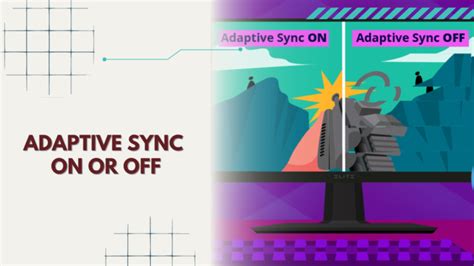
Adaptive sync technologies like NVIDIA’s G-Sync and AMD’s FreeSync synchronize your monitor’s refresh rate with your GPU’s frame rate. This eliminates screen tearing (when multiple frames are displayed simultaneously) and reduces stuttering, providing a smoother, more immersive experience without the input lag typically associated with traditional V-Sync.
- G-Sync: NVIDIA’s proprietary solution, requiring a dedicated hardware module in the monitor. Generally offers superior performance and a wider variable refresh rate (VRR) range. Compatible with NVIDIA GPUs.
- FreeSync: AMD’s open standard, leveraging DisplayPort Adaptive Sync. More widely available and typically found in more affordable monitors. Compatible with AMD GPUs, and many FreeSync monitors are now ‘G-Sync Compatible’ with NVIDIA cards over DisplayPort.
Setup Considerations:
- Ensure your GPU drivers are up-to-date.
- Connect your monitor using a DisplayPort cable (HDMI 2.1 can support VRR, but DisplayPort is often preferred for gaming monitors).
- Enable Adaptive Sync in your monitor’s OSD (On-Screen Display).
- Enable G-Sync/FreeSync in your graphics card’s control panel (NVIDIA Control Panel > Set up G-Sync or AMD Radeon Software > Display > FreeSync).
Adaptive Sync is particularly beneficial when your FPS fluctuates below your monitor’s maximum refresh rate, preventing tearing and maintaining visual fluidity.
Beyond the Big Three: Other Crucial Factors
While refresh rate, response time, and adaptive sync are paramount, other monitor features can further refine your competitive FPS experience:
- Input Lag: Distinct from response time, input lag is the delay between your input (mouse click, keyboard press) and the corresponding action appearing on screen. Monitors designed for gaming prioritize low input lag.
- Panel Type:
- TN (Twisted Nematic): Fastest response times and refresh rates, but poorer color reproduction and viewing angles. Ideal for pure competitive play.
- IPS (In-Plane Switching): Excellent color accuracy and viewing angles, with improving response times. A good balance for competitive and general use.
- VA (Vertical Alignment): Best contrast ratios and deep blacks, but generally slower response times and potential for ghosting in dark scenes. Less ideal for competitive FPS.
- Resolution: For competitive FPS, 1080p (Full HD) is often preferred, allowing your GPU to push higher frame rates. 1440p (QHD) is a popular compromise for visual fidelity and performance, while 4K is generally not recommended due to lower achievable FPS and smaller target sizes.
- Black Equalizer/Clarity Boost: Many gaming monitors include features to brighten dark areas without overexposing bright ones, helping you spot enemies lurking in shadows.
Conclusion: A Holistic Approach to Victory
Optimizing your monitor for competitive FPS involves a multi-faceted approach. Prioritizing a high refresh rate (144Hz+), a low response time (1ms GtG), and enabling adaptive sync (G-Sync or FreeSync) will lay the groundwork for an incredibly smooth and responsive visual experience. Couple these with a suitable panel type, resolution, and thoughtful in-game settings, and you’ll unlock your full potential, allowing your skills to shine without being hampered by your hardware. Investing time in understanding and fine-tuning these settings is an investment in your competitive advantage.


