





Optimize Windows 10 for max gaming FPS: disable what?
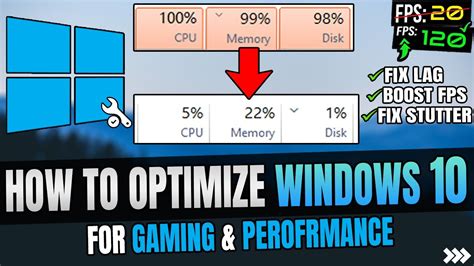
Unlock Peak Gaming Performance in Windows 10
Even the most powerful gaming rig can be held back by an unoptimized operating system. Windows 10, while robust, comes packed with numerous features, services, and background processes that can consume precious CPU cycles, RAM, and GPU resources, leading to lower Frame Rates Per Second (FPS) in your favorite games. To squeeze every last frame out of your system, it’s crucial to identify and disable or adjust the non-essential elements that hinder gaming performance. This guide will walk you through the key areas to optimize.
Disable Unnecessary Background Apps
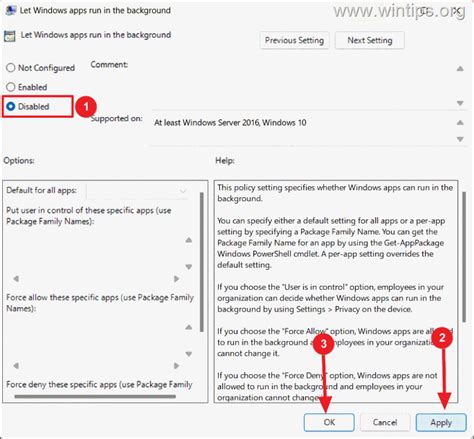
Many apps in Windows 10 run in the background, even when you’re not actively using them. These can check for updates, send notifications, and consume system resources. Disabling them is one of the quickest ways to free up memory and CPU power.
- Go to Settings > Privacy > Background apps.
- Toggle off Let apps run in the background for a global disable.
- Alternatively, scroll through the list and selectively turn off apps you don’t need running in the background while gaming.
Tame Notifications and Focus Assist
Constant notifications popping up can be distracting and, in some cases, even cause micro-stutters or frame drops. Focus Assist (formerly Quiet Hours) is designed to minimize distractions, but fine-tuning it is key.
- Notifications: Go to Settings > System > Notifications & actions. Turn off Get notifications from apps and other senders or selectively disable notifications from specific apps.
- Focus Assist: Configure Focus Assist (found in the same section) to turn on automatically during specific times or when you’re playing games, but ensure it doesn’t interfere with crucial game-related alerts.
Deactivate Xbox Game Bar and Game DVR
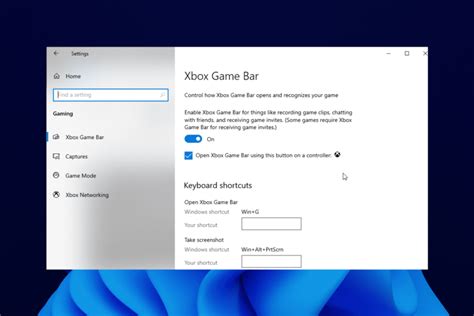
The Xbox Game Bar and its associated Game DVR feature are intended to enhance the gaming experience with overlays and recording capabilities. However, for many users, they can be resource hogs and cause performance issues.
- Go to Settings > Gaming > Xbox Game Bar and toggle it Off.
- Next, navigate to Settings > Gaming > Captures and ensure Record in the background while I’m playing a game is toggled Off.
Adjust Visual Effects for Performance
Windows 10’s aesthetic flourishes, like animations and shadows, look nice but come at a performance cost. Disabling some of these can provide a noticeable boost, especially on older hardware.
- Type ‘view advanced system settings’ into the Windows search bar and open it.
- In the System Properties window, under the Advanced tab, click Settings in the Performance section.
- Select Adjust for best performance, or manually uncheck items like Animate windows when minimizing and maximizing, Fade or slide menus into view, and Show shadows under windows.
Optimize Startup Programs and Services
Too many programs launching with Windows can significantly slow down your boot time and consume resources unnecessarily. Similarly, some Windows services might not be essential for gaming.
- Startup Programs: Open Task Manager (Ctrl+Shift+Esc), go to the Startup tab, and disable any non-essential programs from launching with Windows.
- Services: Type ‘services.msc’ into the Windows search bar and open the Services application. While caution is advised, you can consider disabling services like ‘Print Spooler’ (if you don’t print) or ‘Fax’ services. Always research a service before disabling it to avoid system instability.

Fine-Tune Power Settings
Windows’ default balanced power plan might conserve energy but won’t provide maximum performance. Switching to a high-performance plan ensures your CPU and other components run at their full potential.
- Search for ‘power plan’ and open Choose a power plan.
- Select High performance. If you don’t see it, click Show additional plans.
- Many users also recommend finding or enabling the Ultimate Performance power plan (often hidden and requires a specific command or certain hardware).
Consider Disabling Superfetch/SysMain (with caution)
Superfetch (now called SysMain in newer Windows 10 versions) is a service designed to pre-load frequently used applications into RAM to speed up launch times. While beneficial for everyday use, it can sometimes interfere with gaming, especially on systems with limited RAM or fast SSDs, as it might prioritize background tasks over active game processes.
- Type ‘services.msc’ into the Windows search bar.
- Scroll down to find SysMain (or Superfetch).
- Right-click it, select Properties, set Startup type to Disabled, and click Stop if it’s running.
- Note: Disabling this might not benefit all systems and could even slightly slow down non-gaming app launches on HDDs. Test it to see if it improves your specific gaming experience.

Advanced Tweaks: Nagle’s Algorithm (Optional)
Nagle’s algorithm is a TCP/IP protocol designed to improve network efficiency by batching small packets together before sending them. While good for general internet use, it can introduce slight latency (ping) in online games. Disabling it requires a Registry edit.
- Press Win + R, type ‘regedit’, and press Enter to open the Registry Editor.
- Navigate to
HKEY_LOCAL_MACHINESYSTEMCurrentControlSetServicesTcpipParametersInterfaces. - You’ll see several folders with long alphanumeric names. Identify your active network adapter by checking the
DhcpIPAddressorIpAddressvalue. - Inside your network adapter’s folder, create two new DWORD (32-bit) Values:
- Name the first
TcpNoDelayand set its value to1. - Name the second
MStcpNoDelayand set its value to1. - Restart your PC for changes to take effect.
- Warning: Editing the Registry incorrectly can cause system instability. Proceed with caution.
Keep Drivers Updated and Disk Clean
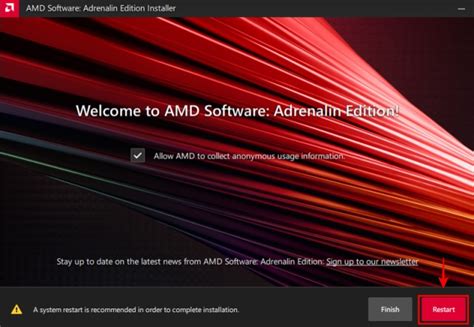
While not a ‘disabling’ tip, ensuring your system is in top shape is fundamental. Always keep your graphics card drivers updated to the latest stable version. Regular disk cleanup and defragmentation (for HDDs) also contribute to better overall system responsiveness.
- Regularly check for and install the latest GPU drivers from NVIDIA, AMD, or Intel.
- Use the built-in Disk Cleanup tool to remove temporary files and system junk.
- If you’re still using an HDD, schedule regular defragmentation (Optimize Drives in Windows search). SSDs do not need defragmenting.
Conclusion
Optimizing Windows 10 for maximum gaming FPS is an ongoing process that involves a combination of disabling unnecessary features and maintaining your system. By methodically going through these steps, you can significantly reduce system overhead, free up valuable resources, and ensure your PC is dedicated to delivering the best possible gaming experience. Remember to test changes one by one to understand their impact and to revert any changes that negatively affect your system’s stability or other functionalities.


