





Optimizing Windows & NVIDIA/AMD settings for competitive FPS games?

Unleash Peak Performance in Competitive FPS Games
For competitive first-person shooter (FPS) games, every millisecond and every frame matters. Beyond just having powerful hardware, optimizing your operating system and graphics card settings is crucial for gaining a competitive edge. This guide will walk you through the most impactful adjustments for both Windows and your NVIDIA or AMD graphics card to achieve the lowest latency and highest framerates possible.
By systematically tweaking these settings, you can reduce input lag, minimize stuttering, and ensure your system is dedicated to delivering the best possible gaming experience. Let’s dive into the specifics.
Windows Optimization for Gaming
1. Game Mode & Focus Assist
- Game Mode: Ensure this is ON (Settings > Gaming > Game Mode). Windows prioritizes your game, reducing background activity.
- Focus Assist: Turn this OFF or set it to ‘Alarms only’ (Settings > System > Focus Assist). This prevents distracting notifications during gameplay.
2. Background Apps & Notifications
- Background Apps: Go to Settings > Privacy > Background apps and turn off apps you don’t need running in the background.
- Notifications & Actions: Disable ‘Get notifications from apps and other senders’ in Settings > System > Notifications & actions.
3. Power Options
Set your power plan to ‘Ultimate Performance’ if available, or ‘High Performance’. Go to Control Panel > Hardware and Sound > Power Options. You might need to enable ‘Ultimate Performance’ via PowerShell (run as admin): powercfg -duplicatescheme e9a42b02-d5df-448d-aa00-03f50444901c.

4. Mouse Settings (Pointer Precision)
Disable ‘Enhance pointer precision’ (mouse acceleration). Go to Control Panel > Mouse > Pointer Options. This ensures raw input, critical for consistent aim.
5. Hardware-accelerated GPU Scheduling
If available on your GPU and Windows version, enable this for potentially lower latency. Settings > System > Display > Graphics settings. This requires a restart.
6. Visual Effects
Adjust for best performance. Right-click ‘This PC’ > Properties > Advanced system settings > Performance Settings > Visual Effects > ‘Adjust for best performance’.
NVIDIA Control Panel Settings
Right-click on your desktop and select ‘NVIDIA Control Panel’.
1. Manage 3D Settings (Global Settings Tab)
- Image Sharpening: Off
- Low Latency Mode: Ultra (reduces input lag significantly, especially at high FPS)
- Max Frame Rate: Off (or cap slightly below your monitor’s refresh rate if you experience tearing without G-Sync/FreeSync)
- Monitor Technology: G-SYNC Compatible (if you have a G-Sync monitor, disable for competitive FPS unless you cap FPS below refresh rate)
- Power Management Mode: Prefer Maximum Performance
- Preferred Refresh Rate (your monitor): Highest available
- Texture Filtering – Quality: High Performance
- Vertical Sync: Off
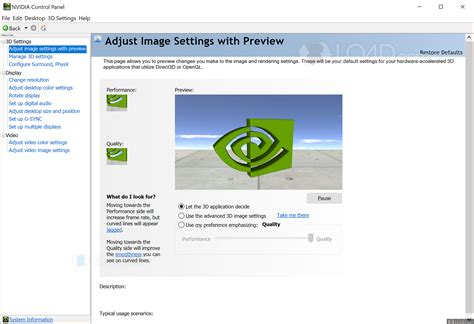
2. Program Settings Tab
For your specific competitive FPS game (e.g., Valorant, CS:GO, Apex Legends), apply the same critical settings as above, overriding global settings if necessary.
AMD Radeon Software Settings
Right-click on your desktop and select ‘AMD Radeon Software’.
1. Gaming Tab & Global Graphics
- Radeon Anti-Lag: Enabled (Reduces input lag by dynamically adjusting frame pacing)
- Radeon Boost: Disabled (Can reduce resolution dynamically, not ideal for consistent competitive play)
- Radeon Image Sharpening: Disabled
- Enhanced Sync: Disabled (Can cause stuttering or increased latency in competitive titles)
- Wait for Vertical Refresh (V-Sync): Always Off
- Anti-Aliasing Mode: Use application settings
- Texture Filtering Quality: Performance
- Tessellation Mode: AMD Optimized or Off
- Power Efficiency: Disabled
- FreeSync: Disabled for competitive gaming (similar to G-Sync, unless very specific setups/caps)
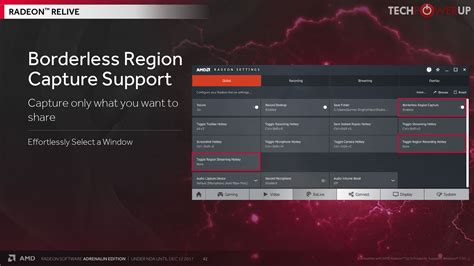
2. Per-Game Settings
Navigate to the ‘Gaming’ tab and select your specific FPS title. Apply the above-mentioned settings to ensure they are active for that particular game.
Additional Performance Tips
1. Keep Drivers Updated
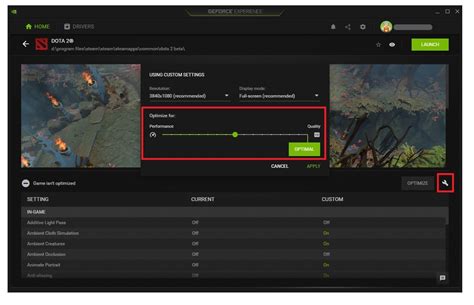
Regularly update your graphics drivers (NVIDIA GeForce Experience or AMD Radeon Software) and chipset drivers for optimal performance and stability.
2. Monitor Refresh Rate
Ensure your monitor is running at its highest refresh rate. Go to Settings > System > Display > Advanced display settings > Display adapter properties for Display [X] > Monitor tab > Screen Refresh Rate.
3. XMP Profile for RAM
Enable the XMP (Extreme Memory Profile) or DOCP (Direct Overclock Profile) in your motherboard’s BIOS/UEFI settings to ensure your RAM runs at its advertised speed. This can significantly impact CPU-bound games.
4. Disable Unnecessary Startup Programs
Open Task Manager (Ctrl+Shift+Esc), go to the ‘Startup’ tab, and disable any programs you don’t need to launch with Windows.
5. In-Game Settings
Finally, remember to optimize your in-game settings. Prioritize resolution, refresh rate, and competitive advantages over visual fidelity. Typically, lower graphics settings (shadows, reflections, anti-aliasing) yield higher FPS and better visibility in competitive titles.
Conclusion
By diligently applying these Windows and graphics card optimizations, you’ll create a finely tuned machine ready for the demands of competitive FPS gaming. The cumulative effect of these small changes can lead to a noticeably smoother experience, lower input lag, and ultimately, better performance in your favorite titles. Remember to test settings incrementally to find the sweet spot for your specific hardware and preferences.


