





PC overheating during gaming? How to diagnose & fix high temps fast.
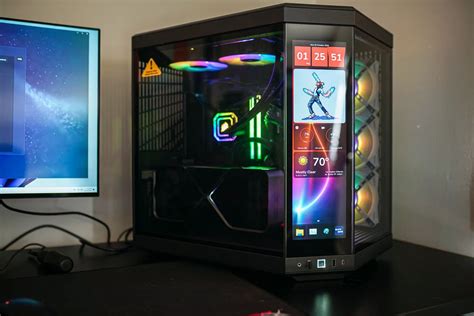
Is Your Gaming PC Running Too Hot?
There’s nothing more frustrating than your high-performance gaming PC stuttering, lagging, or even crashing mid-game. Often, the silent culprit behind these performance woes is overheating. High temperatures can not only degrade your gaming experience but also lead to long-term damage to your valuable components. Fortunately, diagnosing and fixing high temps is often a straightforward process.
Symptoms of an Overheating PC
Recognizing the signs of an overheating PC is the first step toward a fix. Keep an eye (and ear) out for these common indicators:
- Performance Throttling: Your frame rates drop suddenly and drastically, or games become noticeably sluggish after a period of play. This is your CPU/GPU reducing clock speeds to lower temperatures.
- Excessive Fan Noise: Your PC fans spin up to maximum RPM, sounding like a jet engine trying to take off.
- System Crashes/Freezes: The ultimate warning sign – your PC might completely freeze, display a Blue Screen of Death (BSOD), or simply shut down without warning.
- Hot Chassis: The exterior of your PC case feels unusually hot to the touch.

How to Monitor Your PC’s Temperatures
Before you can fix a problem, you need to confirm it exists and quantify its severity. Specialized software can give you real-time readings of your CPU and GPU temperatures. Popular choices include HWMonitor, MSI Afterburner, HWiNFO64, and NZXT CAM. Run one of these applications in the background while gaming and note down your peak CPU (core temps) and GPU temperatures. Generally, CPU temps should ideally stay below 85°C, and GPU temps below 90°C under heavy load. Consistent readings above these thresholds indicate a problem.
Common Culprits Behind High Temperatures
Understanding what causes high temps is key to applying the right solution:
Dust and Debris Accumulation
Over time, dust, pet hair, and other debris can build up on heatsinks, fans, and vents, acting as an insulating blanket that traps heat and prevents proper airflow. This is the most common cause of overheating.

Poor Airflow Inside the Case
An improperly configured case, poor cable management, or an insufficient number/placement of case fans can create stagnant air pockets or restrict the flow of cool air in and hot air out.
Degraded Thermal Paste
The thermal paste between your CPU/GPU and their respective heatsinks helps transfer heat efficiently. Over several years, this paste can dry out and become less effective, hindering heat dissipation.
Failing Fans or Pump
If a CPU cooler fan, GPU fan, or an AIO liquid cooler pump fails or slows down significantly, it can drastically reduce cooling performance.
Quick Fixes for High PC Temps
1. Clean Your PC Thoroughly
This is often the simplest and most effective solution. Power down and unplug your PC. Use compressed air to blast dust out of your CPU cooler, GPU heatsink, and all case fans. Hold the fan blades in place while cleaning to prevent damage. Pay special attention to radiator fins if you have liquid cooling.

2. Improve Case Airflow and Cable Management
Ensure your case fans are oriented correctly (intake at the front/bottom, exhaust at the rear/top). If you have only one or two fans, consider adding more. Tidy up internal cables using zip ties or Velcro straps to prevent them from obstructing airflow paths.
3. Reapply Thermal Paste
If cleaning doesn’t help and your PC is a few years old, reapplying thermal paste is the next step. You’ll need to remove your CPU cooler, clean off the old paste from both the CPU IHS (Integrated Heat Spreader) and the cooler’s base with isopropyl alcohol, and apply a small pea-sized or line of new, high-quality thermal paste before reattaching the cooler. This can be intimidating for beginners, so watch a few tutorials if you’re unsure.

4. Check and Replace Faulty Fans
Listen for unusual fan noises or visually inspect them for sluggish rotation. If a fan isn’t spinning or is making grinding noises, it might need replacement. This applies to both case fans and cooler fans.
5. Consider Undervolting or Upgrading Your Cooler
For more advanced users, undervolting your CPU or GPU can reduce power consumption and heat output with minimal performance loss. If all else fails and your stock cooler is struggling, consider upgrading to a more powerful air cooler or an AIO liquid cooler.

Conclusion
Overheating can severely impact your gaming experience and the lifespan of your PC components. By proactively monitoring your temperatures, performing regular maintenance like cleaning, and addressing airflow issues, you can keep your gaming rig running cool and performing at its best. Don’t let high temps melt your gaming ambitions – take action and enjoy stable, high-performance gameplay!



