SSD for slow boot: NVMe vs SATA?
Is Your PC Booting Slowly? The SSD Solution
There’s little more frustrating than hitting the power button and then waiting an eternity for your operating system to load. Slow boot times are a common complaint, often pointing fingers at outdated hardware, particularly the storage drive. Upgrading from a traditional Hard Disk Drive (HDD) to a Solid State Drive (SSD) is universally recognized as the single most impactful upgrade for system responsiveness and, crucially, boot speed. But once you’re on board with an SSD, the next question arises: should you opt for NVMe or SATA?
Understanding the Root of Slow Boot Times
Before diving into SSD types, it’s helpful to understand what contributes to a sluggish startup. Your operating system, essential drivers, and startup applications all need to be loaded from your storage drive into your RAM. If the storage drive is slow, this entire process grinds to a halt. Traditional HDDs, with their spinning platters and read/write heads, are inherently limited in speed, making them the primary bottleneck for many older systems.
The SSD Advantage: A Game Changer
SSDs have no moving parts, relying instead on flash memory to store data. This allows for significantly faster data access, read, and write speeds compared to HDDs. The difference in boot time alone can be astounding, transforming a multi-minute wait into mere seconds. But not all SSDs are created equal, and their connection interfaces—SATA and NVMe—dictate their maximum potential.
SATA SSDs: The Reliable Standard
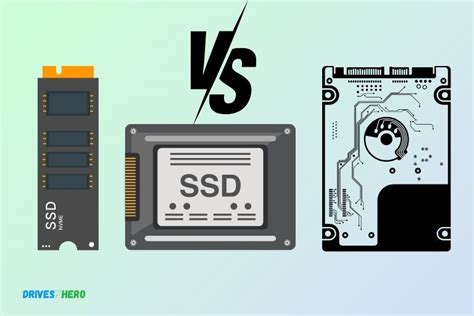
SATA (Serial Advanced Technology Attachment) has been the standard interface for connecting storage devices to motherboards for many years. SATA SSDs connect via a cable and typically come in a 2.5-inch form factor, making them direct replacements for laptop HDDs and easily installable in desktop cases. They utilize the AHCI (Advanced Host Controller Interface) protocol.
- Performance: SATA III, the most common standard, offers a theoretical maximum throughput of 600 MB/s (megabytes per second). In practice, speeds usually hover around 500-550 MB/s for sequential reads and writes.
- Pros: Widely compatible with almost all modern motherboards, generally more affordable, and easy to install.
- Cons: Slower than NVMe, limited by the SATA interface itself.

NVMe SSDs: The Speed Demon
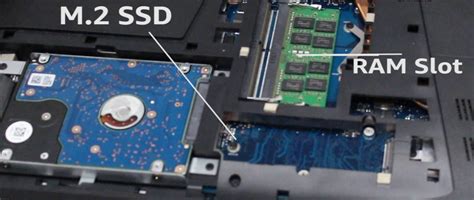
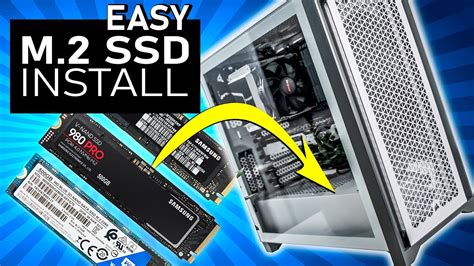
NVMe (Non-Volatile Memory Express) is a communication protocol specifically designed for SSDs to leverage the high-speed PCIe (Peripheral Component Interconnect Express) interface. Unlike SATA, which was designed for HDDs, NVMe allows SSDs to communicate directly with the CPU, bypassing the SATA controller and reducing latency significantly. NVMe SSDs usually come in a small M.2 stick form factor, plugging directly into a dedicated slot on the motherboard.
- Performance: NVMe SSDs, especially those using PCIe Gen3 or Gen4, offer vastly superior speeds. PCIe Gen3 NVMe drives can achieve sequential read/write speeds of up to 3,500 MB/s, while Gen4 drives can hit over 7,000 MB/s.
- Pros: Blazing fast performance for all tasks, including boot, application loading, and large file transfers.
- Cons: More expensive than SATA SSDs, requires a motherboard with an M.2 slot that supports NVMe, and older systems may not have this compatibility.
NVMe vs. SATA for Boot Speed: The Real-World Impact
When it comes to raw boot times, the difference between a fast SATA SSD and a cutting-edge NVMe SSD is often less dramatic than their theoretical maximum speeds might suggest. While an NVMe drive will undoubtedly be faster, shaving a few seconds off a 10-15 second boot time might not be as noticeable as the difference between an HDD (60+ seconds) and any SSD (10-20 seconds).
This is because boot processes are not solely about sequential read speeds. They involve numerous small file reads and writes, CPU processing, RAM loading, and interactions with other hardware. Many of these operations don’t fully saturate even a SATA SSD’s bandwidth. However, for overall system responsiveness—opening applications, loading games, or handling large files—NVMe’s superior speed and lower latency provide a much more noticeable advantage.
Which One Should You Choose?
Consider SATA SSD If:
- You’re on a tight budget.
- You have an older motherboard without an M.2 NVMe slot.
- Your primary goal is to significantly improve boot times from an HDD, and extreme file transfer speeds aren’t a top priority.
- You need a larger storage capacity for less money.
Consider NVMe SSD If:
- Your motherboard has an M.2 NVMe slot (ensure it supports the specific PCIe generation of the drive).
- You want the absolute fastest boot times and overall system responsiveness.
- You frequently work with large files, perform demanding tasks like video editing, or are a serious gamer.
- You’re building a new PC or upgrading a relatively modern one.
Beyond the SSD: Other Tips for Faster Boot
While an SSD upgrade is paramount, other factors can influence your boot speed:
- Clean OS Installation: A fresh install of Windows (or your OS) on the new SSD can remove years of accumulated bloatware and fragmented files.
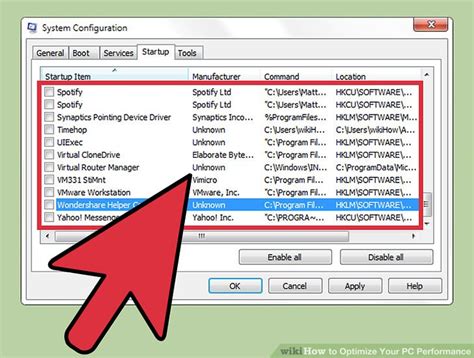
- Disable Unnecessary Startup Programs: Many applications automatically launch at boot, consuming resources. Manage these via Task Manager (Windows) or System Settings (macOS/Linux).
- Update Drivers: Ensure your motherboard chipset and other critical drivers are up to date.
- Ample RAM: While not a direct boot speed factor, sufficient RAM prevents your system from constantly swapping data to the slower storage drive, improving overall fluidity.
Conclusion
For tackling slow boot times, any SSD will deliver a dramatic improvement over an HDD. The choice between NVMe and SATA ultimately boils down to your budget, motherboard compatibility, and desired performance ceiling. If maximum speed and future-proofing are key, and your system supports it, an NVMe SSD is the undisputed champion. However, a SATA SSD remains an excellent, cost-effective upgrade that will transform your computing experience, particularly by drastically cutting down those frustrating boot waits. Evaluate your needs and hardware to make the best decision for your system.