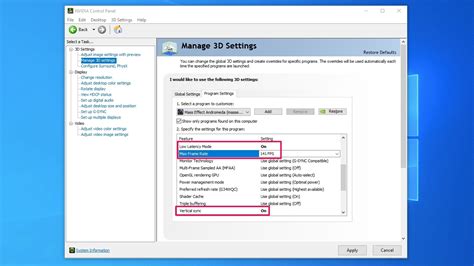
How do I properly enable G-Sync/FreeSync on my gaming monitor for tear-free gameplay?
Achieve buttery-smooth, tear-free gaming by properly enabling G-Sync or FreeSync on your compatible monitor with this comprehensive guide.
News, Guides, and Everything Gaming.






Achieve buttery-smooth, tear-free gaming by properly enabling G-Sync or FreeSync on your compatible monitor with this comprehensive guide.
This article explores the benefits of G-Sync and FreeSync adaptive sync technologies, helping you decide if they’re right for you and guiding you through their correct setup for a smoother gaming experience.

Discover essential monitor settings, mouse polling rates, and VSync considerations to significantly reduce input lag and enhance your performance in fast-paced FPS games.
Finding the best 144Hz monitor for competitive FPS gaming under $300 involves balancing essential features like refresh rate, response time, and panel type without breaking the bank.
Learn the essential steps to configure G-Sync or FreeSync on your new gaming monitor and GPU for a perfectly smooth, tear-free gaming experience.
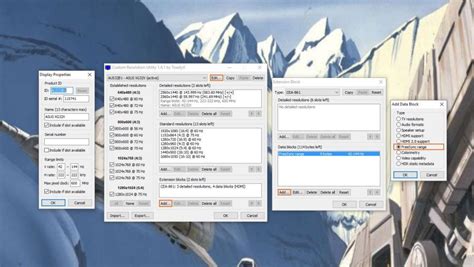
Unlock your full potential in competitive gaming by meticulously optimizing your monitor’s refresh rate, adaptive sync technologies, and HDR settings for maximum performance and visual clarity.

Ensure your high refresh rate gaming monitor is delivering its maximum potential by verifying crucial display settings, driver configurations, and in-game options.
Unlock your gaming monitor’s full potential by fine-tuning its settings for maximum frame rates and minimal input delay, giving you a competitive edge in any game.
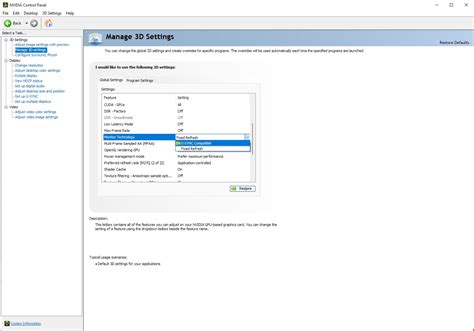
Achieving a smooth, responsive gaming experience requires optimizing input lag and correctly configuring adaptive sync technologies like G-Sync or FreeSync.
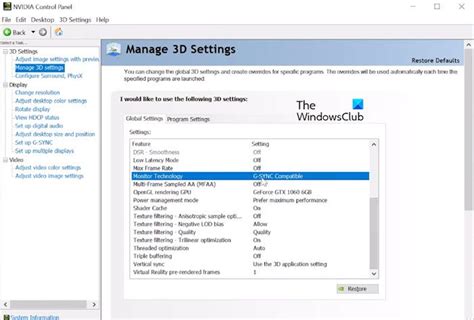
Unlock a more fluid and immersive gaming experience by learning how to properly enable G-Sync or FreeSync and optimize your monitor’s refresh rate settings.