
FPS drops in games? How to optimize GPU drivers for max gaming performance.
Learn how to diagnose and resolve FPS drops by effectively optimizing your GPU drivers for maximum gaming performance and a smoother experience.
News, Guides, and Everything Gaming.






Learn how to diagnose and resolve FPS drops by effectively optimizing your GPU drivers for maximum gaming performance and a smoother experience.

Discover the common culprits behind low game FPS even on high-spec PCs and learn actionable fixes to optimize your gaming performance.
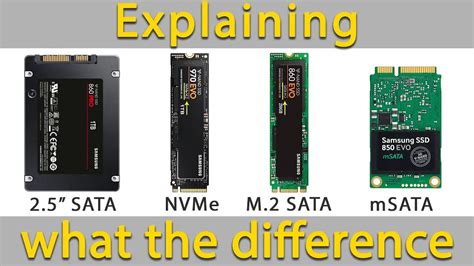
Explore the practical differences in gaming load times between NVMe and SATA SSDs, debunking myths and setting realistic expectations for PC gamers.
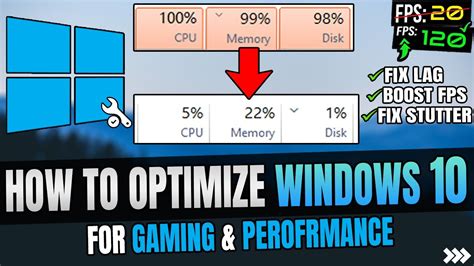
Discover key Windows 10 features and services to disable or adjust for significantly boosting your in-game frame rates and overall gaming performance.
Unlock the full potential of your graphics card and achieve maximum frames per second in the latest AAA titles by strategically adjusting both in-game and driver-level settings.

Combat frustrating FPS drops in Warzone by meticulously optimizing your GPU settings, graphics drivers, and in-game options for peak performance and smoother gameplay.
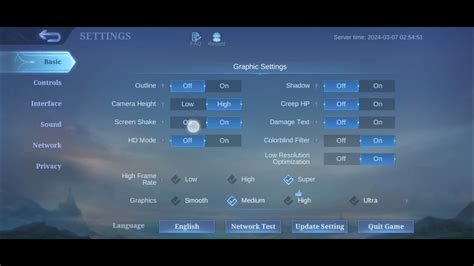
Experiencing frustrating FPS drops in your favorite games? Discover quick and effective GPU and CPU optimization tips to boost your gaming performance and achieve smoother gameplay.
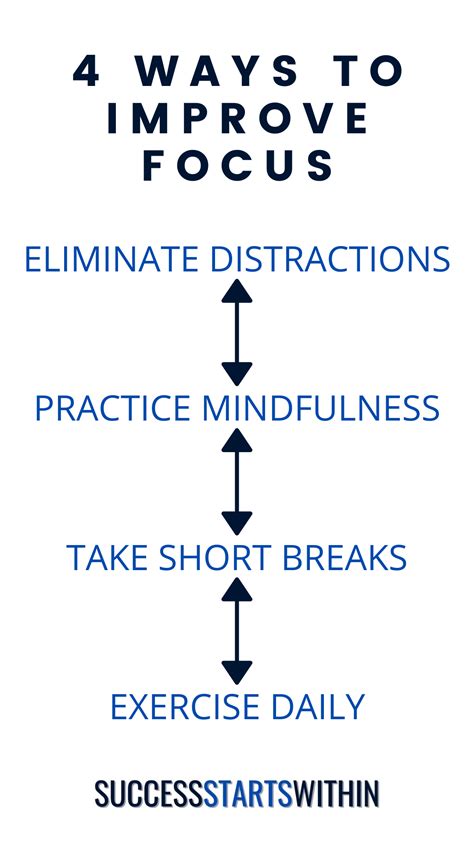
This article provides actionable strategies and techniques for competitive players to effectively manage emotional tilt and sustain peak mental focus during high-pressure esports matches.
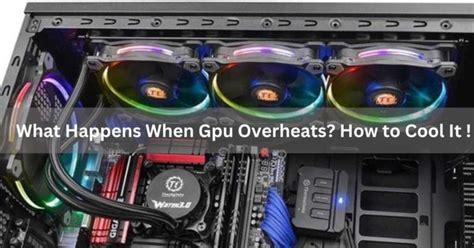
Discover effective strategies to prevent PC overheating during gaming, including cleaning, hardware upgrades, and software optimizations, all designed to improve cooling and significantly boost your in-game FPS.
Experiencing frustrating FPS drops in new games? This comprehensive guide outlines the essential driver updates—graphics, chipset, and audio—and best practices to optimize your PC for peak gaming performance and smooth gameplay.