





Troubleshoot game FPS drops: GPU, CPU, or RAM?
Few things are more frustrating for a gamer than experiencing sudden and inexplicable Frame Per Second (FPS) drops. One moment you’re immersed in a fluid virtual world, the next you’re grappling with choppy, unplayable stuttering. Pinpointing the exact cause can feel like a detective mission, often leading to the perennial question: is it my GPU, CPU, or RAM letting me down? Understanding the role each component plays is the first step to effective troubleshooting.
Understanding the Core Components
Your PC’s performance in games is a delicate dance between three primary components:
The GPU: Graphics Powerhouse
The Graphics Processing Unit (GPU) is arguably the most critical component for gaming. It’s responsible for rendering all the visuals you see on your screen. If your GPU is struggling, you’ll likely see the most significant impact on FPS. Common GPU-related issues include:
- Outdated Drivers: Manufacturers frequently release driver updates that improve performance and stability for new games.
- Overheating: A GPU that gets too hot will throttle its performance to prevent damage, leading to FPS drops.
- Settings Too High: Trying to run a game on Ultra settings with a mid-range GPU is a recipe for low FPS.
- Insufficient VRAM: The dedicated memory on your GPU (VRAM) can become a bottleneck if the game demands more than is available.

The CPU: The Brain of Operations
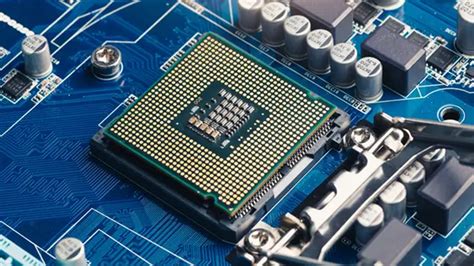
While the GPU renders the graphics, the Central Processing Unit (CPU) handles game logic, physics, AI, and telling the GPU what to render. A CPU bottleneck occurs when your CPU can’t feed data to the GPU fast enough, causing the GPU to wait and operate below its full potential. Signs of a CPU bottleneck often include:
- Low GPU Utilization: Your GPU usage might be low (e.g., 50-70%) while your CPU usage is very high (e.g., 90-100%).
- Background Processes: Other applications running in the background can hog CPU resources.
- Single-Core Performance: Some games are more reliant on strong single-core performance, even with multi-core CPUs.
The RAM: Short-Term Memory
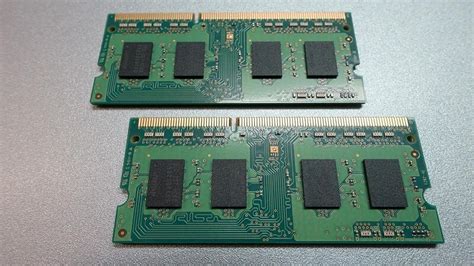
Random Access Memory (RAM) acts as your system’s short-term memory, storing data that the CPU needs to access quickly. While less commonly the primary cause of FPS drops compared to the GPU or CPU, insufficient or slow RAM can certainly contribute, especially to stuttering and loading issues.
- Insufficient Capacity: If a game demands more RAM than you have, your system will resort to using slower storage (page file), causing significant slowdowns.
- Slow Speed/Timings: While less impactful than capacity, slower RAM speeds can introduce minor bottlenecks, particularly for Ryzen CPUs.
- Faulty Modules: Though rare, a failing RAM stick can lead to crashes or inconsistent performance.
Diagnosing the Culprit: Practical Steps
To identify which component is causing your FPS woes, you’ll need monitoring tools. Applications like MSI Afterburner (with Rivatuner Statistics Server), HWMonitor, or even Windows’ built-in Task Manager can provide crucial data.
- Monitor Usage: While gaming, keep an eye on your GPU usage, CPU usage (per core if possible), and RAM usage.
- Check Temperatures: High temperatures are a major red flag for both GPUs and CPUs. Use monitoring software to check temps during load.
- Update Drivers: Always ensure your GPU drivers are up-to-date from NVIDIA or AMD’s official websites. Chipset drivers for your motherboard can also sometimes impact CPU performance.
- Adjust Game Settings: Experiment with lowering graphics settings, starting with shadows, anti-aliasing, and texture quality. See how these changes affect FPS and component usage.
- Close Background Processes: Before launching a game, close any unnecessary applications running in the background.
- Run Benchmarks: Use synthetic benchmarks (e.g., 3DMark, Cinebench) to compare your system’s performance against similar setups and identify potential underperformers.

Conclusion
Troubleshooting FPS drops requires a systematic approach. By monitoring your GPU, CPU, and RAM usage and temperatures, and methodically adjusting drivers and game settings, you can usually pinpoint the source of the problem. Remember, a balanced system where no single component severely bottlenecks the others provides the best gaming experience. If problems persist after these steps, consider seeking more specialized hardware diagnostics or upgrades.


