





Troubleshooting game mod conflicts: Best practices for stable gameplay?
Understanding the Lure and the Pitfalls of Game Mods
Game modifications, or mods, offer an incredible way to extend a game’s lifespan, enhance its features, or completely transform the experience. From graphical overhauls to new quests and characters, mods can breathe fresh air into beloved titles. However, the more mods you install, the higher the likelihood of encountering conflicts that can lead to crashes, bugs, or corrupted save files. Navigating these issues is a rite of passage for many mod enthusiasts, and mastering the art of troubleshooting is key to maintaining a stable and enjoyable game.

Common Causes of Mod Conflicts
Understanding why conflicts occur is the first step towards resolving them. Most mod conflicts stem from a few core issues:
- Overlapping Files: Two or more mods attempt to modify the same game file or resource, leading to one mod overwriting another, or worse, creating a corrupted state.
- Load Order Issues: The sequence in which mods are loaded by the game engine can drastically affect their compatibility. If a mod relies on changes made by another but loads before it, errors can arise.
- Scripting Conflicts: Mods that introduce new scripts or alter existing ones can interfere with each other, especially if they try to manipulate the same game events or variables.
- Missing Master Files: Some mods are “dependent” on others (known as master files). If a master file is missing or loaded out of order, the dependent mod will fail to initialize correctly.
- Outdated Mods: Mods designed for older versions of a game may not be compatible with newer patches, or vice-versa, causing instability.
Best Practices for Preventing Conflicts
Prevention is always better than cure. Adopting these habits can significantly reduce the chances of encountering mod conflicts:
- Read Mod Descriptions Carefully: Always check for compatibility notes, required master files, and known conflicts before installing any mod. Mod authors often provide crucial information.
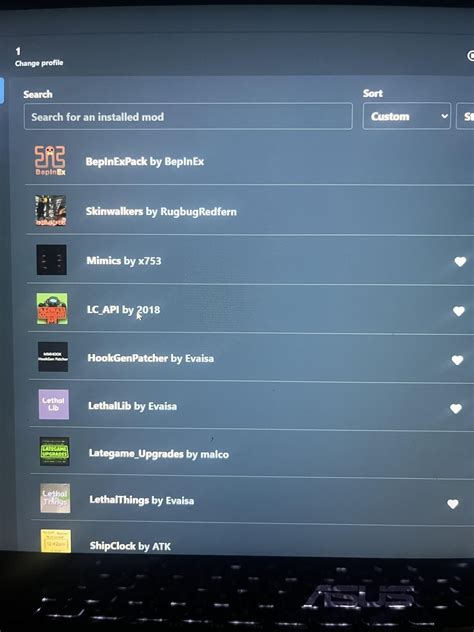
- Use a Mod Manager: Tools like Mod Organizer 2, Vortex, or NMM streamline installation, uninstallation, and conflict resolution by managing files in a virtual directory, preventing direct changes to your game folder.
- Install Mods Incrementally: Don’t install dozens of mods at once. Add a few at a time, test your game, and then add more. This makes it easier to pinpoint the culprit if an issue arises.
- Backup Your Game and Save Files: Before a major modding session, back up your clean game installation and your save files. This provides a safety net if something goes wrong.
- Understand Load Order: Familiarize yourself with how your chosen mod manager handles load order and learn the general rules for your specific game (e.g., specific mod types should load before others).
Step-by-Step Troubleshooting Guide
Despite your best efforts, conflicts can still happen. Here’s a systematic approach to identifying and resolving them:
- Isolate the Problem: If your game crashes or behaves erratically, disable all recently installed mods. If the game stabilizes, re-enable them one by one (or in small batches) to identify which mod or group of mods is causing the issue.
- Check Your Load Order: Use a load order optimization tool (e.g., LOOT for Bethesda games) or manually adjust the load order based on mod descriptions and community guides. Mods that provide foundational changes usually load earlier, while patches and overrides load later.
- Look for Patches: Many popular mods have compatibility patches created by their authors or the community to resolve known conflicts with other widely used mods. Search for these patches on modding websites.
- Utilize Conflict Resolution Tools: Some mod managers (like Mod Organizer 2) or dedicated tools (e.g., xEdit for Bethesda games) allow you to visually inspect file conflicts and manually create overrides or merge patches. This is an advanced technique but highly effective.
- Clear Your Cache: Some games or mod managers maintain caches that can become stale. Clearing these can sometimes resolve obscure issues.

Advanced Troubleshooting and Community Resources
If basic steps don’t resolve your issue, consider these more advanced options:
- Perform a Clean Reinstall: In severe cases, a complete uninstall and reinstall of the game, followed by a careful re-installation of your mods, might be necessary. Ensure all leftover mod files are removed before reinstalling.
- Check for Developer Console Errors: Many games have a developer console where error messages might appear, pointing directly to the problematic mod or file.
- Consult Modding Communities: Websites like Nexus Mods, Reddit’s modding subreddits, and game-specific forums are invaluable resources. Chances are, someone else has encountered and solved your specific conflict. Provide detailed information about your game version, mod list, and what steps you’ve already taken.
Conclusion
Modding can significantly enrich your gaming experience, but it comes with the responsibility of managing potential conflicts. By adopting best practices for installation, meticulously checking mod compatibility, leveraging mod managers and tools, and systematically troubleshooting when issues arise, you can enjoy a vast library of modifications without sacrificing game stability. Embrace the journey of learning and experimentation, and your modded games will thrive.

