





Troubleshooting mod conflicts: Essential tips for stable game performance?

The Double-Edged Sword of Modding
Mods transform our favorite games, adding new content, improving graphics, or even overhauling core mechanics. They extend replayability and allow for truly personalized experiences. However, with great power comes great responsibility – and often, great frustration. Installing too many mods, or even just a few incompatible ones, can lead to crashes, freezes, graphical glitches, and overall unstable game performance. These issues are commonly referred to as mod conflicts.
Understanding how to diagnose and resolve these conflicts is crucial for any enthusiastic modder. It’s not about avoiding mods, but about learning to manage them effectively so you can enjoy the enhanced gameplay without the constant headaches. This guide will walk you through essential tips and strategies to troubleshoot mod conflicts and maintain a stable gaming environment.

Understanding Mod Conflicts: What Are They?
At its core, a mod conflict occurs when two or more mods try to modify the same game data, script, or resource in different, incompatible ways. This can manifest in several forms:
- File Overwrites: One mod replaces files that another mod expects to be present, or replaces them with an incompatible version.
- Script Conflicts: Mods attempting to alter the same game script might cause one script to fail or behave unexpectedly.
- Resource Incompatibility: Different mods using conflicting texture paths, meshes, or other assets can lead to visual bugs or crashes.
- Load Order Issues: The sequence in which mods are loaded can dictate which mod ‘wins’ a conflict. An incorrect load order often leads to unintended behavior.
Identifying these conflicts can feel like detective work, but with the right tools and approach, it becomes a manageable task.
Essential Strategies for Troubleshooting Mod Conflicts
1. Start with a Clean Slate (and Regular Backups)
Before diving deep into conflict resolution, ensure your game installation itself is healthy. Verify the integrity of game files through your game launcher (Steam, Epic Games, etc.). If problems persist, consider a clean reinstallation of the base game. Always back up your save files and critical mod configurations before making significant changes.
2. Embrace Your Mod Manager
Modern mod managers like Vortex, Mod Organizer 2 (MO2), and Nexus Mod Manager (NMM) are indispensable tools. They simplify installation, track files, and often provide basic conflict detection. Learn to use your chosen manager effectively:
- Virtual File Systems: MO2, in particular, uses a virtual file system, meaning mods don’t touch your game’s data folder directly. This makes troubleshooting and uninstalling much cleaner.
- Conflict Detection: Most managers will flag potential file conflicts. Pay attention to these warnings and understand how your manager resolves them (e.g., specifying load order, choosing which mod ‘wins’).
3. Master the Load Order
The order in which your mods load is paramount. Many conflicts arise because mods are loaded in the wrong sequence, causing an earlier-loaded mod to be overwritten by an incompatible later-loaded mod, or vice-versa. Tools like LOOT (Load Order Optimization Tool) are highly recommended for automatically sorting your plugins. After LOOT, you might need to make manual adjustments based on specific mod requirements.
- General Rules: Master files (.ESM) first, then official DLCs, followed by unofficial patches, then major overhauls, new content, gameplay changes, textures/meshes, and finally, patches that resolve conflicts between other mods.
![[RELz] LOOT - Load Order Optimisation Tool - Tools of the Trade - AFK Mods](/images/aHR0cHM6Ly90czQubW0uYmluZy5uZXQvdGg/aWQ9T0lQLlVMTkRHdldZaDZlQlVDdk4wYWNoZ0FIYUZSJnBpZD0xNS4x.webp)
4. Isolate and Conquer: The 50/50 Method
If you’ve installed a batch of mods and your game is unstable, don’t try to fix everything at once. Use the 50/50 method:
- Disable half of your recently installed mods.
- Test the game.
- If the problem persists, the conflict is in the remaining half. If it’s resolved, the conflict is in the disabled half.
- Repeat the process, continually narrowing down the problematic mod(s) until you find the culprit.
This systematic approach, though time-consuming, is incredibly effective for identifying specific problematic mods.
5. Read the Documentation & Community Forums
Before installing any mod, always read its description page on Nexus Mods or similar platforms. Mod authors often detail compatibility issues, required patches, and specific installation instructions. If you encounter a problem, search the mod’s bug reports section or the game’s modding community forums (e.g., Reddit’s specific game modding subreddits). Chances are, someone else has encountered and solved the same issue.
6. Deciphering Crash Logs and Error Messages
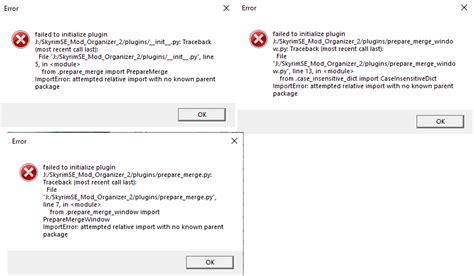
Some games and modding communities have tools that generate detailed crash logs. Learning to read these, even superficially, can provide valuable clues. Look for file paths, mod names, or error codes mentioned immediately before a crash. While often technical, these logs can point you directly to the offending mod or file.
7. Keep Everything Updated
Ensure your game, mod manager, and the mods themselves are up to date. Developers and mod authors frequently release patches to fix bugs and improve compatibility. Outdated components are a common source of conflicts.
8. Don’t Forget Patches
Many popular mods have official or unofficial compatibility patches created by the authors or the community. These are specifically designed to make two otherwise conflicting mods work together seamlessly. Always check for and install these if available.
Conclusion: Patience is a Virtue in Modding
Troubleshooting mod conflicts can be a daunting task, requiring patience, methodical testing, and a willingness to learn. However, the satisfaction of resolving an issue and achieving a perfectly stable, customized game experience is incredibly rewarding. By utilizing mod managers, understanding load order, employing systematic testing methods, and leveraging community resources, you can transform the frustration of conflicts into a deeper understanding of your game and its modifications. Happy modding, and may your frame rates be ever stable!

