





Ultimate Windows 11 settings for maximum gaming FPS and minimal input lag?

Unleashing Peak Gaming Performance on Windows 11
Windows 11 offers a sleek interface and numerous under-the-hood improvements, but out-of-the-box, it might not be fully optimized for competitive gaming. To squeeze every frame per second (FPS) and eliminate frustrating input lag, a strategic dive into its settings is essential. This guide will walk you through the ultimate configurations to transform your Windows 11 machine into a gaming powerhouse.
Essential Windows Settings for Gaming
Many core Windows settings can significantly impact your gaming experience. Adjusting these first provides a strong foundation for performance.
Game Mode Activation
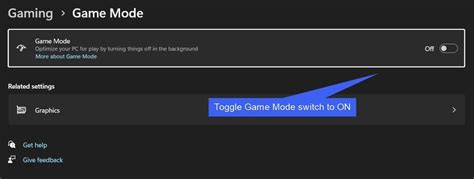
Windows 11’s Game Mode is designed to optimize your PC for gaming by prioritizing game processes and reducing background activity. Ensure it’s enabled.
- Go to `Settings > Gaming > Game Mode`.
- Toggle `Game Mode` to `On`.
Graphics Settings & Hardware-accelerated GPU Scheduling
This is a critical area for FPS improvements. Hardware-accelerated GPU scheduling (HAGS) can reduce latency and improve performance for compatible hardware.
- Go to `Settings > System > Display > Graphics`.
- Click `Change default graphics settings`.
- Toggle `Hardware-accelerated GPU scheduling` to `On`. (Requires restart)
- Also, ensure `Variable refresh rate` is enabled if your monitor supports it.
For individual games, you can set specific performance preferences:
- Back in `Settings > System > Display > Graphics`, click `Browse` to add your game’s executable.
- Once added, select `Options` and choose `High performance`.
Notifications and Focus Assist
Notifications can be disruptive and consume precious system resources. Minimize their impact.
- Go to `Settings > System > Notifications`.
- Toggle `Notifications` off, or customize them to allow only essential alerts.
- Enable `Focus Assist` (previously Quiet Hours) and set it to automatically turn on when playing a game. Go to `Settings > System > Focus Assist`.

Minimizing Input Lag and Maximizing Responsiveness
Input lag is the bane of competitive gamers. These settings focus on reducing the delay between your actions and what you see on screen.
Power Plan Adjustments
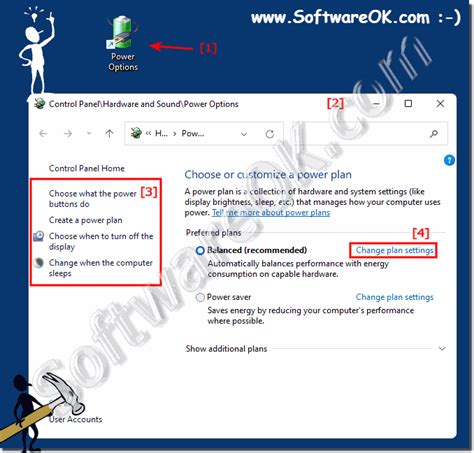
Ensure your system is running at its full potential by setting an appropriate power plan.
- Search for `Edit power plan` in the Start menu, then click `Power Options`.
- Select `High performance` or `Ultimate Performance` (if available, often found on specific hardware or after certain updates).
Mouse and Keyboard Settings
While often overlooked, subtle changes can make a difference.
- For mice, consider using a higher polling rate (e.g., 1000Hz) if supported, but be aware it can slightly increase CPU usage.
- Disable `Enhance pointer precision` in mouse settings, as it introduces mouse acceleration. Go to `Settings > Bluetooth & devices > Mouse > Additional mouse settings > Pointer Options`.
Fullscreen Optimizations
Some games might benefit from disabling fullscreen optimizations, especially older titles, as it can sometimes reduce input lag. This is often done on a per-game basis.
- Right-click on the game’s executable (`.exe`) file.
- Go to `Properties > Compatibility` tab.
- Check `Disable fullscreen optimizations`.
Driver Updates and System Maintenance
A well-maintained system with up-to-date drivers is crucial for peak gaming performance.
Graphics Drivers
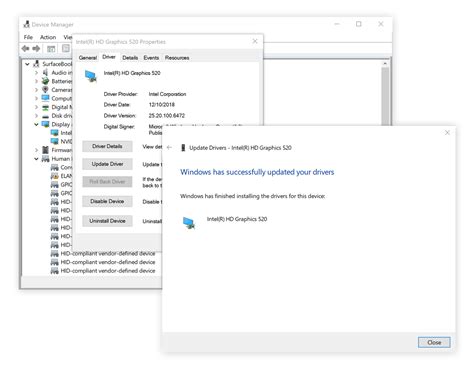
Always keep your GPU drivers updated to the latest stable version directly from NVIDIA, AMD, or Intel. A clean installation is often recommended.
- Download the latest drivers from your GPU manufacturer’s website.
- Perform a custom/clean installation to remove old driver files.
Background Apps & Startup Programs
Unnecessary processes consume CPU, RAM, and GPU resources. Prune them.
- Go to `Settings > Apps > Apps & features` and uninstall applications you don’t use.
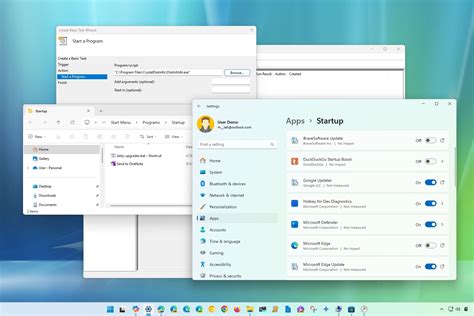
- Go to `Settings > Apps > Startup` and disable any non-essential programs from launching with Windows.
- For background apps, while Windows 11 has tighter controls, review `Settings > Privacy & security > Background apps` for legacy apps.
Advanced Tweaks (Use with Caution)
These are more specific and might not be for everyone. Always research before implementing.
- Debloating Windows 11: Tools exist to remove unwanted pre-installed apps and services, but use reputable sources and understand the risks.
- Disable unnecessary services: In `services.msc`, you can disable services like Print Spooler if you don’t print, though caution is advised to avoid system instability.
- Registry edits: Specific registry tweaks exist for network optimization or display settings, but these are for advanced users only.
Conclusion: Test and Refine
Optimizing Windows 11 for gaming is an ongoing process. After applying these settings, thoroughly test your favorite games. Use in-game FPS counters and monitor tools to see the impact of each change. What works best for one system or game might differ for another. Experiment, monitor, and refine your setup to achieve the ultimate gaming performance and responsiveness.


