





What are best practices for resolving game mod conflicts and crashes?
Understanding Mod Conflicts and Crashes
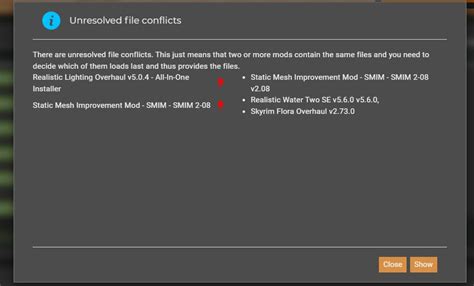
Modding a game can drastically enhance its replayability, visuals, and overall experience. However, the more mods you install, the higher the likelihood of encountering conflicts and crashes. These issues often arise when two or more mods try to modify the same game file, script, or resource in incompatible ways, or when a mod is poorly coded, outdated, or relies on missing dependencies. Resolving these can seem daunting, but with a systematic approach, you can bring your modded game back to stability.
Preventative Measures: Starting on the Right Foot
The best way to resolve conflicts is to prevent them. Adopting good practices from the outset can save hours of troubleshooting later:
- Read Mod Descriptions Carefully: Always check a mod’s requirements, compatibility notes, known issues, and installation instructions. Many conflicts are explicitly mentioned by mod authors.
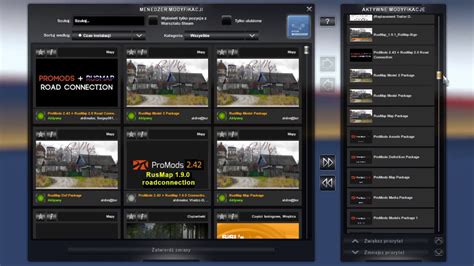
- Use a Reputable Mod Manager: Tools like Mod Organizer 2, Vortex, or Nexus Mod Manager streamline installation, tracking, and uninstallation, often managing load orders and detecting basic conflicts automatically.
- Install Mods Incrementally: Avoid installing dozens of mods at once. Install a few, test your game, then add more. This makes it easier to pinpoint the culprit if a crash occurs.
- Understand Load Order: The order in which your game loads mods is crucial. Generally, more specific or dependent mods should load after the general ones they modify or rely upon.
Diagnosing the Problem: Pinpointing the Culprit
Once a crash or conflict occurs, the next step is diagnosis:
- Check Crash Logs and Error Messages: Many games or modding tools generate logs (e.g., Papyrus logs for Skyrim, crash logs for Fallout 4) that can provide clues about which file or script caused the error. Look for specific mod names or file paths.
- The 50/50 Method (Binary Search): If no clear log message exists, disable half of your mods and test the game. If it runs, the conflict is in the disabled half. If it still crashes, it’s in the enabled half. Repeat until you isolate the problematic mod(s).
- Examine Your Load Order: Use your mod manager’s load order sorter or a dedicated tool (like LOOT for Bethesda games) to optimize your load order. Out-of-order mods are a common source of instability.
- Look for Overwrites: Mod managers can often show which mods are overwriting files from other mods. This is a direct indication of a potential conflict.
Resolution Techniques: Fixing the Issues
Once you’ve identified the problematic mods or types of conflicts, here’s how to resolve them:
- Adjust Load Order: Manually move conflicting mods in your load order. Common sense dictates that patches should load after the mods they patch, and mods that rely on others should load after their dependencies.
- Install Compatibility Patches: Many mod authors or community members create patches to make popular mods work together. Search for “[Mod A] [Mod B] compatibility patch.”
- Use Merged or Bashed Patches: For games like Skyrim or Fallout, tools like xEdit (TES5Edit/FO4Edit) or Wrye Bash can create a merged patch that resolves conflicts between multiple mods, allowing them to coexist.
- Clean Master Files and Save Games: Corrupted master files or “dirty edits” can cause issues. Tools like xEdit can clean official game master files. For save games, sometimes a “clean save” (starting a new game with all mods) or using save game cleaners can resolve deep-seated issues.
- Reinstall Problematic Mods: Sometimes a mod simply didn’t install correctly. Reinstalling it, or even the game itself as a last resort, can fix persistent problems.
- Manual Conflict Resolution (Advanced): For complex conflicts, advanced users can use tools like xEdit to manually merge conflicting records or create custom patches. This requires a deep understanding of the game’s data structure.
Leveraging the Modding Community
You don’t have to troubleshoot alone. The modding community is a vast resource:
- Mod Forums and Pages: The comments section or forums on a mod’s download page (e.g., Nexus Mods) often contain solutions to common conflicts.
- Community Discord Servers: Many games and large modding communities have active Discord servers where experienced modders can offer real-time assistance.
- Wikis and Guides: Comprehensive modding guides for popular games often include extensive troubleshooting sections.

Conclusion
Resolving mod conflicts and crashes is an integral part of the modding experience. While it can be frustrating, approaching the problem systematically, utilizing preventative measures, diagnostic tools, and community resources will significantly improve your success rate. Patience and persistence are key – the reward is a uniquely tailored and enhanced gaming experience.

