What are essential NVIDIA/AMD settings for max gaming FPS?
Achieving the highest possible frames per second (FPS) is a goal for many PC gamers, leading to a smoother, more responsive, and ultimately more enjoyable experience. While hardware plays a crucial role, optimizing your graphics card settings can unlock significant performance gains without spending a dime. Both NVIDIA and AMD offer robust control panels with a plethora of options, some of which are essential for maximizing gaming FPS.
NVIDIA Control Panel Settings for Maximum FPS
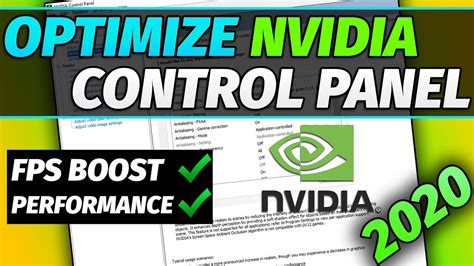
NVIDIA’s Control Panel is a powerful tool for fine-tuning your graphics card. Access it by right-clicking on your desktop and selecting “NVIDIA Control Panel.” Navigate to “Manage 3D settings” and consider the following adjustments for global or game-specific profiles:
- Power Management Mode: Set this to “Prefer maximum performance.” This ensures your GPU always operates at its highest clock speeds, preventing throttling during intense gaming sessions.
- Texture Filtering – Quality: Change this from “Quality” to “High performance” or “Performance.” This prioritizes speed over visual fidelity for texture filtering, yielding more FPS.
- Low Latency Mode: Experiment with “On” or “Ultra.” This setting helps reduce input lag by limiting the number of frames the CPU queues up for the GPU. “Ultra” is more aggressive but might introduce stuttering on some systems.
- Shader Cache Size: Set to “Driver Default” or “Unlimited.” A larger shader cache can prevent stutters as the GPU doesn’t have to recompile shaders as often.
- Vertical Sync (V-Sync): Generally, turn this “Off” for maximum FPS, especially if you have a high refresh rate monitor or a monitor with G-Sync/FreeSync. V-Sync syncs your FPS to your monitor’s refresh rate, preventing screen tearing but introducing input lag and capping FPS. If tearing is severe, consider “Fast Sync” (if available) or “Adaptive” if you don’t have adaptive sync.
- Image Sharpening: Set to “Off.” While it can make games look crisper, it consumes GPU resources that could be used for FPS.
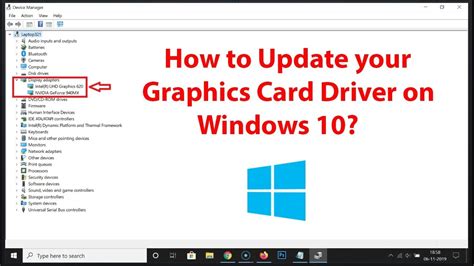
Always ensure your NVIDIA graphics drivers are up-to-date. Newer drivers often include performance optimizations and bug fixes for the latest games. Use GeForce Experience for easy driver updates.
AMD Adrenalin Software Settings for Maximum FPS
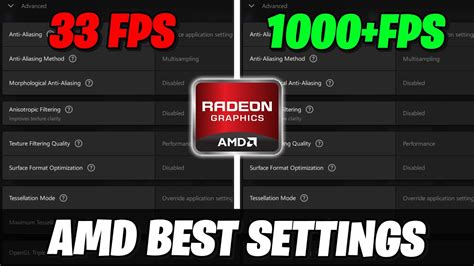
AMD users can leverage the Adrenalin Software to optimize their gaming experience. Right-click on your desktop and select “AMD Radeon Software” to open it. Go to the “Gaming” tab, then “Global Graphics” to adjust these settings:
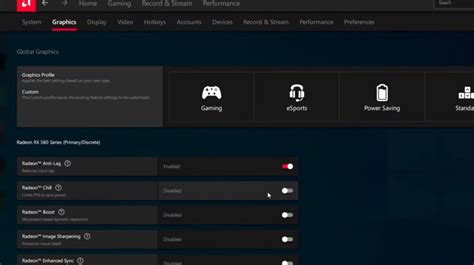
- Radeon Anti-Lag: Enable this. It reduces input lag by dynamically adjusting CPU work to ensure it doesn’t get too far ahead of the GPU.
- Radeon Boost: Turn this “Enabled.” Radeon Boost dynamically lowers resolution in fast-motion scenes, providing a noticeable FPS boost without significant visual degradation during gameplay.
- Radeon Image Sharpening (RIS): Set this to “Off” or adjust to a very low percentage. While it sharpens images, it uses GPU resources. Only use if you feel the visual benefit outweighs the FPS cost.
- Graphics Profile: For maximum performance, choose the “Esports” or “Standard” profile and then customize further. Avoid “Gaming” or “Radeon Chill” if your primary goal is raw FPS, as they might prioritize efficiency or frame rate limits.
- Enhanced Sync: Generally, keep this “Disabled” if you’re aiming for uncapped FPS. Like V-Sync, it can introduce input lag, though it aims to reduce tearing without capping FPS. For adaptive sync monitor users, FreeSync is the preferred method.
- Radeon Chill: Disable this. Radeon Chill intelligently regulates FPS based on in-game movement, which saves power and reduces heat, but is counterproductive when aiming for maximum constant FPS.
Regularly updating your AMD Radeon drivers is crucial. AMD often releases performance-enhancing updates, especially for new game titles. The Adrenalin Software provides a straightforward way to check for and install updates.
General Best Practices for Both NVIDIA and AMD Users
Beyond your graphics card’s control panel, several other factors can influence your in-game FPS:
- Game-Specific Settings: Always prioritize lowering graphics settings within the game itself (e.g., shadows, anti-aliasing, post-processing effects, draw distance, texture quality) before making drastic changes in your driver control panel. These often have the largest impact on FPS.
- Monitor Refresh Rate: Ensure your monitor’s refresh rate is set correctly in Windows Display Settings. A 144Hz monitor will only show 144 FPS if Windows is configured for it.
- Close Background Applications: Any application running in the background (web browsers, streaming software, Discord, etc.) consumes CPU, RAM, and sometimes GPU resources. Close unnecessary programs before gaming.
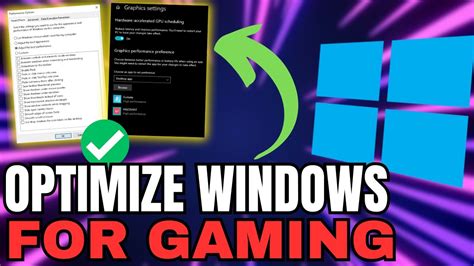
- Windows Game Mode: Ensure Windows Game Mode is enabled (Settings > Gaming > Game Mode). It helps prioritize system resources for gaming.
- Disable Overlays: In-game overlays from platforms like Steam, Origin, Ubisoft Connect, or even GeForce Experience/AMD Adrenalin can sometimes consume resources. Try disabling them if you suspect performance issues.
- Power Plan: Set your Windows Power Plan to “High Performance” (or “Ultimate Performance” if available) to ensure your CPU and other components aren’t being throttled.
By combining these driver-level optimizations with smart in-game settings and general system hygiene, you can significantly boost your gaming performance, leading to a much smoother and more competitive experience.
Remember that the “best” settings can sometimes vary slightly based on your specific hardware configuration and the games you play. Don’t be afraid to experiment and find the sweet spot between performance and visual quality that works best for you.